App Center
Find modules, mark favourites and jump back into recent work from the App Center.
Overview
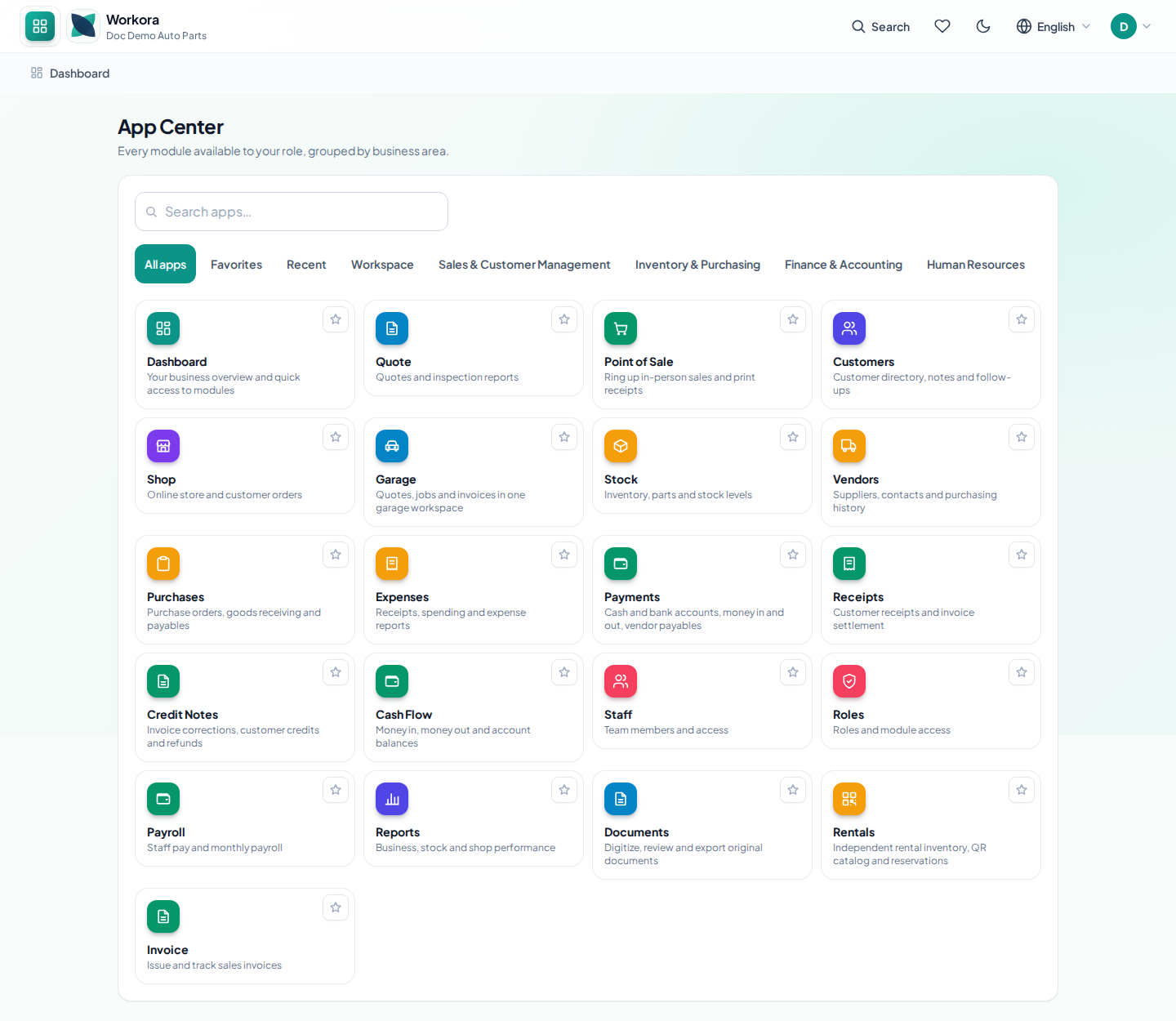
The App Center is the map of your workspace. It intersects the global application catalogue with the modules granted to your account. Favourites and recent usage are stored per user, so two people in the same business can have different launchers.
Who this is for
Everyone who needs to move quickly between modules.
Before you begin
Workora checks access on every request, so a screen only appears when your account is allowed to use it.
- Be signed in
The App Center is a tenant workspace screen.
- Have at least one module
Modules come from your business entitlements and your assigned business role.
Step-by-step guide
Use the App Center as your home base during the first weeks.
- Open the App Center
Select Apps from the workspace navigation.
- Review the available apps
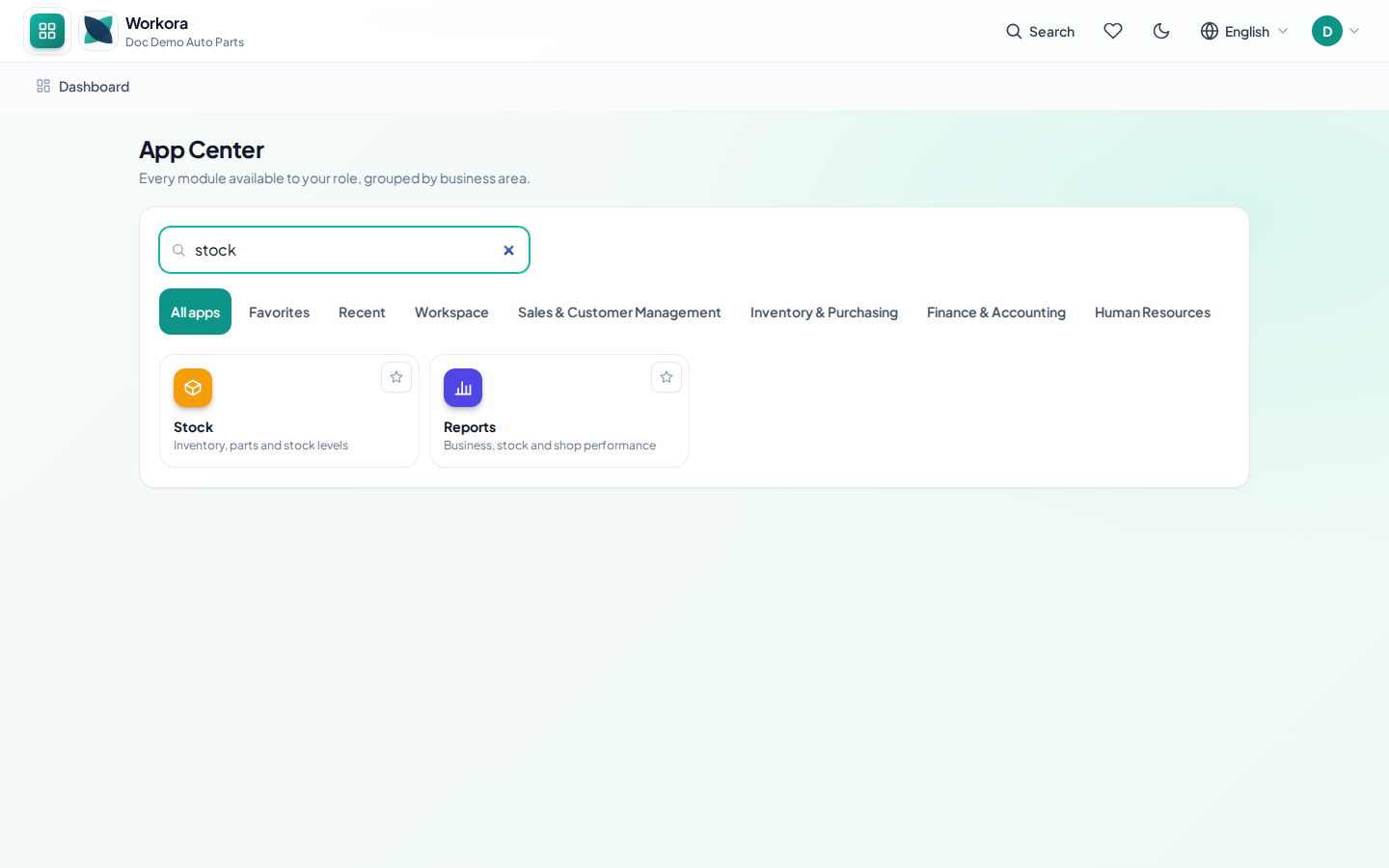
Only modules enabled for your business and role are shown. Stock-dependent tools appear when Stock is enabled.
- Mark a favourite
Use the star control on a module card. Favourites appear at the top of the launcher.
- Open a module
Select a card to land on the module’s default list view.
- Use recent items
The recent section returns you to the modules you used last.
- Change your landing module
Set a default module in Settings if you want Workora to open there after sign-in.
Screens and figures
A launcher reduces the number of clicks between daily modules.
Business use case
A cashier moves between POS and Stock
The cashier marks Point of Sale and Stock as favourites. At the counter they open POS, and when a product runs out they jump to Stock to check the quantity without leaving the workspace.
Result
Frequently used tools stay one click away while other modules remain hidden from the cashier role.
Tips and common mistakes
- If a module is missing, check both the module grant and your role.
- If nobody in your business can see a module, it may be switched off for everyone.
- Favourites are personal; changing them does not affect teammates.