Telegram notifications
Connect a Telegram bot to a rental workspace so your team hears about new catalog requests immediately.
Overview
When a customer sends a request from a rental workspace’s public catalog, Workora can send one Telegram message to your team. An Owner or Admin saves a bot token and a recipient chat in Rentals → Telegram Notification. The message includes the customer name, phone and requested items. This is a rental-only feature. It does not send messages for quotes, invoices or payments. Customers do not need Telegram, and no account linking is required.
Who this is for
Owners and admins who manage rental workspaces and want a fast response to requests arriving from a public catalog.
Before you begin
Workora checks access on every request, so a screen only appears when your account is allowed to use it.
- Enable Scan To Rent
The business module and your role must include Rentals.
- Be an Owner or Admin
Other roles can open the tab but cannot change the settings.
- Prepare a Telegram bot and recipient
You need a bot token and a numeric chat ID or @username. Create the bot in Telegram before starting; Workora does not create it.
- Choose a workspace
Telegram settings are managed per rental workspace.
Step-by-step guide
The whole setup happens on the Rentals page. There is no account pairing, bot command or webhook to configure.
- Open the Telegram tab
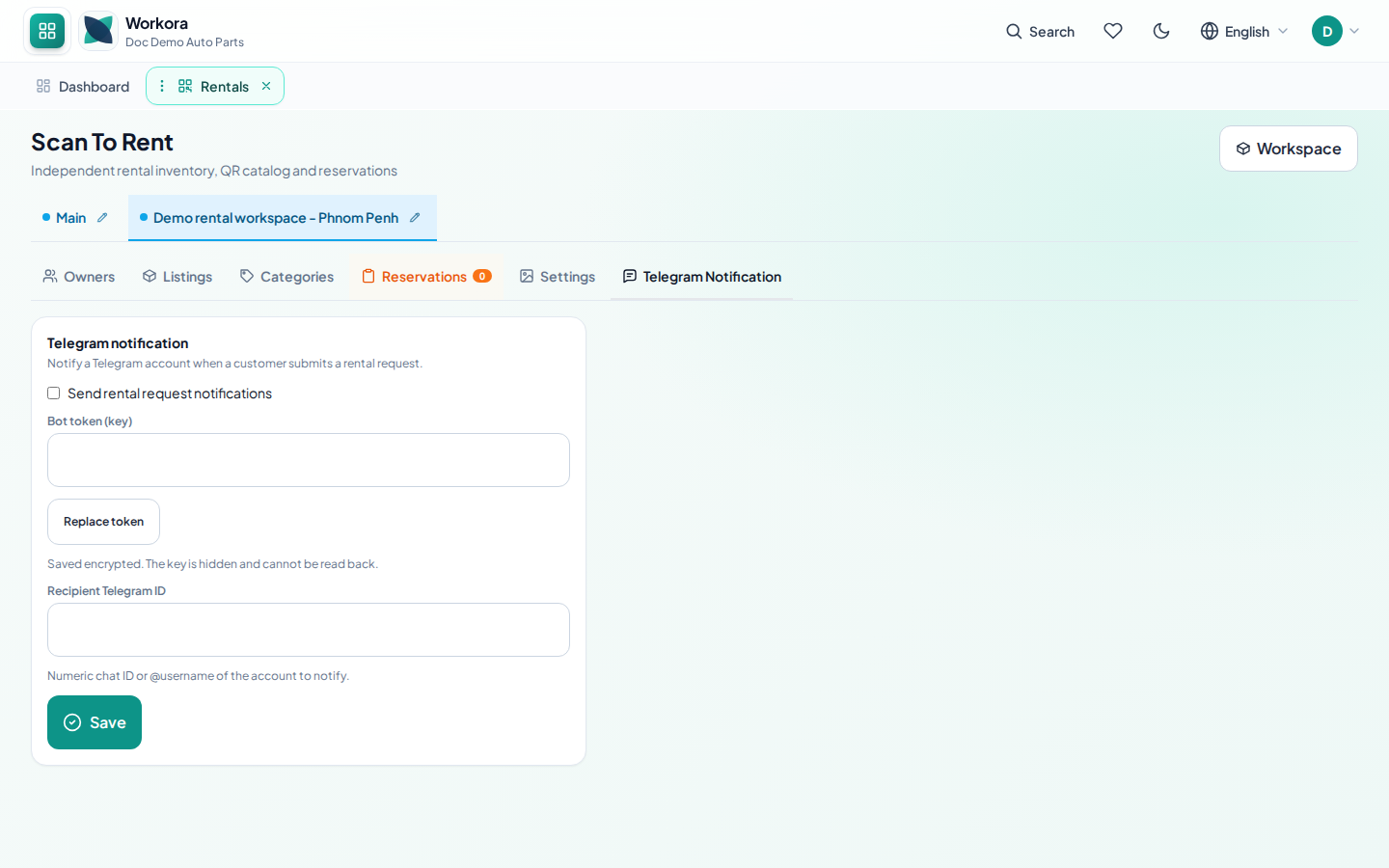
Go to Rentals, select the workspace and open Telegram Notification. Staff without Owner or Admin rights see a read-only form.
- Create a bot in Telegram
Outside Workora, create a bot and copy its token. Workora needs the token to send messages; it never creates or hosts a bot for you.
- Enter the bot token
Paste the token into Bot token (key). It is saved encrypted and hidden afterwards: Workora shows only A bot token is saved. Use Replace token if you need to change it.
- Enter the recipient
Fill in Recipient Telegram ID with a numeric chat ID or an @username. The recipient is a chat, so everyone in a group receives the message.
- Enable and save
Tick Send rental request notifications and choose Save. Workora refuses to enable the feature without both a token and a recipient.
- Wait for a real request
There is no test button. Submit a request from the public catalog to confirm that the message arrives in the chat.
- Read the message
The message contains the workspace name, request reference, customer name and phone, optional house/street, and each item with quantity, duration and calculated amount.
- Turn it off when needed
Untick the checkbox and save. The token and recipient stay saved, so you can switch notifications back on later.
Screens and figures
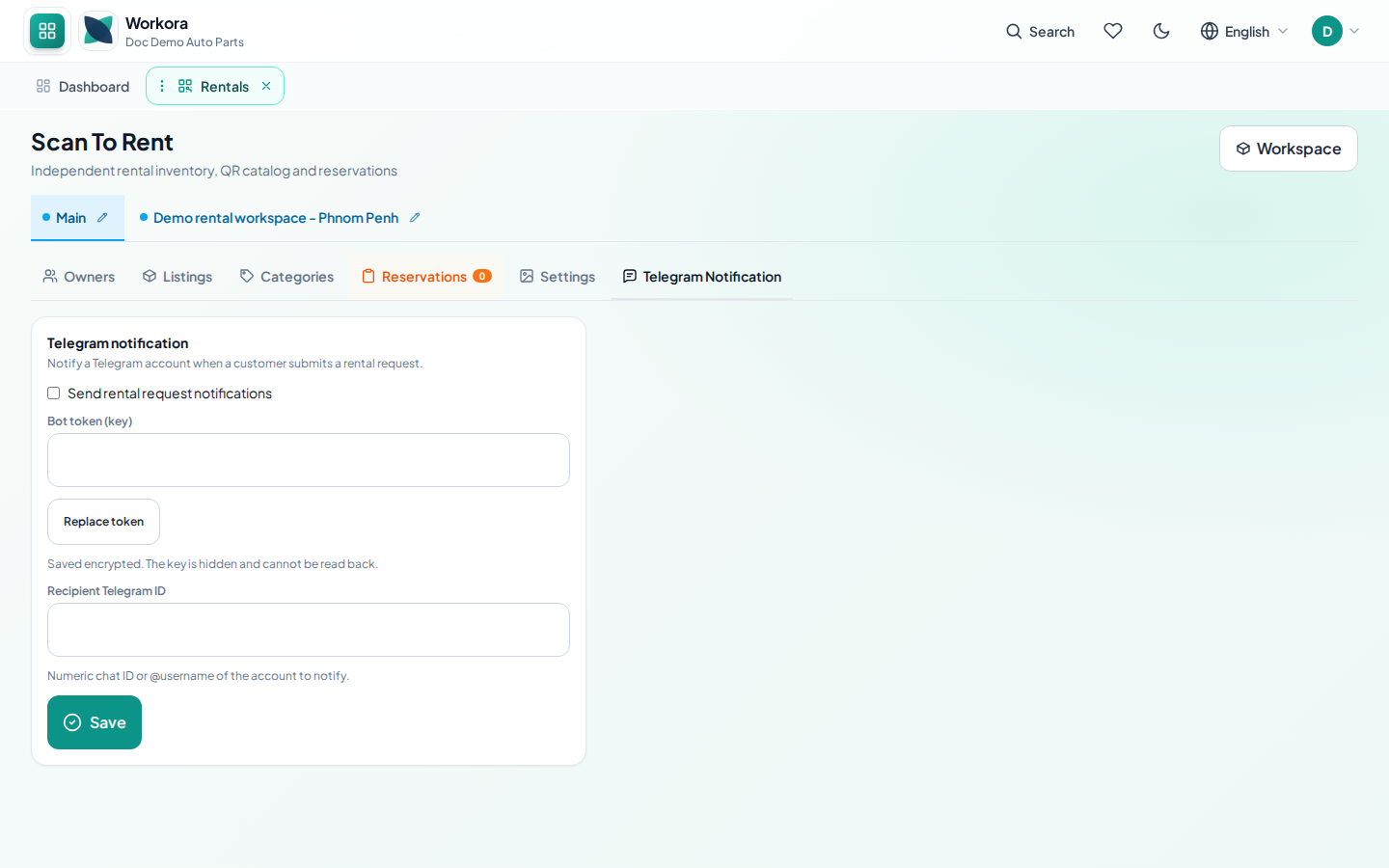
The Telegram Notification tab is the only place where rental notification delivery is configured.
Business use case
A rental operator replies before the customer leaves
A customer scans a rental QR code and sends a request from the catalog. Within seconds the operator’s Telegram group receives the workspace, reference, phone number and requested items. The operator calls the customer and confirms the reservation from the Rentals → Reservations tab.
Result
No one has to watch the Workora dashboard constantly, and the saved enquiry remains the single source of truth even if Telegram is unavailable.
Tips and common mistakes
- Delivery is best effort: Workora makes one attempt with a five-second timeout. There are no retries or delivery receipts, and a Telegram outage never cancels or deletes the saved request.
- A slow Telegram call can delay the customer’s confirmation by up to five seconds; the request itself is saved first.
- Only the public catalog request event sends a message. Confirming or rejecting a reservation, walk-in requests, invoices and payments do not.
- The bot token is encrypted at rest and is never shown again. If the platform JWT secret is rotated, ask the owner to replace the token.
- If you run several rental workspaces, keep the same Telegram recipient on each one so it is always clear which chat receives requests.
- Nobody is subscribed individually: access depends on membership of the recipient chat, so remove former staff from that chat when they leave.