Vendors
Keep supplier contacts and purchasing history together so purchase orders can be created quickly.
Overview
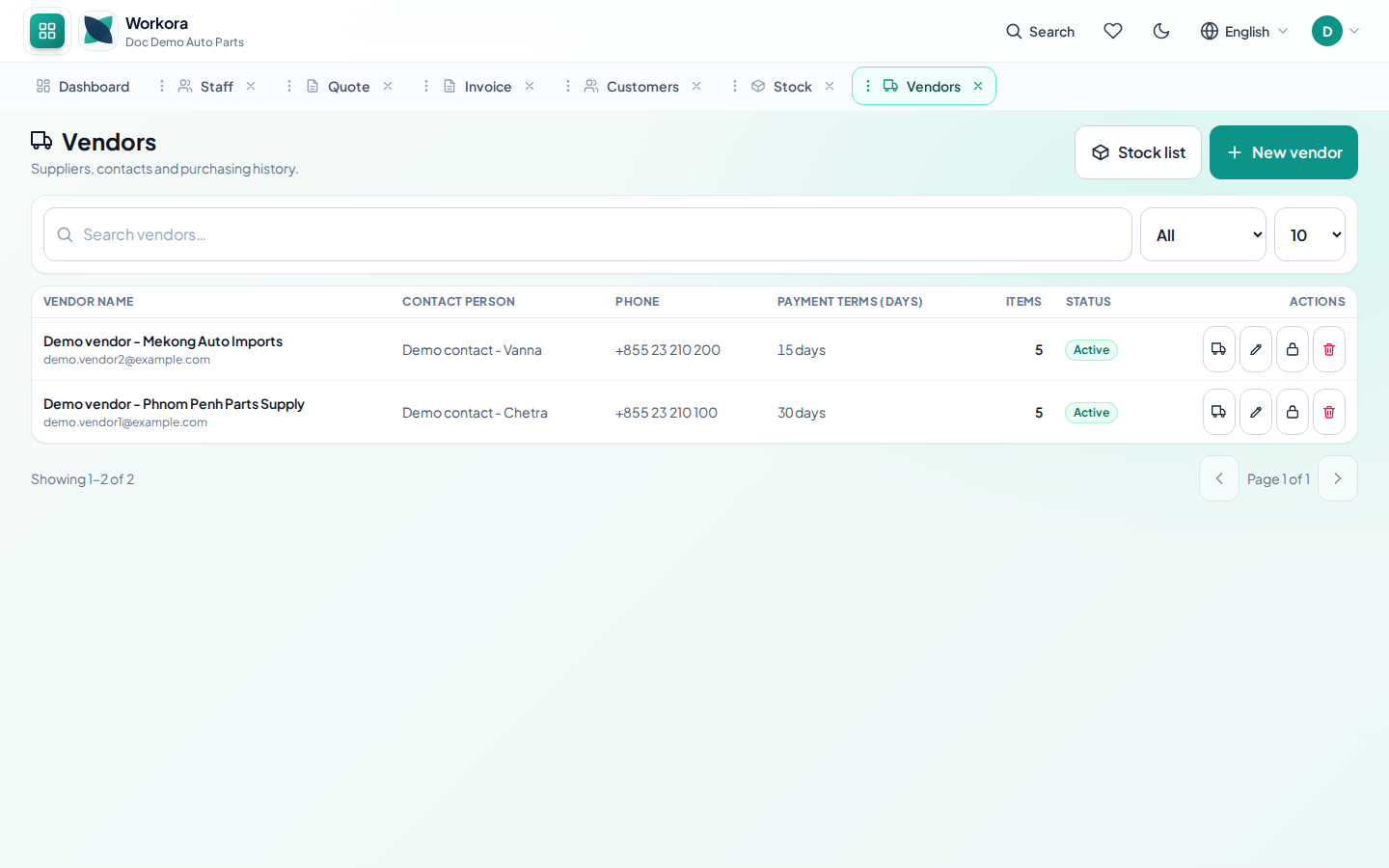
Vendors are the businesses you buy from. A vendor record holds contact details and a profile showing related purchase orders and stock items. Vendors created here are available in the Purchases options list and are also shared with the Stock vendor list.
Who this is for
Purchasers, storekeepers and owners who manage supplier relationships.
Before you begin
Workora checks access on every request, so a screen only appears when your account is allowed to use it.
- Enable Vendors and Stock
Vendors require the Vendors module and the Stock business entitlement.
- Collect supplier details
Name, phone and email are enough to start.
- Check for duplicates
Search the directory before adding a new supplier.
Step-by-step guide
Vendors are usually the first step in a purchasing workflow.
- Open Vendors
Go to Vendors from the workspace navigation.
- Create a vendor
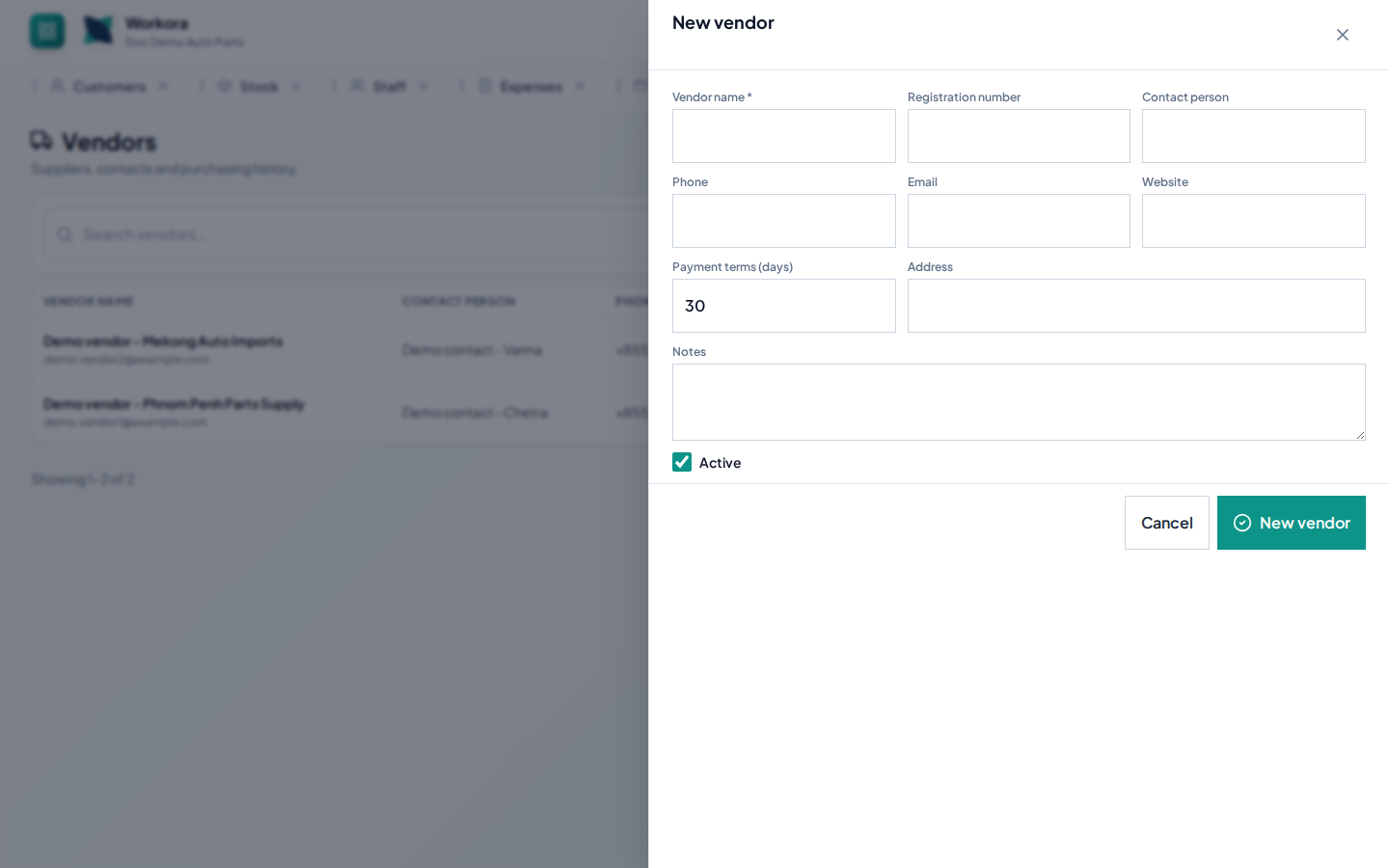
Choose New vendor and fill in the name and contact details.
- Open the vendor profile
Select a vendor to see its details and related activity.
- Link purchasing
When creating a purchase order, select this vendor from the options list.
- Review history
Use the vendor profile to review previous orders and the stock items supplied.
- Update details
Edit the record when phone numbers, addresses or payment terms change.
Screens and figures
The vendor profile is the supplier’s single record across purchasing.
Business use case
Choosing the right supplier for a restock
A storekeeper sees that an engine oil item is below its reorder level. The item record shows two vendors. The storekeeper opens each vendor profile, compares recent purchase history and creates the order with the supplier who delivers fastest.
Result
Restock decisions use real purchasing history instead of memory.
Tips and common mistakes
- Vendor access is separate from Purchase access; a user may see vendors but not be able to create orders.
- Deleting a vendor does not rewrite historic purchase orders.
- Keep vendor names short and recognizable so the purchase-order dropdown is easy to scan.