Authentication & security
Understand how Workora authenticates users, protects sessions and handles password recovery.
Overview
Sign in with your email and password. A secure cookie keeps you signed in while you work, and Workora checks your access on every screen. If a role changes or an account is disabled, it takes effect straight away. Google sign-in is available when it has been enabled for your workspace.
Who this is for
All users, plus owners and administrators who manage access for a team.
Before you begin
Workora checks access on every request, so a screen only appears when your account is allowed to use it.
- Use an active account
Your account must be active and your business must not be suspended.
- Verify your email
Confirm your email before your first sign-in.
- Know your sign-in option
If your workspace uses Google sign-in, use the same Google account each time.
Step-by-step guide
These steps cover the most common security tasks.
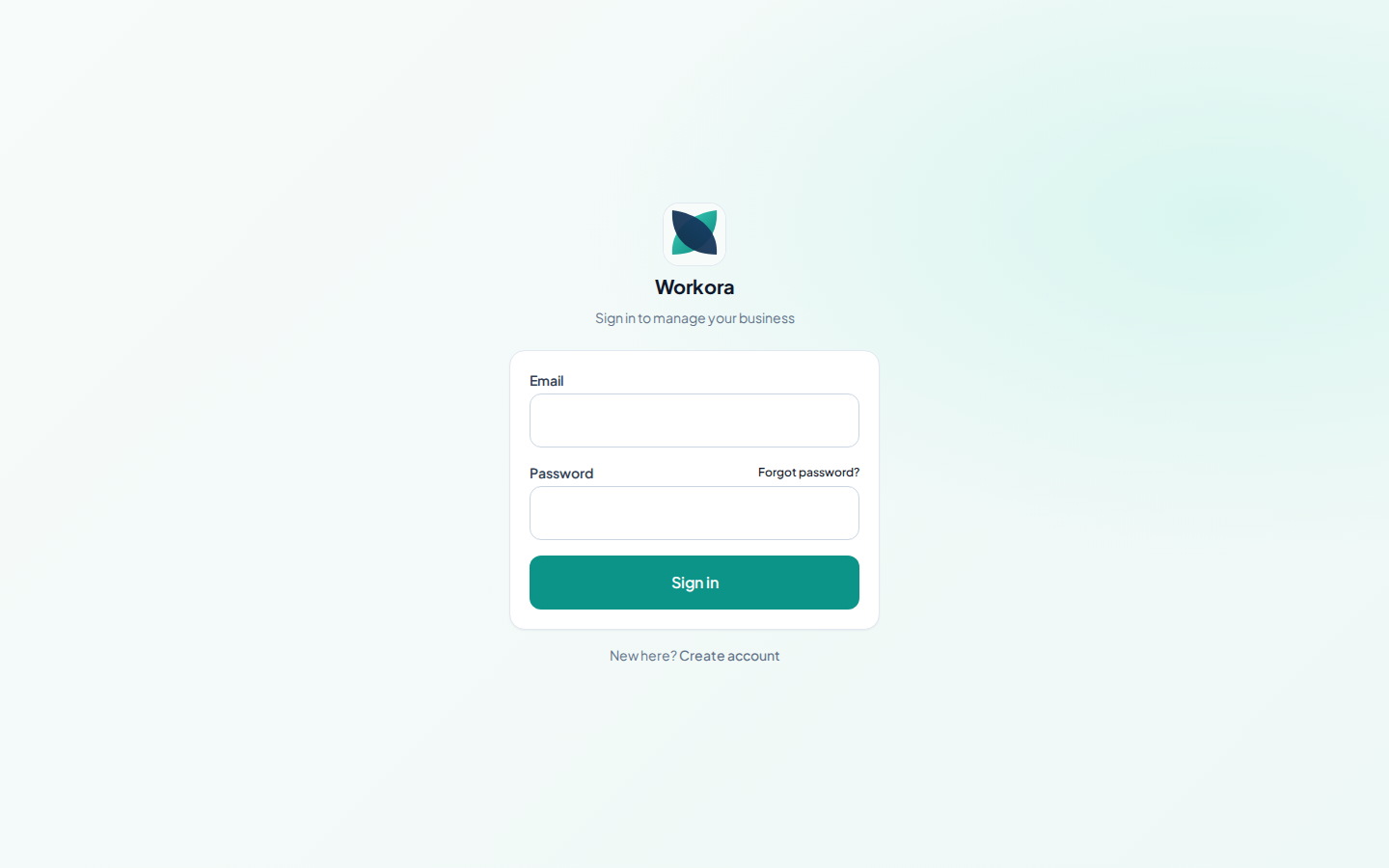
- Sign in
Open
/login, enter your email and password and choose Sign in. - Reset a forgotten password
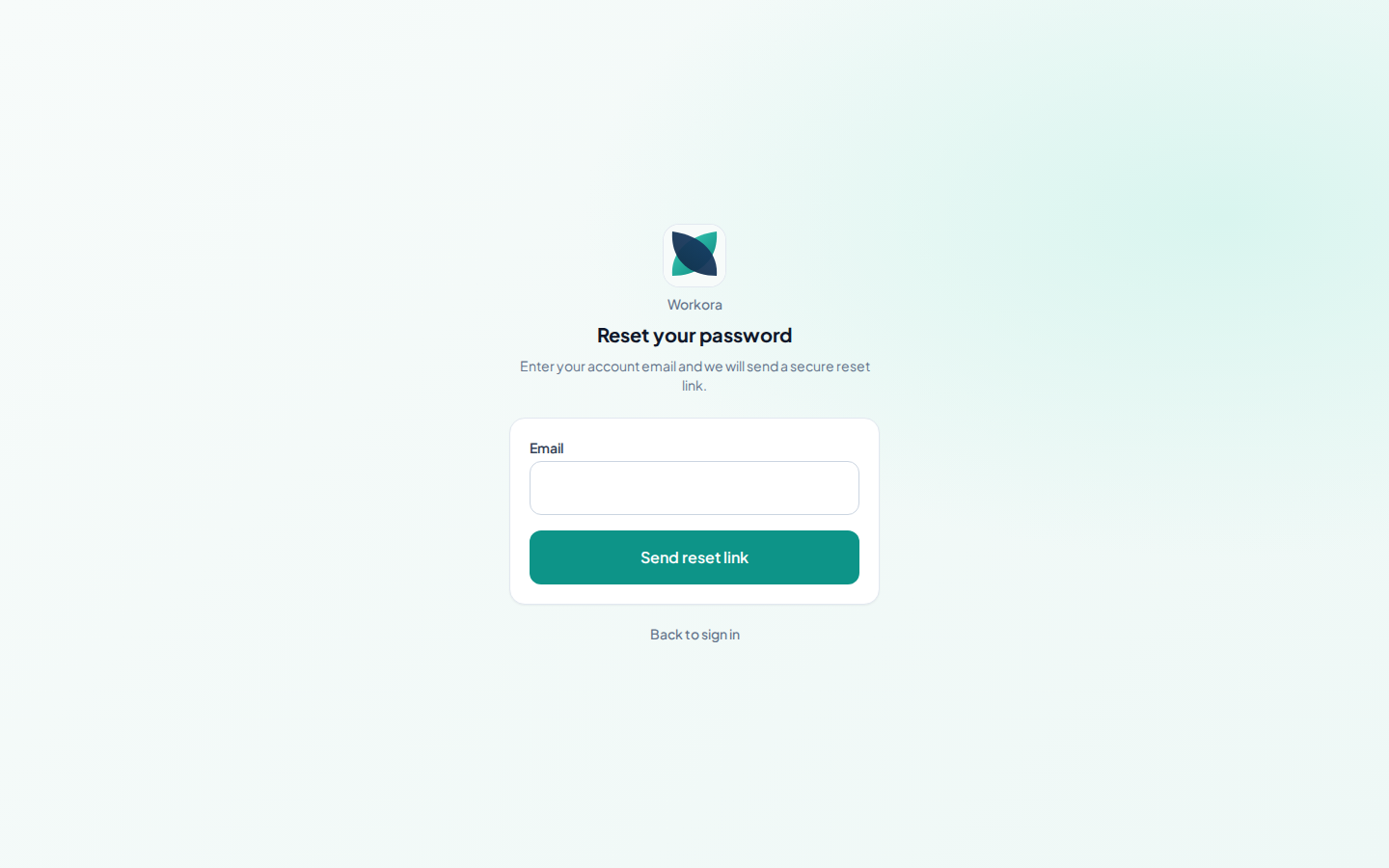
Choose Forgot password, submit your email, then open the reset link and enter a new strong password.
- Verify an email address
Open the verification link from your inbox. You can request a new link from the verification page.
- Use Google sign-in (if enabled)
Choose Continue with Google and sign in with your work Google account. Workora then opens your workspace.
- Sign out
Use the account menu to log out. The session cookie is cleared and the token can no longer be used.
- Change your own password
Open Settings → Security and enter your current password followed by the new one. Recent passwords cannot be reused.
Screens and figures
The sign-in screen is intentionally simple: identity, secret and recovery.
Business use case
A staff member joins an existing business
An owner creates a staff account. The staff user verifies the address, signs in and sees only the modules attached to the Staff role. Later the owner adds Receipts to that role; the new module appears on the next navigation refresh.
Result
Access changes are centralized and do not require sharing passwords.
Tips and common mistakes
- Sessions have a sliding renewal during active use and an absolute lifetime cap; you will be asked to sign in again when the cap is reached.
- Password changes, account disablement and role changes take effect immediately because authorization is re-read on each request.
- Never embed a password in documentation, screenshots or support tickets.