Profile & settings
Keep your account details current and choose how your workspace behaves after sign-in.
Overview
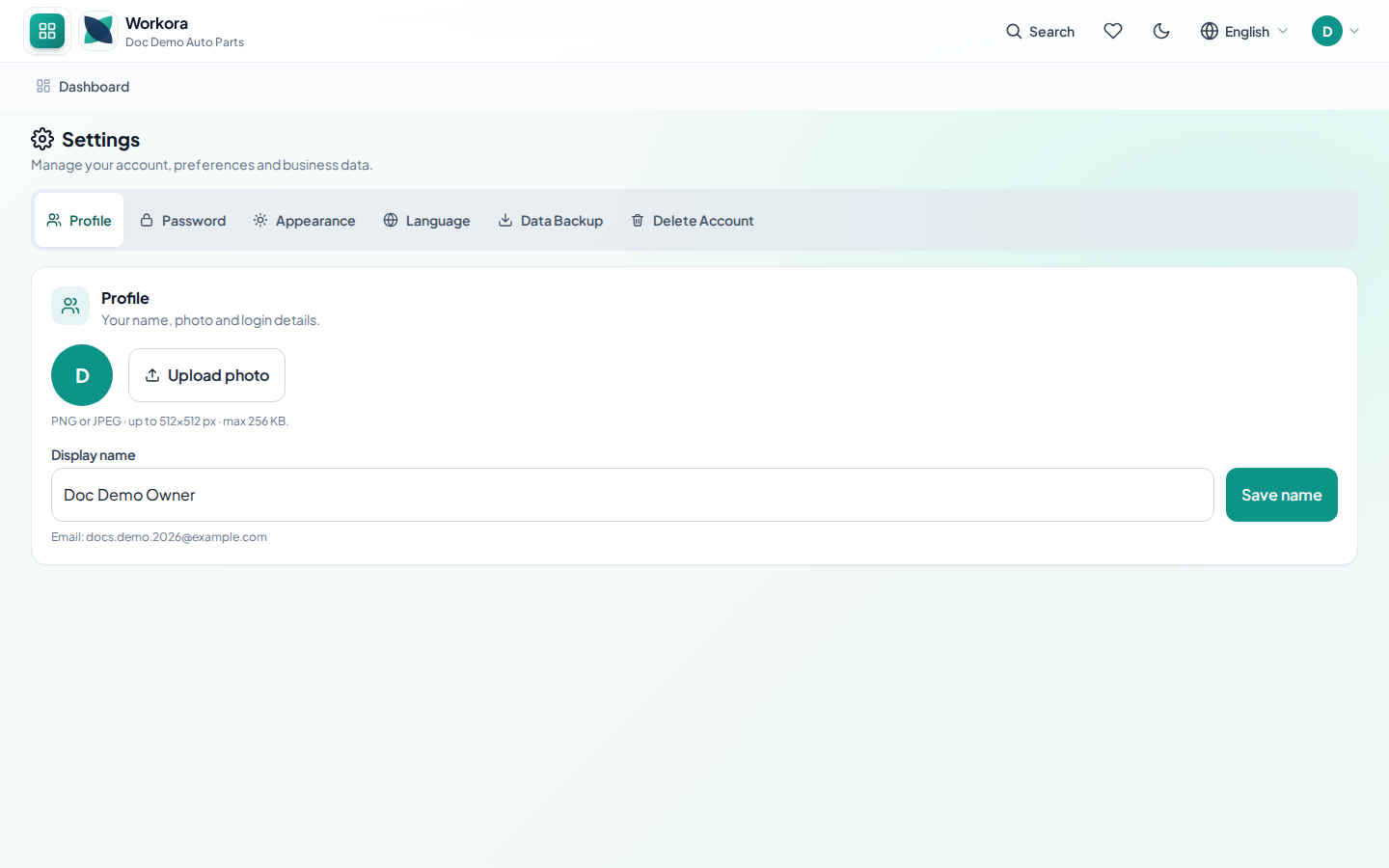
Self-service settings cover your name, email, password and avatar, plus the business type and description captured during onboarding. The owner can also delete the account and business from this screen, with an explicit confirmation step.
Who this is for
Every user for personal details; owners for business deletion and profile completion.
Before you begin
Workora checks access on every request, so a screen only appears when your account is allowed to use it.
- Be signed in
Settings are tenant-scoped.
- Owner role for deletion
Only an owner can delete the business and all of its data.
Step-by-step guide
Update only what has changed; most settings save immediately.
- Open Settings
Choose Settings from the account or workspace menu.
- Edit your profile
Update your name and contact details, then save.
- Change your password
Enter the current password and the new password. Recent passwords cannot be reused.
- Upload an avatar
Choose an image and upload it. The avatar appears beside your account in the workspace.
- Update the business profile
Owners can revise the business type and description used in reports and onboarding.
- Choose a default module
Select the module Workora should open after sign-in.
- Delete an account (owner only)
Use the destructive action at the bottom of Settings and type the requested confirmation phrase. This removes the business and all tenant data.
Screens and figures
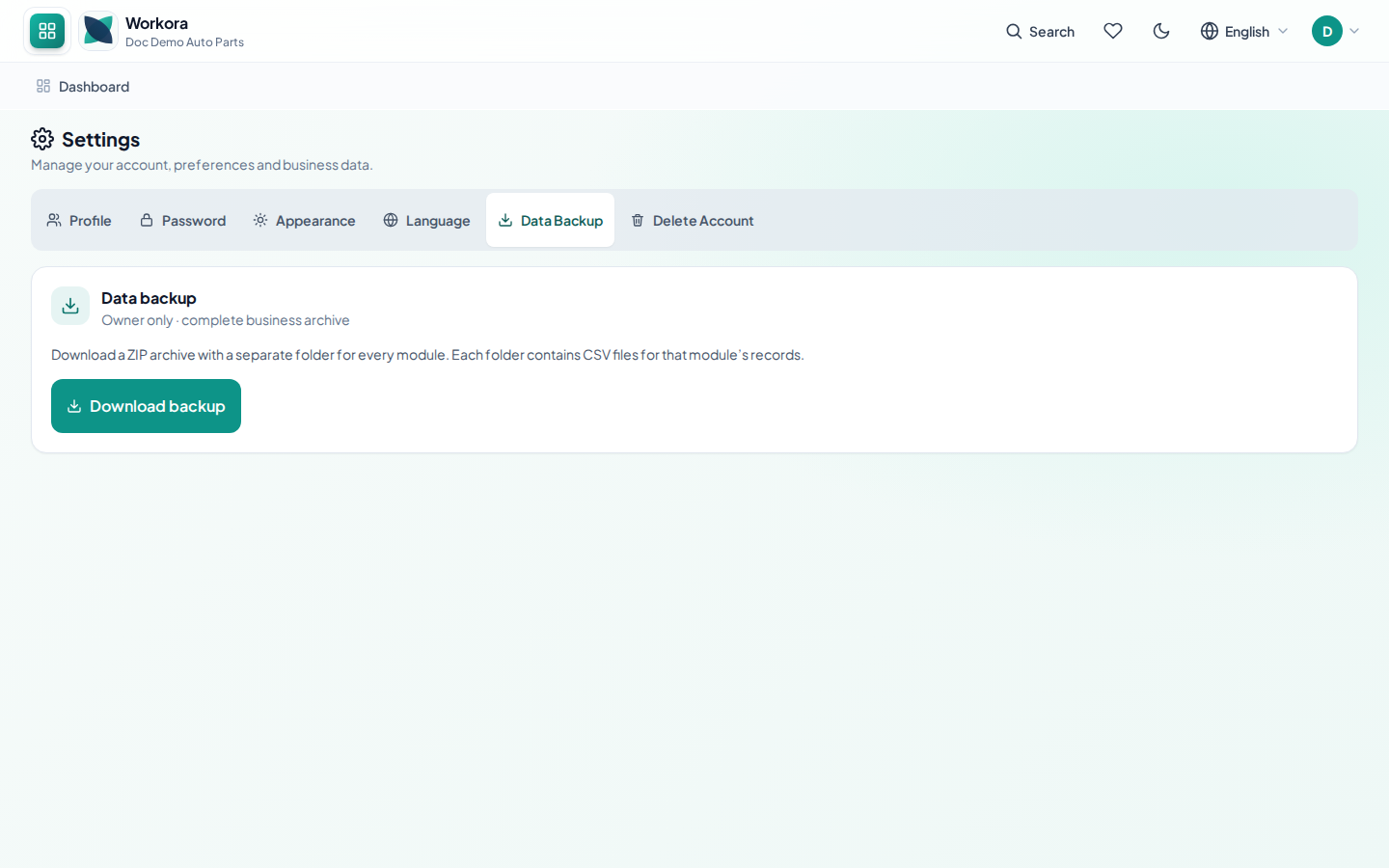
Settings groups personal and business actions to avoid accidental changes.
Business use case
Handing a workspace to a new manager
The outgoing owner updates the business description, transfers daily work to a new Admin role, and verifies that her personal avatar and password are current. Before leaving, an owner with the correct authority performs the documented account deletion process.
Result
The business record remains accurate during the handover and personal access is removed cleanly.
Tips and common mistakes
- Deleting an owner account deletes the business and its uploads. Export a backup first.
- Changing your password may not sign out other devices straight away.
- Your avatar is personal; the logo is shared by everyone in your business.