Stock
Track what you hold, where it came from and how it moves through purchases, sales and repairs.
Overview
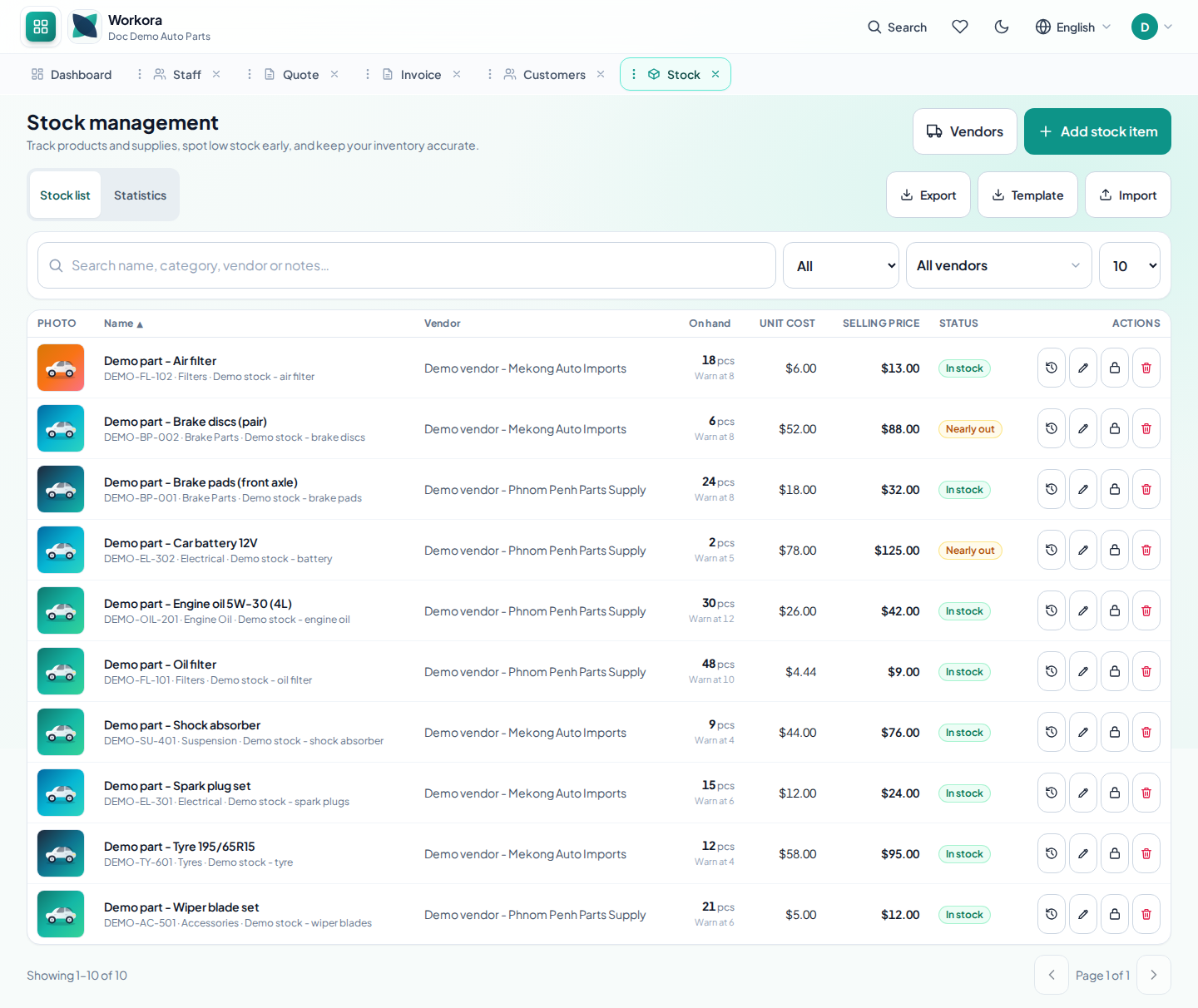
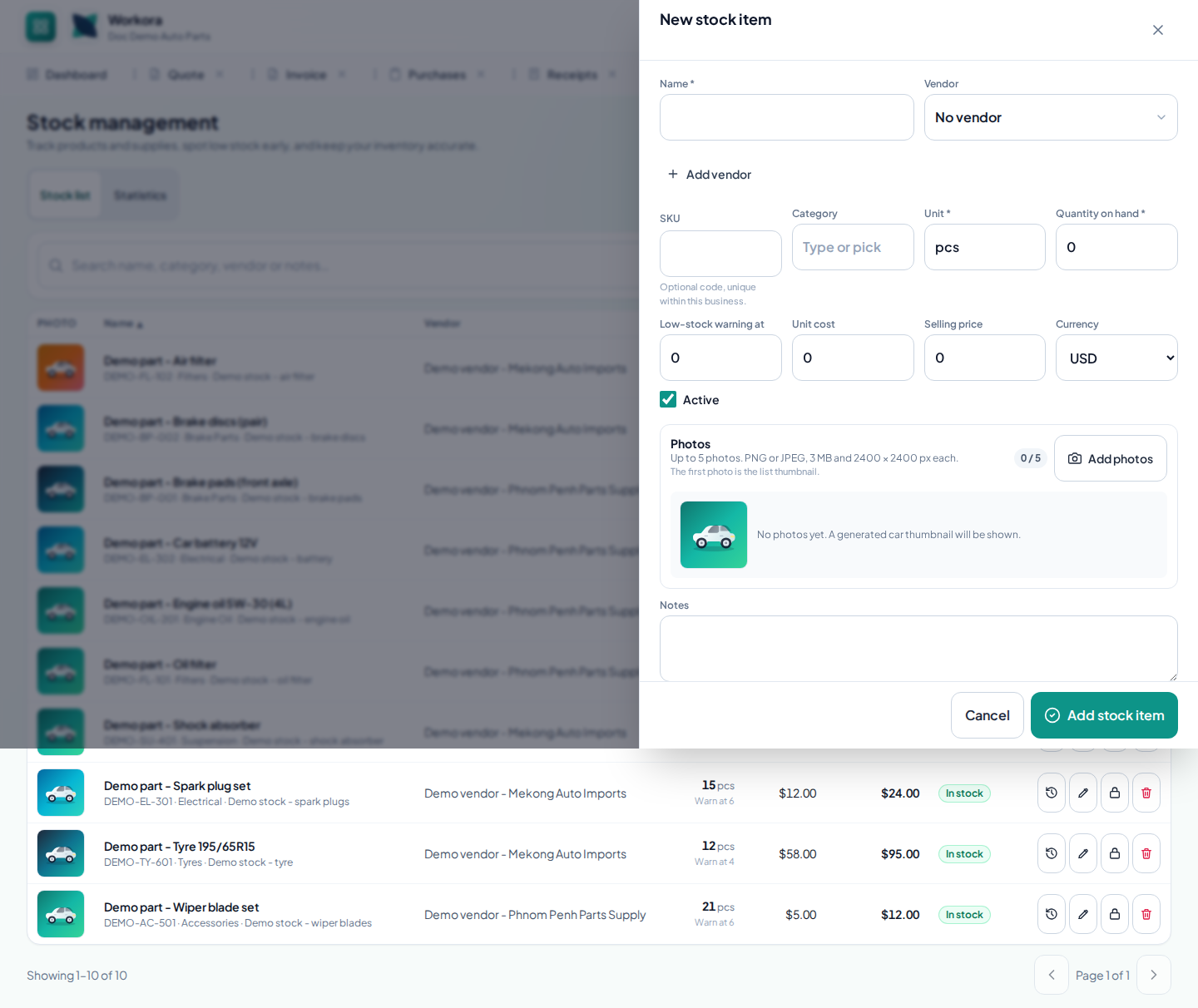
Stock is the inventory foundation for the whole workspace. Each item has a name, SKU, category, quantity, cost and selling price, plus photos and a movement history. Purchases add stock on receiving; POS, shop orders and garage jobs consume or reserve it. Because Shop, POS and Garage depend on inventory, those modules are only effective when Stock is enabled.
Who this is for
Shopkeepers, storekeepers, service managers and anyone responsible for stock accuracy.
Before you begin
Workora checks access on every request, so a screen only appears when your account is allowed to use it.
- Enable Stock
Stock must be enabled for the business and the user role.
- Prepare a product list
A short spreadsheet of names, SKUs and prices makes import faster.
- Agree on units
Use consistent units of measure so movement quantities are meaningful.
Step-by-step guide
Set up items before enabling sales modules.
- Open Stock
Go to Stock to see the item list and summary statistics.
- Create an item
Choose New item and enter the name, SKU, category, quantity, cost and selling price.
- Add a photo
Open the item and upload a photo. Shop listings can reuse stock photos.
- Set a reorder level
Set the minimum quantity that should trigger a restock decision.
- Import in bulk
Download the CSV template, fill in your items and use Import to create many records at once.
- Review movements
Open an item’s movement history to see purchases, sales and adjustments in order.
- Export for review
Use Export to download the current inventory as CSV.
- Check stock reports
Open Stock reports to see valuation and low-stock items.
Screens and figures
The stock list surfaces quantity, price and low-stock signals in one table.
Business use case
One part list powers counter sales and online orders
A workshop imports 200 parts into Stock with cost and selling price. The same items are used in POS checkout, published as Online Shop listings and consumed by garage jobs. When a purchase is received, the updated quantity appears everywhere.
Result
There is one price and one quantity per part instead of separate lists for the counter, website and workshop.
Tips and common mistakes
- Receiving a purchase order is the step that writes stock; approving the order alone does not.
- POS, Shop and Garage are forced off when Stock is disabled.
- Photos uploaded to a stock item can be copied into a shop listing instead of uploaded twice.