Public portals
Share capability links that let customers view documents, shop online, approve work and track orders without an account.
Overview
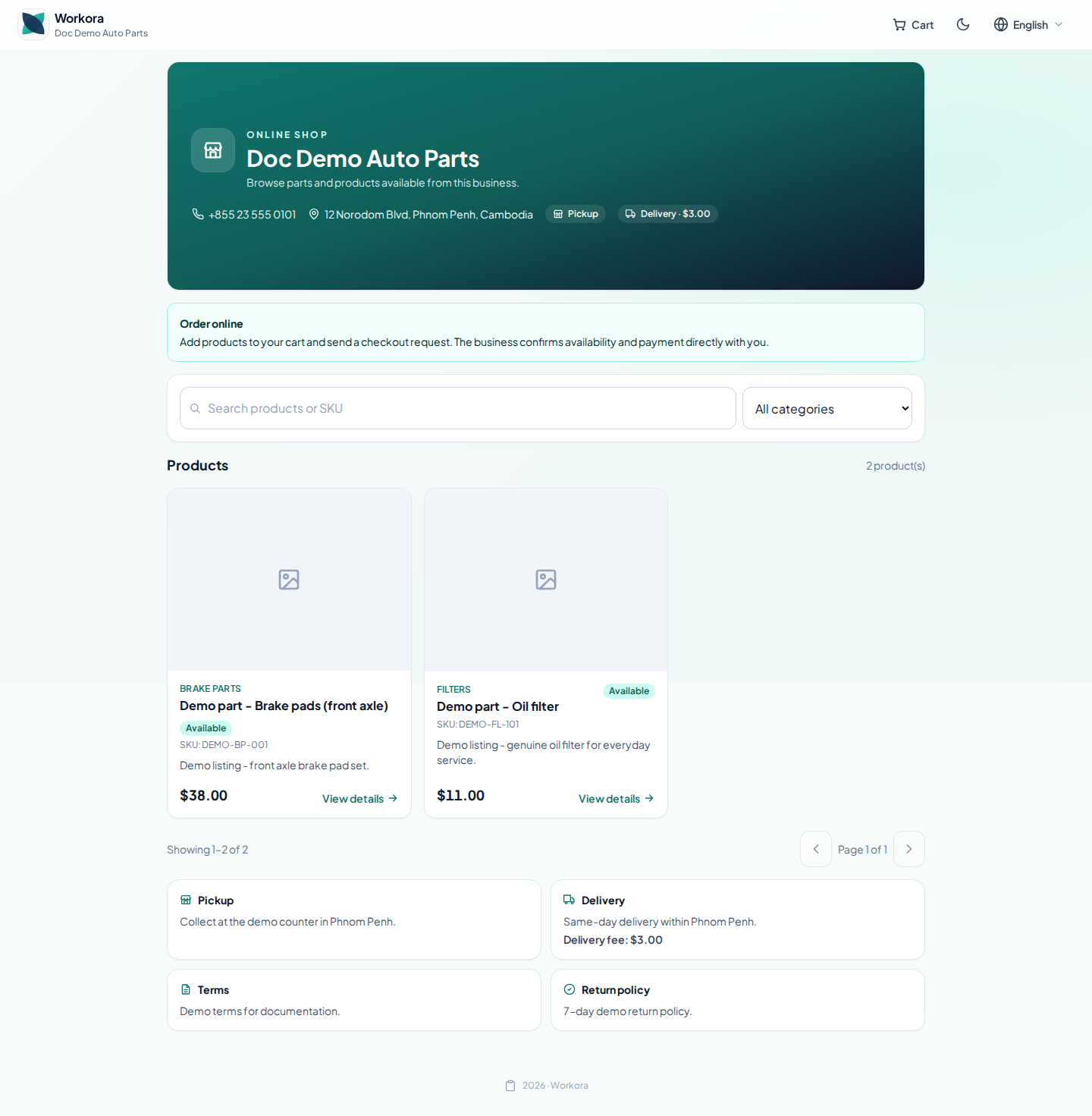
Workora provides several public surfaces: invoice and quote links, a shop directory and storefront, shop order tracking, garage status/approval/quote/invoice links and rental catalogs. Each link uses a token tied to the specific record. Public access is controlled by module switches and entitlements, so a disabled module is unavailable publicly too.
Who this is for
Owners and staff sharing documents; customers receiving links.
Before you begin
Workora checks access on every request, so a screen only appears when your account is allowed to use it.
- Enable the source module
A public page exists only when the related module is active.
- Copy the correct link
Use the link from the record detail page, not a guessed URL.
- Check branding
Public documents use the business logo configured by an administrator.
Step-by-step guide
Public pages are read-only unless the workflow explicitly asks for a decision or order.
- Open the source record
Open the invoice, quote, garage job or shop listing.
- Copy the public link
Use Copy link or Public view from the detail view.
- Send it to the customer
Share by email, chat or SMS. The customer does not need a Workora account.
- Let the customer review
Invoices and quotes show the document; garage pages show status and approval actions.
- Let the customer shop
Share the storefront link from the shop directory so customers can browse and check out.
- Track the result
Decisions, orders and payments appear back in the corresponding internal module.
Screens and figures
Public pages mirror internal records but expose only what the customer needs.
Business use case
One link completes the customer loop
A repair shop issues a quote and sends its public link. The customer approves the work from the link. The office creates the invoice and sends that link too. When the car is ready, a garage status link tells the customer to collect it.
Result
Customers stay informed without creating accounts, while staff keep one internal record of every action.
Tips and common mistakes
- Treat document and approval links as sensitive; rental catalog QR codes are designed to be printed and displayed publicly.
- If a public page does not load, check the module entitlement and platform switch first.
- Branding changes apply to public documents after an administrator updates the business logo.