Backup & data control
Download a complete CSV backup of your workspace and know exactly what happens when an owner deletes a business.
Overview
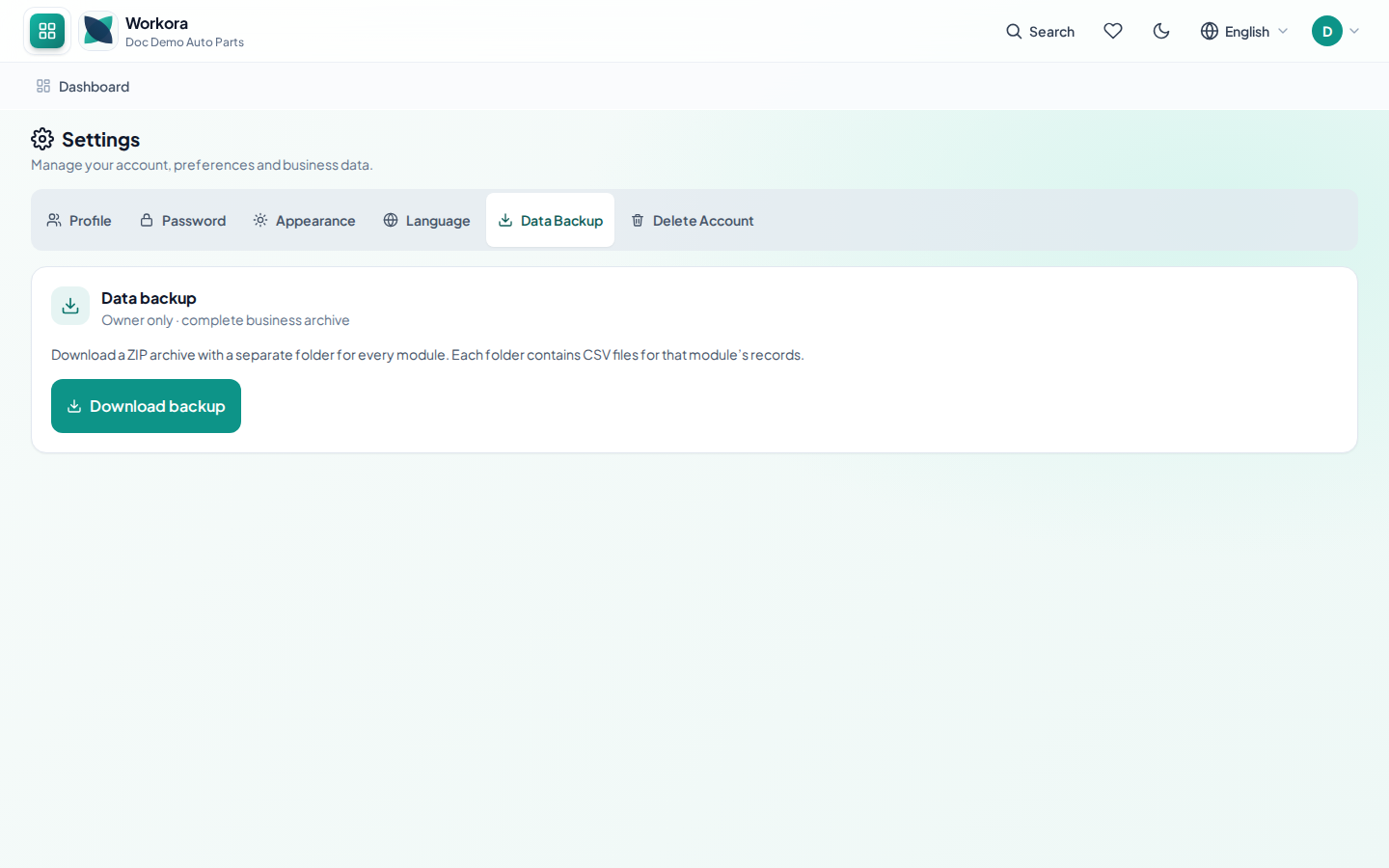
Owners can download a ZIP backup with CSV files for each module. It contains only your business data. Account deletion is also owner-only: after a confirmation phrase, Workora removes the business, its staff accounts, records and uploads.
Who this is for
Owners responsible for data retention, audits and offboarding.
Before you begin
Workora checks access on every request, so a screen only appears when your account is allowed to use it.
- Use an Owner account
Both backup and deletion are restricted to the business owner.
- Choose a safe location
The backup contains business data; store it securely.
- Review open work
Export before deleting an account or changing providers.
Step-by-step guide
Take a backup on a regular schedule, not only before deletion.
- Sign in as the owner
Backup and deletion are not available to staff roles.
- Open backup
Use Settings → Backup or the data-control action on the website.
- Download the ZIP
Workora streams a ZIP containing module CSV files.
- Inspect the folders
Check that customer, sales, stock and finance datasets are present and readable.
- Store the file securely
Keep it access-controlled and include it in your retention policy.
- Delete an account only when certain
In Settings, choose account deletion and type the confirmation phrase. This permanently removes the business and its data.
- Confirm the result
The session is cleared and the tenant data is no longer available.
Screens and figures
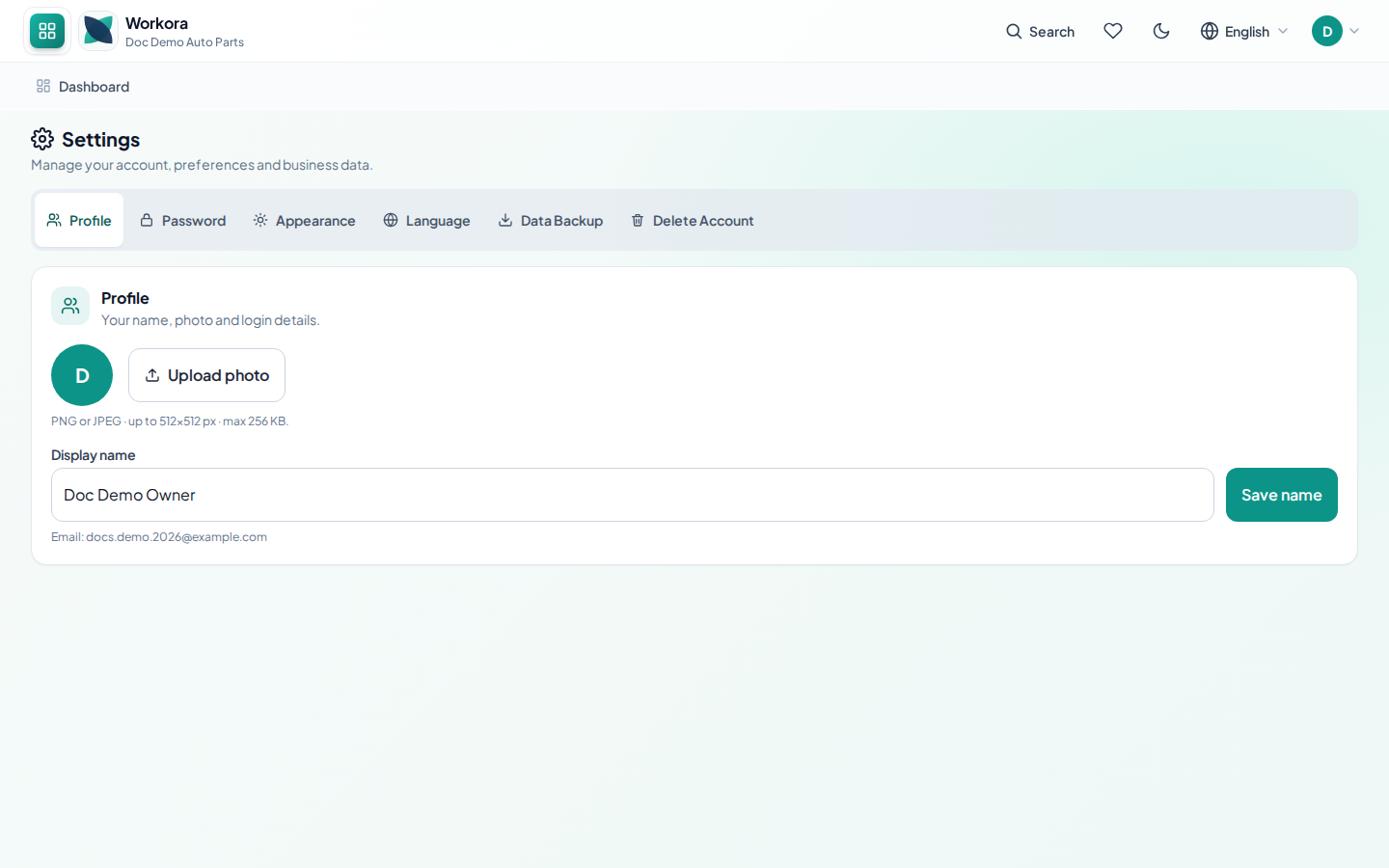
Backup is a read-only export of the tenant data you are authorized to see.
Business use case
Moving to a new device without losing history
Before changing the computer used by the office, the owner downloads a full backup and confirms that the CSV folders include invoices, stock and payments. The file is stored in the company archive. Workora continues to run normally.
Result
The business has an independent copy of its data while daily operations remain unchanged.
Tips and common mistakes
- A backup is not a substitute for a secure storage location.
- Deleting an owner account deletes the whole business, not just that person’s login.
- CSV exports are readable by spreadsheets but should still be treated as sensitive business data.