Garage
Start a repair from a Master QR, MPWT QR or manual entry; use the inline quote path for company jobs and skip it for individual walk-ins.
Local only
This module is available in the local Workora build only and is not enabled on the hosted site yet. The steps and screenshots below come from the local demo tenant.
Overview
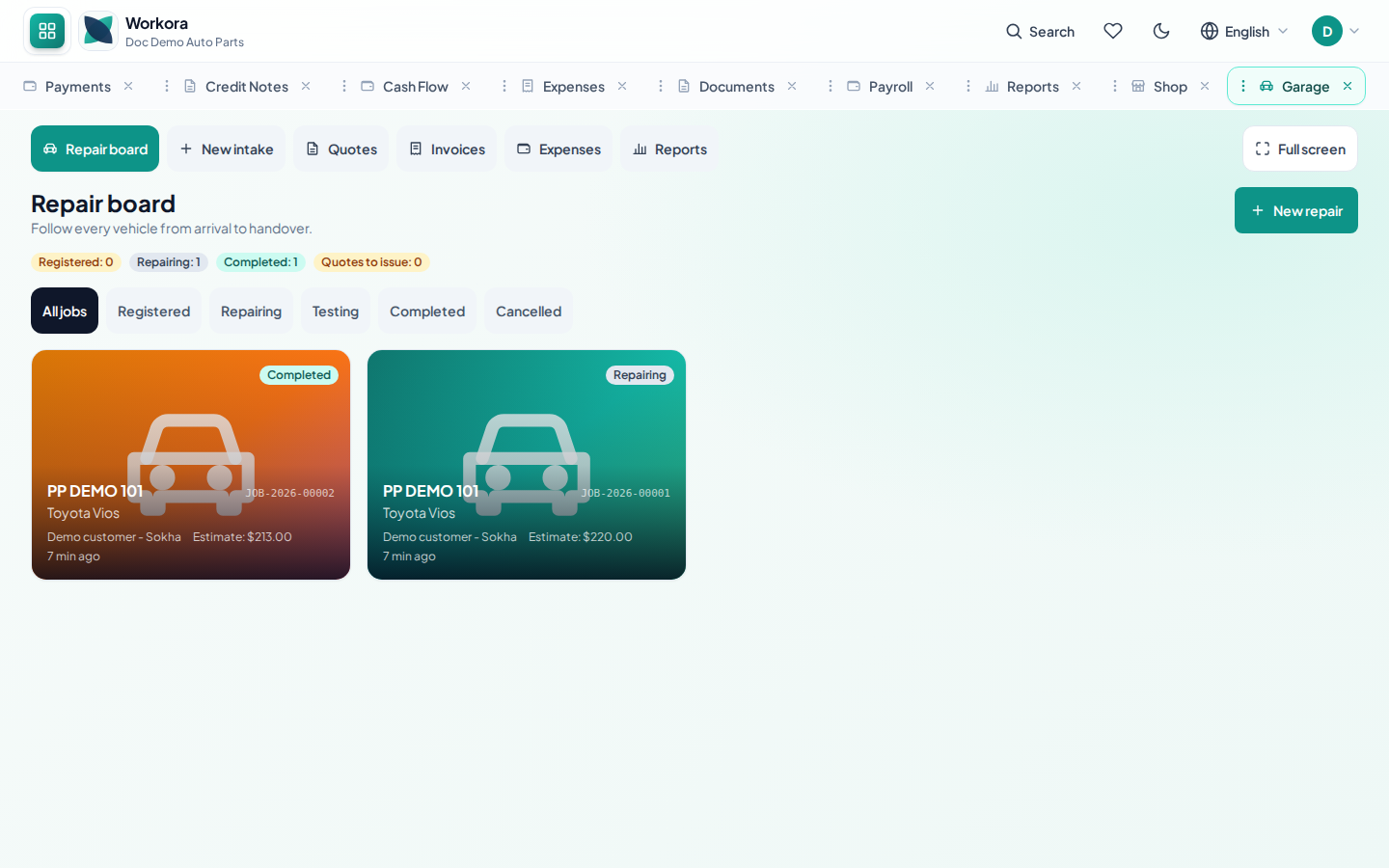
Garage runs repair jobs from intake to invoice. Intake has four steps: Vehicle, Customer, Defects & estimate and Review. You can scan a Master QR, scan an MPWT certificate QR, or type the details yourself. There is no company or individual switch. The CRM picker labels each customer Company or Individual, and the priced defect rows decide whether a quote is created. Add priced defects for a company job and Workora creates a quote and an approval request when you submit. Leave the rows empty for a simple individual job and no quote is created. The job then continues with tasks, photos, approvals, the invoice and stock use.
Who this is for
Service advisors, workshop managers and repair owners handling company fleet work and individual walk-ins.
Before you begin
Workora checks access on every request, so a screen only appears when your account is allowed to use it.
- Enable Garage and Stock
Garage is effective only when Stock is enabled.
- Enable Invoices
A garage invoice uses the shared customer invoice records.
- Prepare CRM customers
Linking a CRM customer shows its Company or Individual label during intake; manual entry also works.
- Prepare parts in Stock
Part consumption needs stock items.
Step-by-step guide
Start from Garage → New intake or the repair board’s New repair action.
- Capture the vehicle
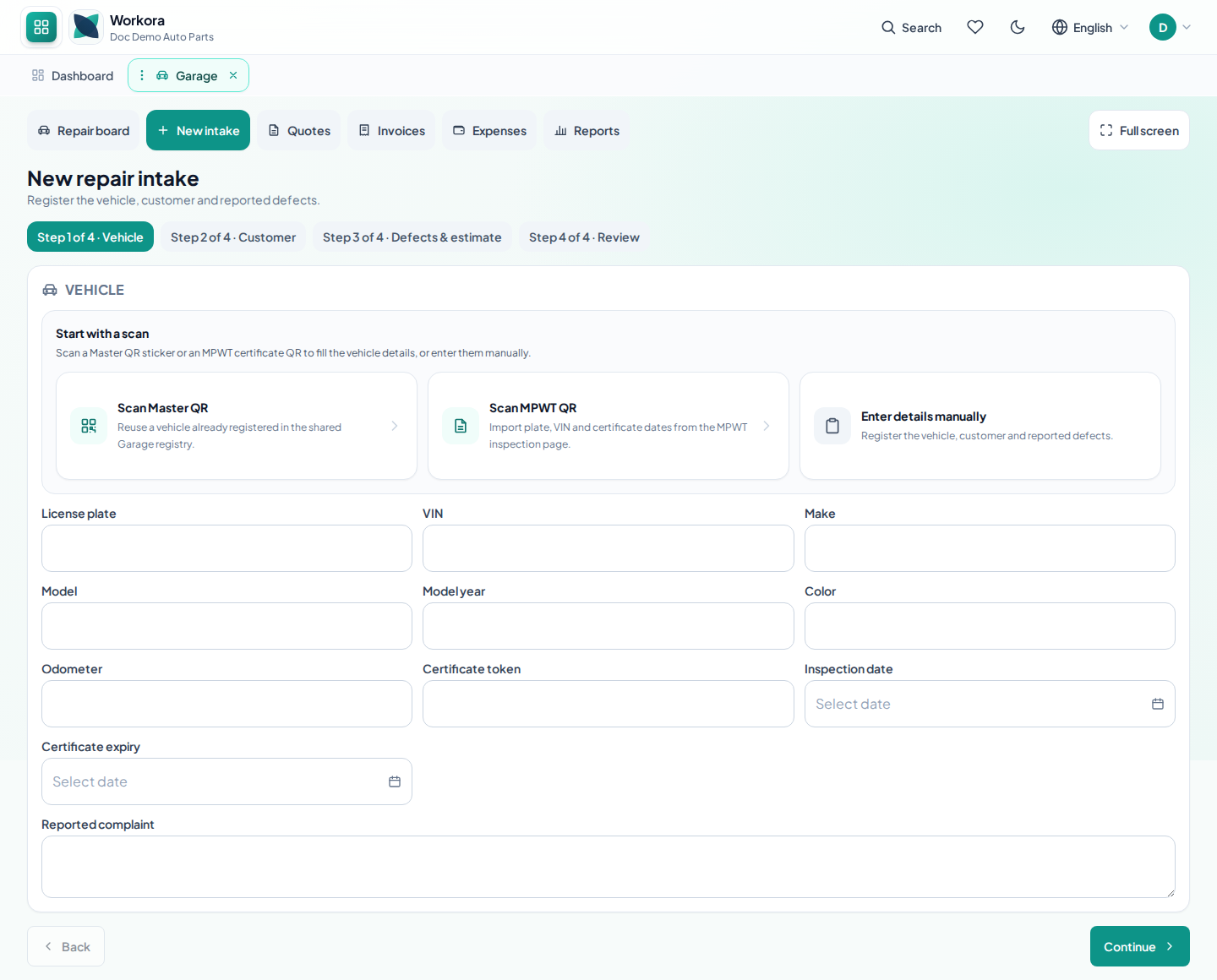
Choose Scan Master QR, Scan MPWT QR or Enter details manually on the Vehicle step.
- Identify the customer
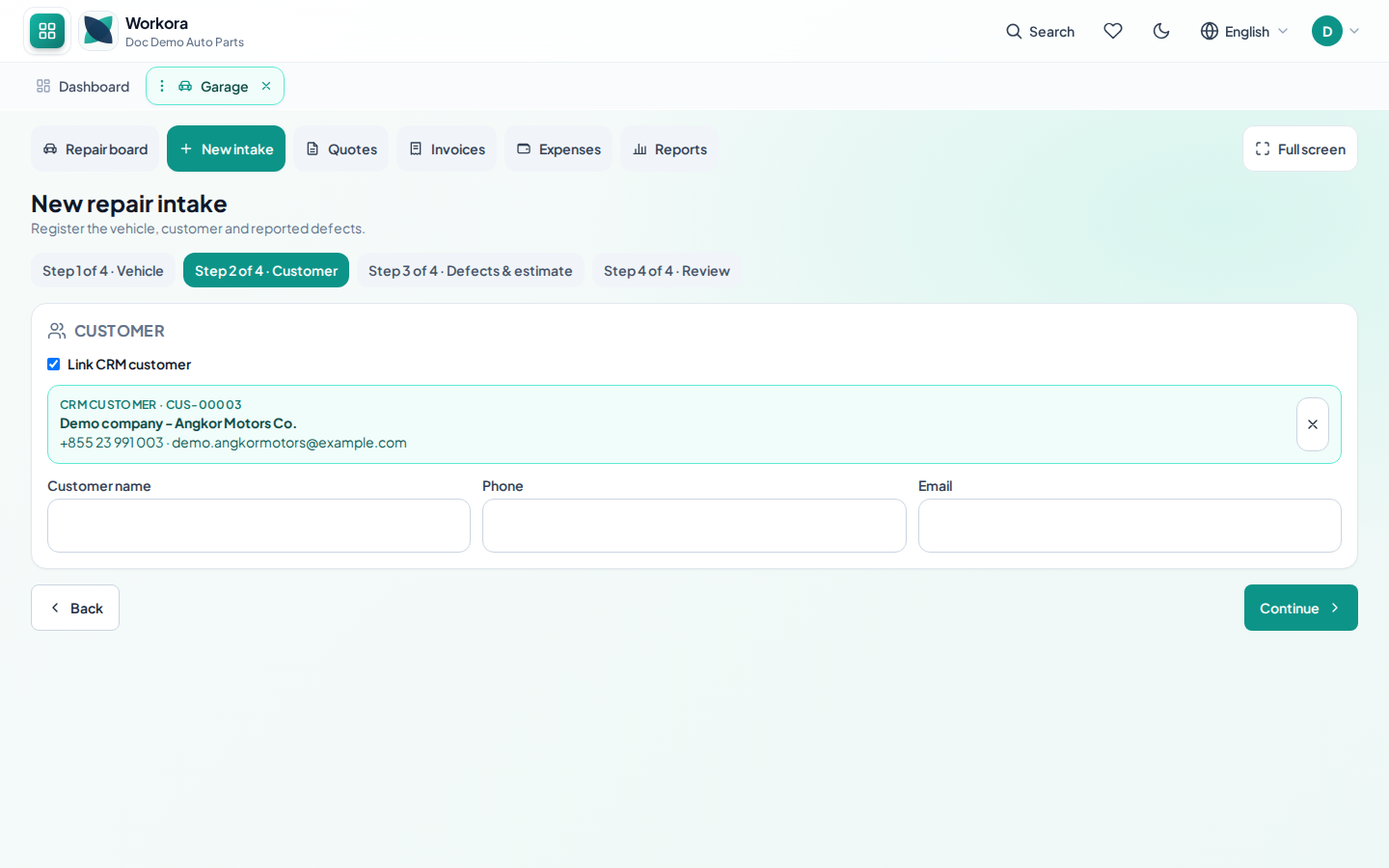
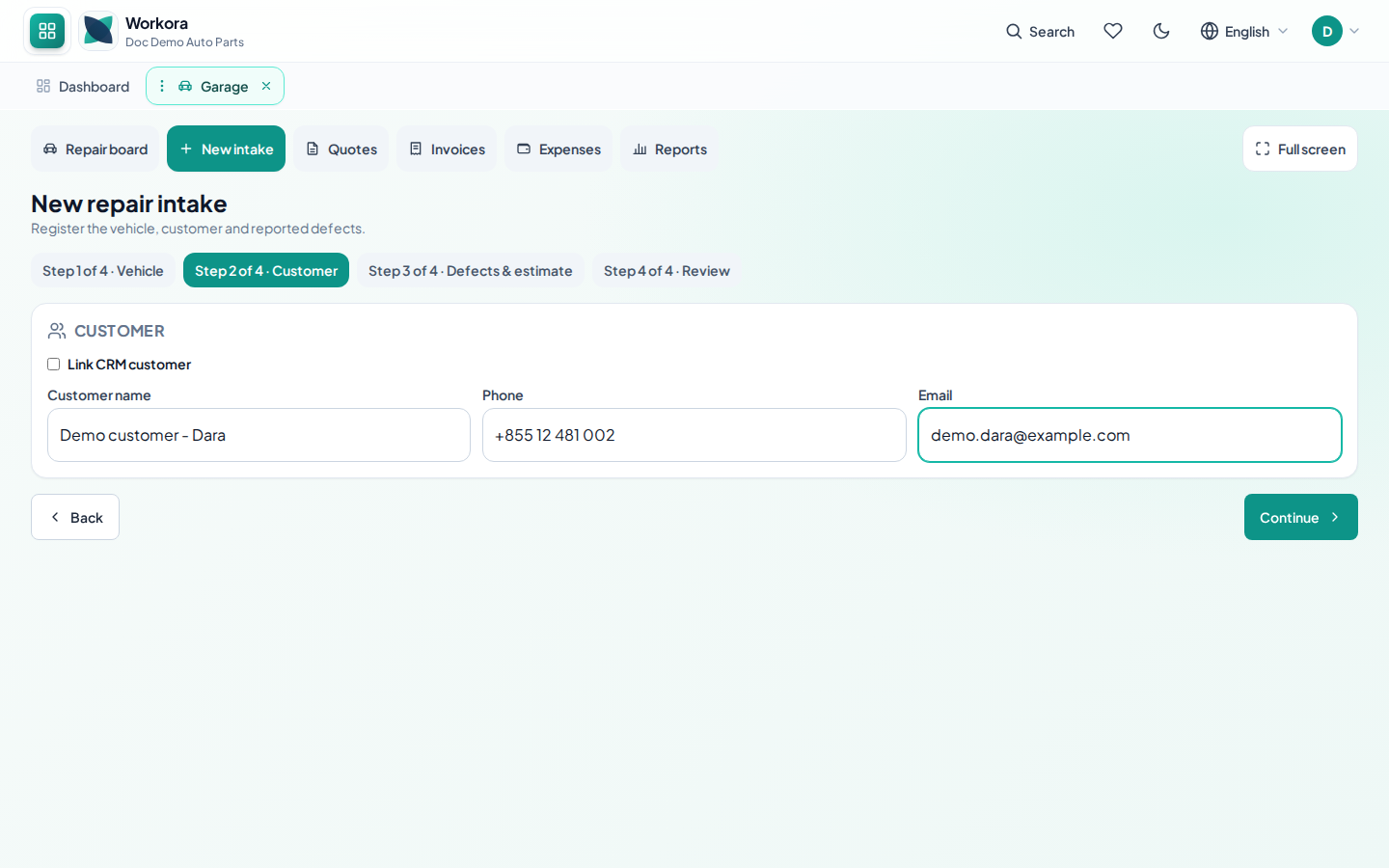
Enter a name, phone and email, or enable Link CRM customer and choose a record labelled Company or Individual.
- Decide the quote path
For a company job, add priced defect rows. For an individual job with no estimate needed, leave the defect list empty.
- Submit the repair
Confirm the Review details and choose Create repair. Workora creates the job and, only when defect rows exist, a quote and an approval request.
- Run the job
Add tasks and photos, start the repair and manage any approval request.
- Invoice and settle
Create the garage invoice, record payment and consume approved stock parts.
Company and individual repair intake
Use the same four-step intake for both customer types. The difference is operational: a company job includes priced defect rows so an inline quote is generated at submission; an individual job that does not need a quote leaves those rows empty. The CRM picker labels each customer Company or Individual so staff can choose the right path.
Option A — Company: start with an inline quote
Use when the customer is a company and the repair needs a priced estimate before work starts.
- Capture the vehicle
Use Scan Master QR for an existing registry vehicle, Scan MPWT QR to import certificate data, or Enter details manually.
- Link the company
On the Customer step, enable Link CRM customer and select the record marked Company, such as Demo company - Angkor Motors Co. Its live details are copied into the intake.
- Add priced defects
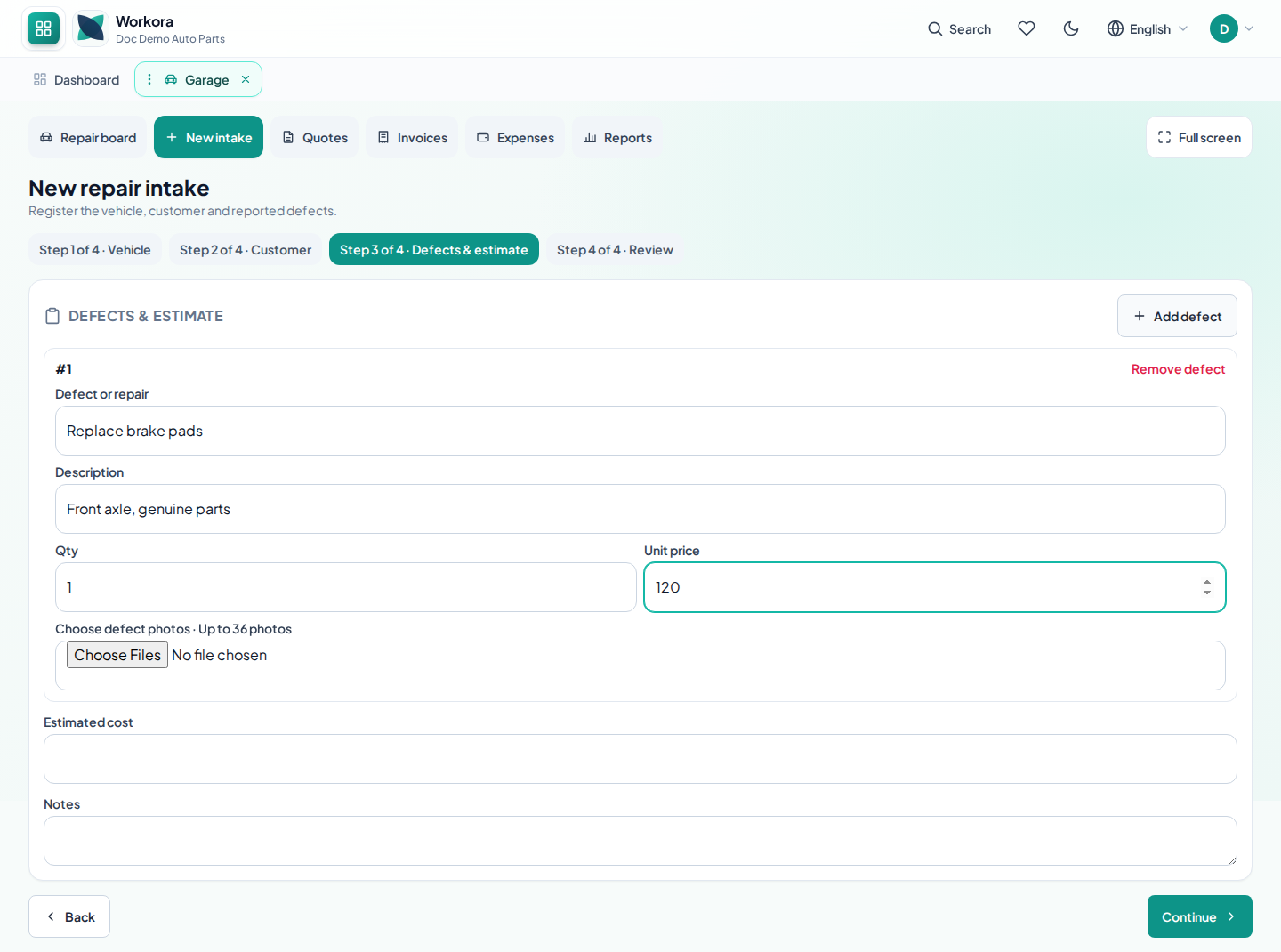
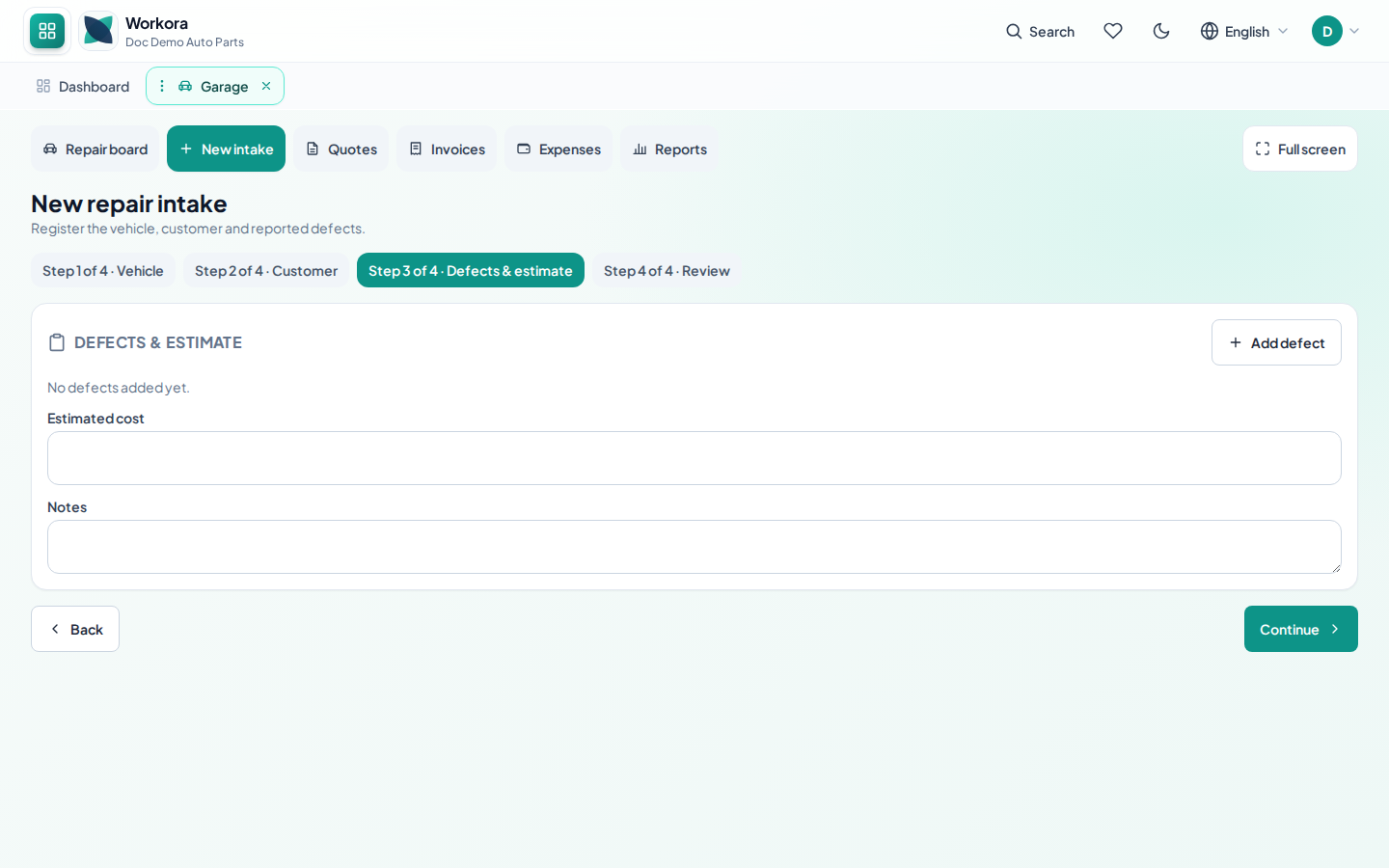
On Defects & estimate, choose Add defect. Enter the defect or repair, description, quantity and unit price. Add defect photos when visual evidence helps. The estimated cost updates as you go.
- Review the estimate
On Review, confirm the vehicle, company and estimated total. The priced defect rows are the lines that will become the quote.
- Create the repair
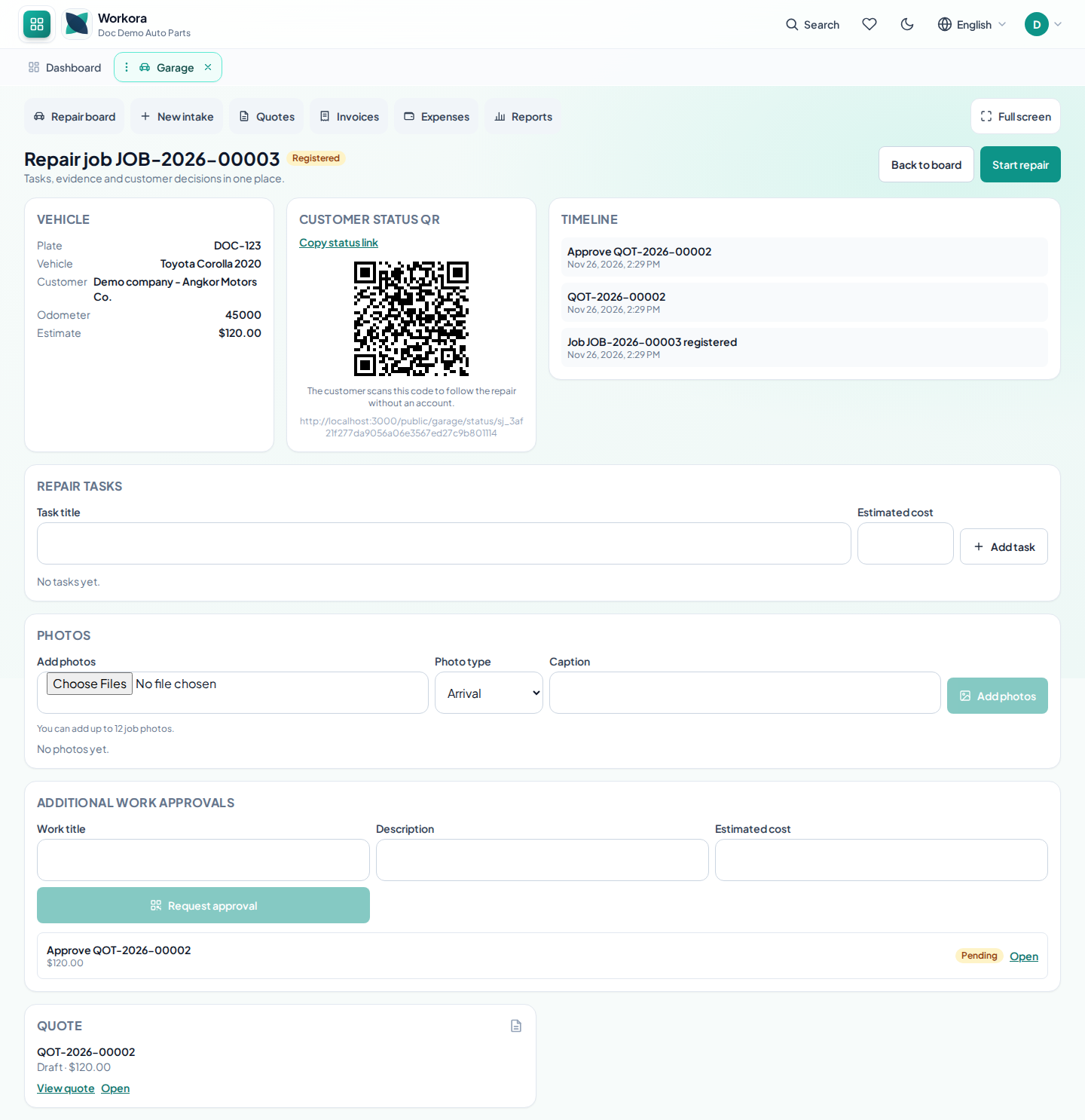
Choose Create repair. Workora creates the job, generates a job-linked quote from the defect rows, uploads the defect photos to it and creates an approval request.
- Send for approval
The job detail now has a Quote card and an Approve timeline entry. Issue the quote and open its customer link so the company can approve the estimate.
How the inline quote is triggered
There is no separate “Inline quote” button. The quote is created automatically at submission because at least one priced defect row exists. It belongs to the Garage repair job, not to the standalone sales quote module.
Option B — Individual: no inline quote
Use for an individual customer who authorises the job directly or does not need a pre-approved estimate.
- Capture the vehicle
Use Scan Master QR, Scan MPWT QR or Enter details manually, exactly as in the company path.
- Enter the individual
On the Customer step, either link a CRM record marked Individual or type the customer name, phone and email directly.
- Leave defects empty
On Defects & estimate, do not add priced defect rows when no quote is required. The reported complaint can still be written on the Vehicle step.
- Create the repair
Confirm Review and choose Create repair. Workora creates the job with no quote and no approval request.
- Continue in the job
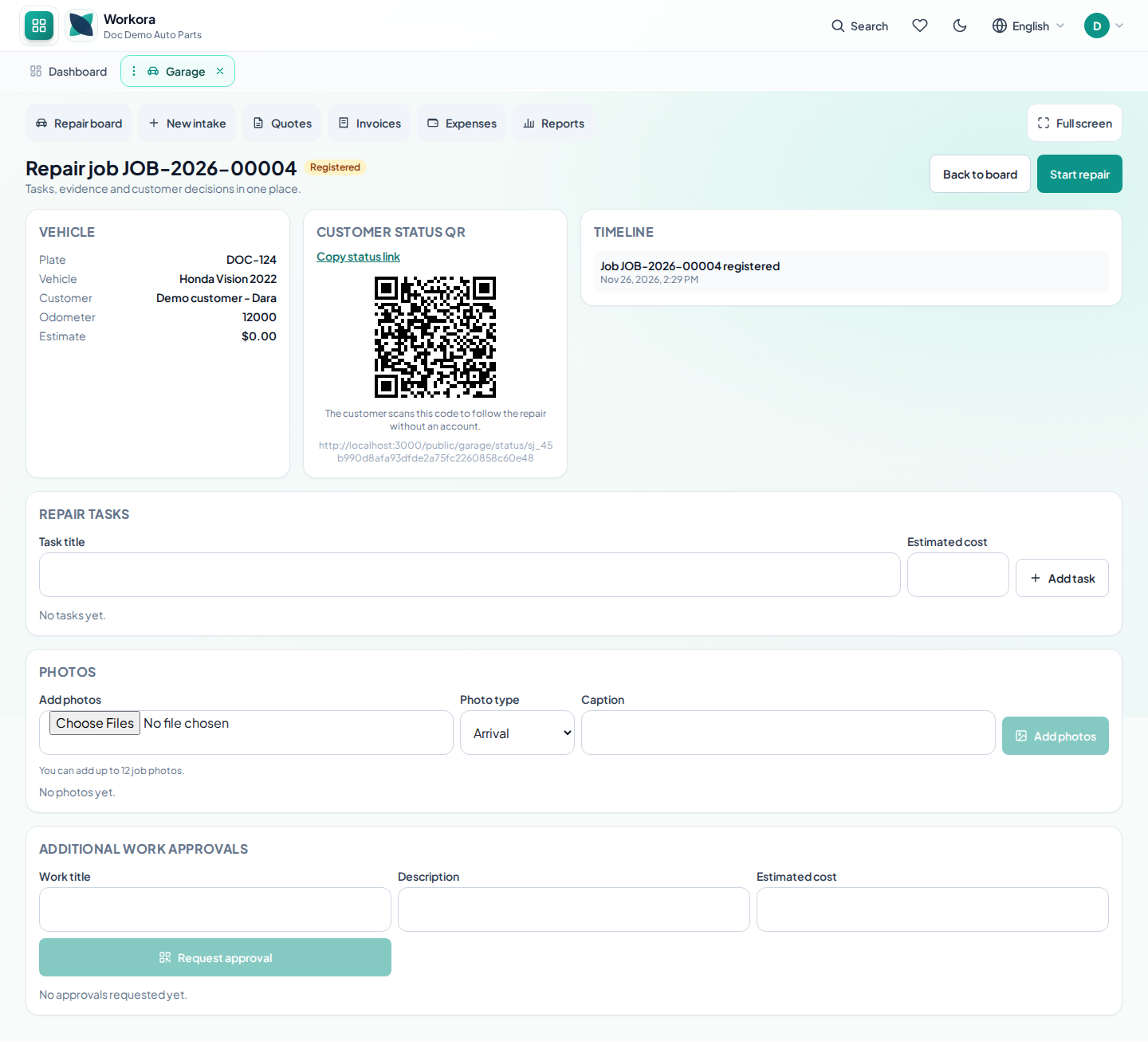
The job opens with a $0.00 estimate, an empty approval section and no Quote card. Add tasks, photos and work progress directly in the job.
No quote is generated
With no defect rows at submission, the wizard skips quote creation. The customer can still follow the repair through the status link generated on the job.
Three ways to capture vehicle data
Scan Master QR reuses a vehicle from the shared Garage registry and links a tenant-local copy on submit; the previous garage’s customer details are not copied. Scan MPWT QR imports plate, VIN/chassis or frame, brand, model year, colour and inspection dates from a valid MPWT certificate URL. Enter details manually leaves the vehicle fields editable. See the Screens and figures section for the three choices.
Screens and figures
The Vehicle step offers three ways to capture data before the customer and estimate steps.
Business use case
Company estimate and individual walk-in use one intake
A fleet coordinator scans a Master QR, links a CRM company, adds priced brake-pad defects and submits the repair. Workora creates a quote and an approval request. Later, an individual rider arrives; the advisor scans the MPWT certificate QR, enters the rider’s details, leaves the defect list empty and creates the job without a quote.
Result
Company work gets a documented estimate before approval, while a simple individual job goes straight to the repair without an unnecessary quote.
Tips and common mistakes
- Garage has no Company/Individual toggle; the CRM label and your priced defect rows decide whether a quote is generated.
- A Master QR links a vehicle identity from the shared registry but never copies the previous garage’s customer details.
- MPWT import accepts only a valid HTTPS certificate scan URL from the official MPWT domain.
- With no defect rows, submission creates a job with no quote and no approval request.
- Public status and approval links are capability tokens; send only to the customer for that job.
- Garage invoices use the same payment ledger as ordinary customer invoices.