Expenses
Capture everyday costs, attach proof and include them in financial reports and cash flow.
Overview
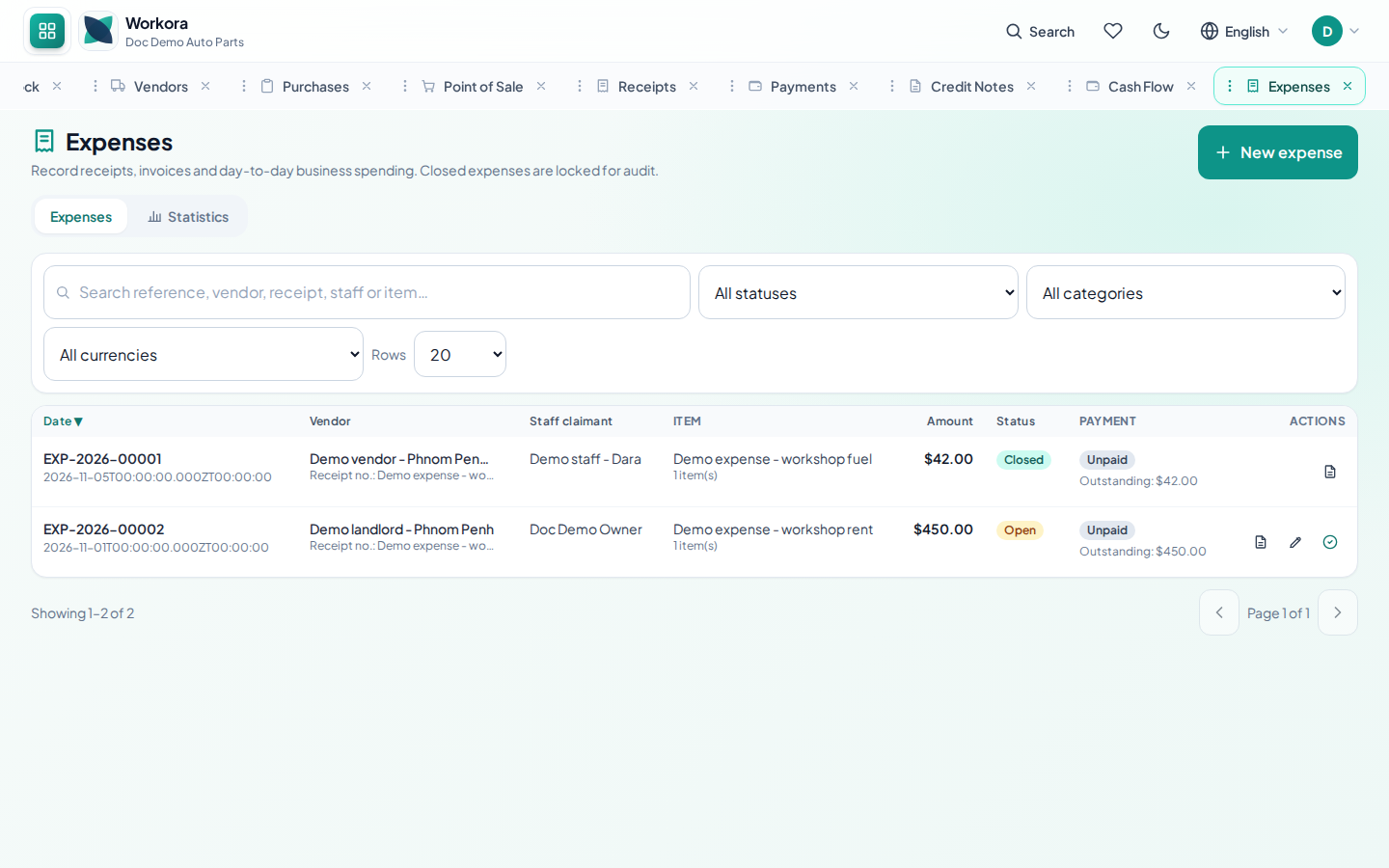
Expenses track spending that is not a purchase order or payroll run. Each expense can have line items, a receipt file and an optional OCR extraction step. Closing an expense finalizes it. Completed expense payments flow into Cash Flow and Reports.
Who this is for
Owners, finance staff and anyone who pays routine business costs.
Before you begin
Workora checks access on every request, so a screen only appears when your account is allowed to use it.
- Enable Expenses
The business and role must include the Expenses module.
- Have an account
Expenses are paid from a cash or bank account.
- Configure OCR if needed
OCR is configured by an administrator in Document Processing settings.
Step-by-step guide
Record small costs as they occur rather than at month end.
- Open Expenses
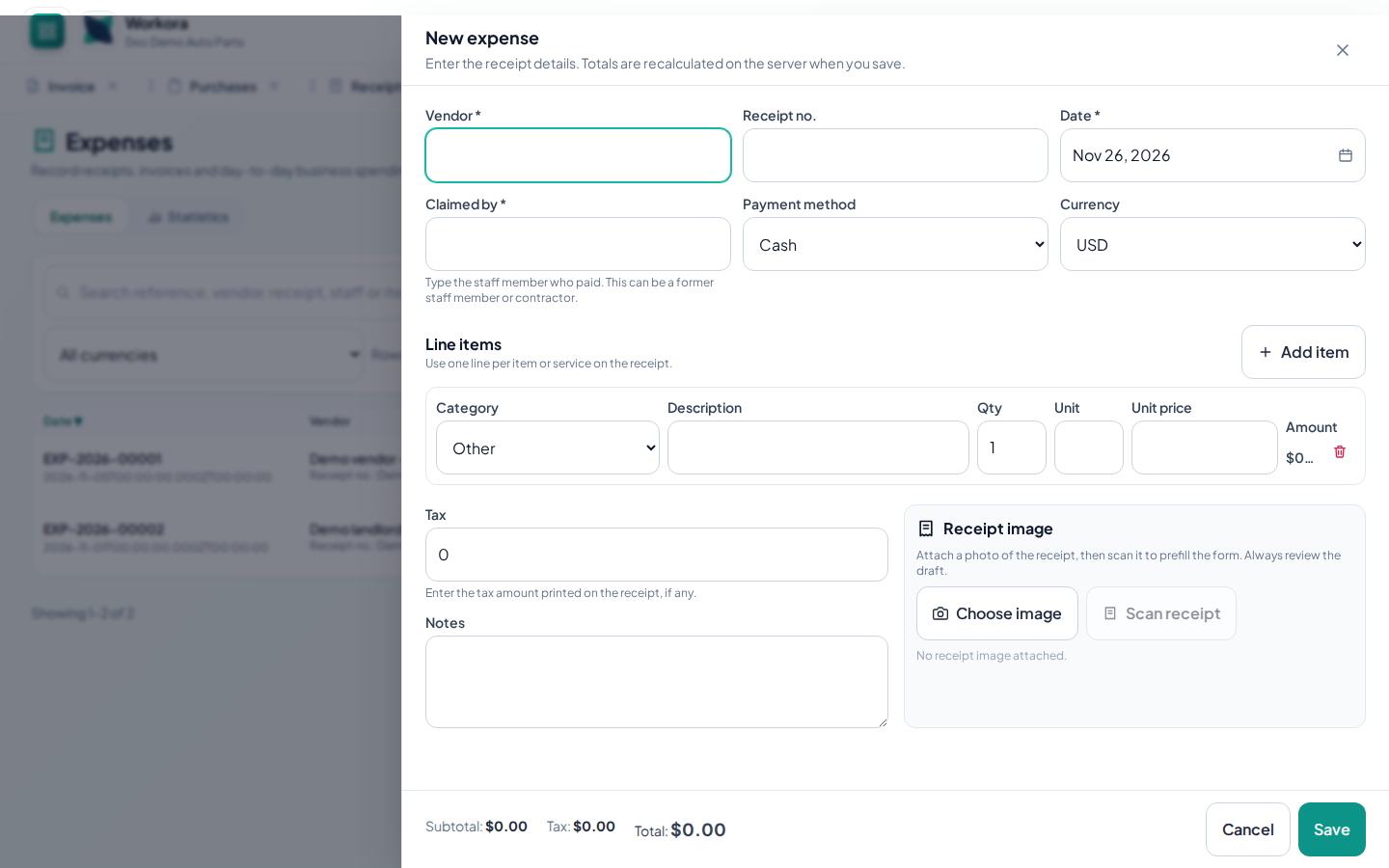
Go to Expenses and choose New expense.
- Attach a receipt
Upload a photo or PDF of the receipt. OCR can suggest the vendor, date and total.
- Enter the details
Add the category, date, amount, account and any line items.
- Save the expense
Review the values before finalizing.
- Close the expense
Choose Close when the record is correct. Closed expenses are ready for reporting.
- Review statistics
Use the summary cards to see spending by category or period.
- Check cash flow
Confirm the outflow appears in Cash Flow and the financial expense report.
Screens and figures
Expense list and stats make routine spending easy to review.
Business use case
Fuel and parking receipts stay auditable
A technician buys fuel and uploads the receipt. OCR extracts the total, the owner confirms the amount and closes the expense. At month end, the expense report shows the workshop’s vehicle costs and Cash Flow shows the outflow.
Result
Receipts are attached to the numbers, making reimbursement and reporting straightforward.
Tips and common mistakes
- OCR is an aid, not a source of truth; always verify the extracted total.
- Attach the receipt before closing the expense when possible.
- Use consistent categories so expense reports remain comparable over time.