Document processing
Turn scanned or photographed documents into reviewed records with page images, text extraction and export.
Overview
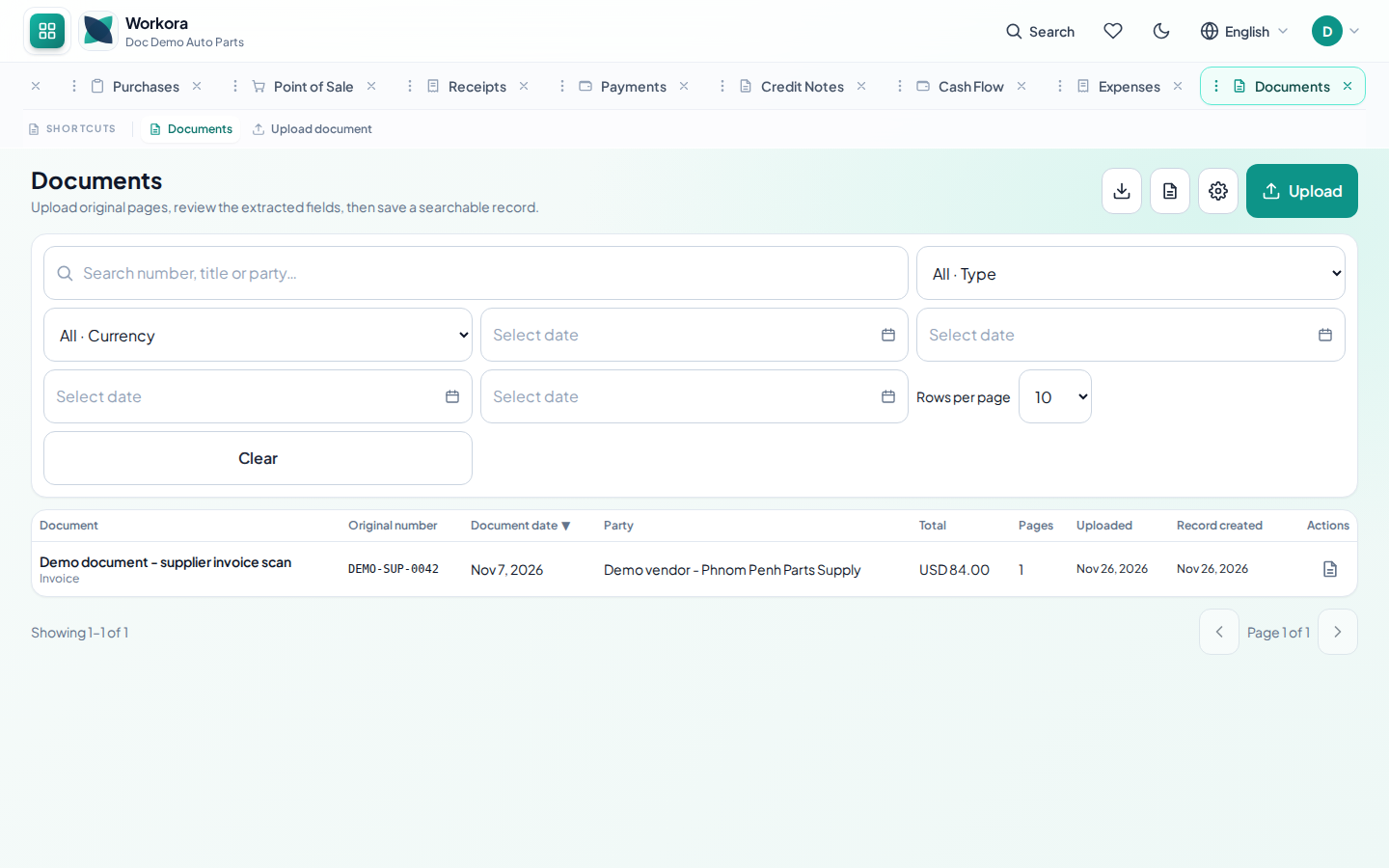
Document Processing handles invoices, receipts, reports and other paper records that arrive as files. Upload a document, optionally run OCR or cloud extraction, review the draft pages, then save it as a digital record. Documents can be linked to customers, searched globally and exported as CSV or XLSX.
Who this is for
Administrative staff and owners who need a searchable document archive.
Before you begin
Workora checks access on every request, so a screen only appears when your account is allowed to use it.
- Enable Documents
The business and role must include the Documents module.
- Choose an OCR provider
An administrator selects local or cloud OCR in document settings.
- Prepare readable scans
Clear, straight photos produce much better extraction.
Step-by-step guide
Follow the review step even when extraction looks correct.
- Open Documents
Go to Documents and choose Upload.
- Select a file
Upload a PDF or image. Multi-page files are split into draft pages.
- Run extraction
Choose Extract to read text using the configured OCR provider.
- Review draft pages
Compare extracted text with each page image and correct mistakes.
- Save the document
Give the record a title and any metadata, then save it.
- Link to a customer
Where useful, link the document to a CRM customer so it appears in their activity.
- Export records
Use Export to download the document index as CSV or XLSX.
- Find it later
Use global search to locate documents by title or extracted text.
Screens and figures
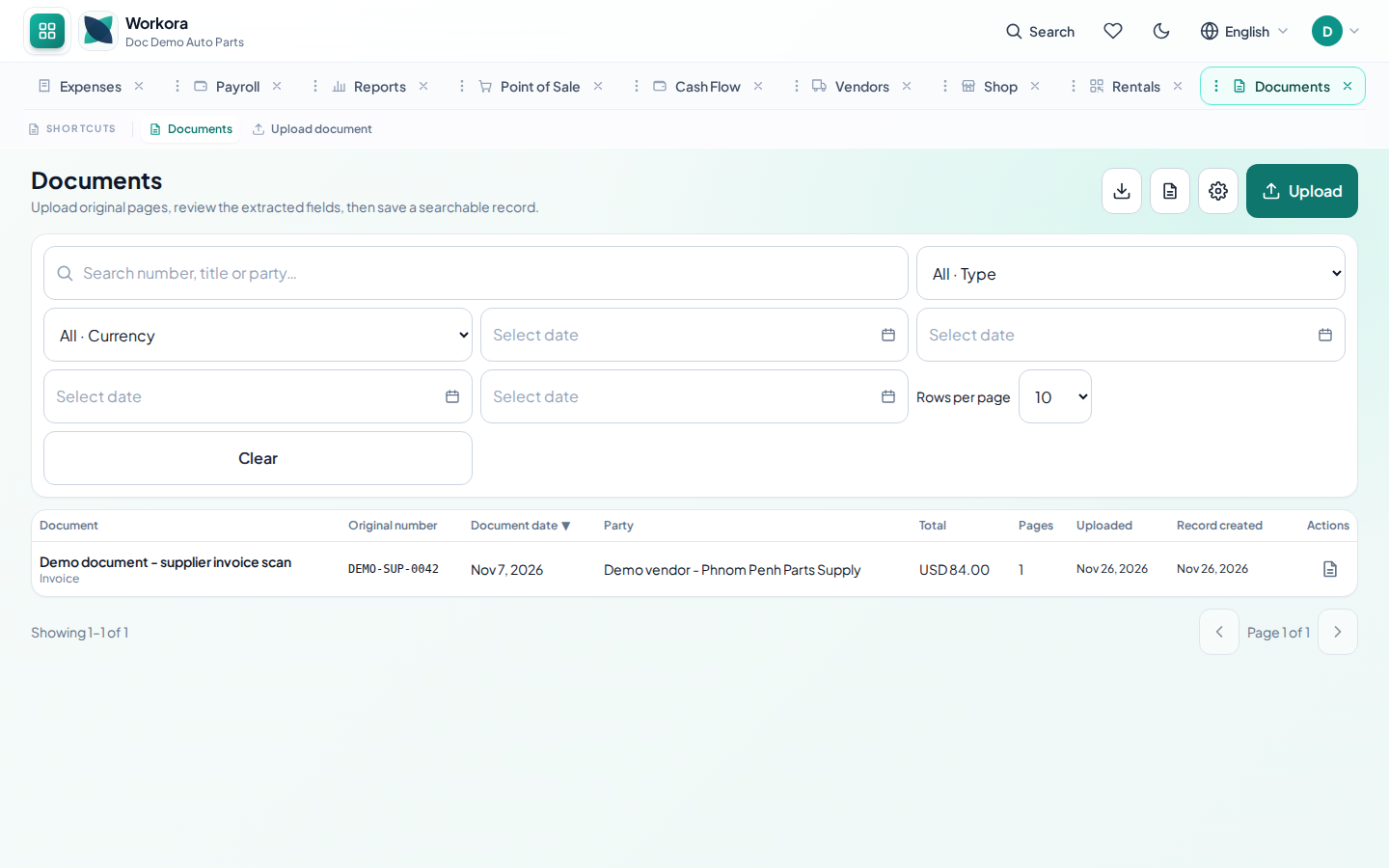
Document review pairs the original page with extracted text.
Business use case
A pile of supplier invoices becomes searchable
An administrator uploads a batch of supplier invoices. OCR extracts vendor names and totals, the staff member corrects two poor reads, and each record is saved. Months later, global search finds an invoice by supplier name without opening every file.
Result
Paper records remain available for audit and can be linked to customers or reporting workflows.
Tips and common mistakes
- Financial and customer documents are restricted for staff roles; check access if a record is hidden.
- Cloud OCR sends files to the configured provider; use local OCR for sensitive documents.
- Extraction quality depends on image quality, so photograph documents on a flat surface.