Global search
Use the top bar search to jump to an app, customer, invoice or other record without opening each module.
Overview
Every signed-in workspace has a Search button in the top bar. It opens one box for the whole tenant. Type a name, number, phone, email or keyword and Workora shows matching apps and records grouped by type. Select a result to open it. Search only looks inside your own business and only shows records your role is allowed to see.
Who this is for
Everyone who needs to find a record quickly instead of opening module after module.
Before you begin
Workora checks access on every request, so a screen only appears when your account is allowed to use it.
- Sign in first
Global search is a tenant feature. Public pages have their own catalog or document search.
- Have access to the module
Results are limited to what your business and role can open.
- Know a useful keyword
A name, code, phone number or document number works best.
Step-by-step guide
Open the search box from anywhere in the workspace.
- Open global search
Select Search in the top bar. You can also press Ctrl+K on Windows or Linux, or ⌘K on a Mac.
- Type what you need
Enter a customer name, phone, email, document number such as
INV-2026-00009, or an app name. One character is enough. An empty box or spaces only will not return anything. - Read the groups
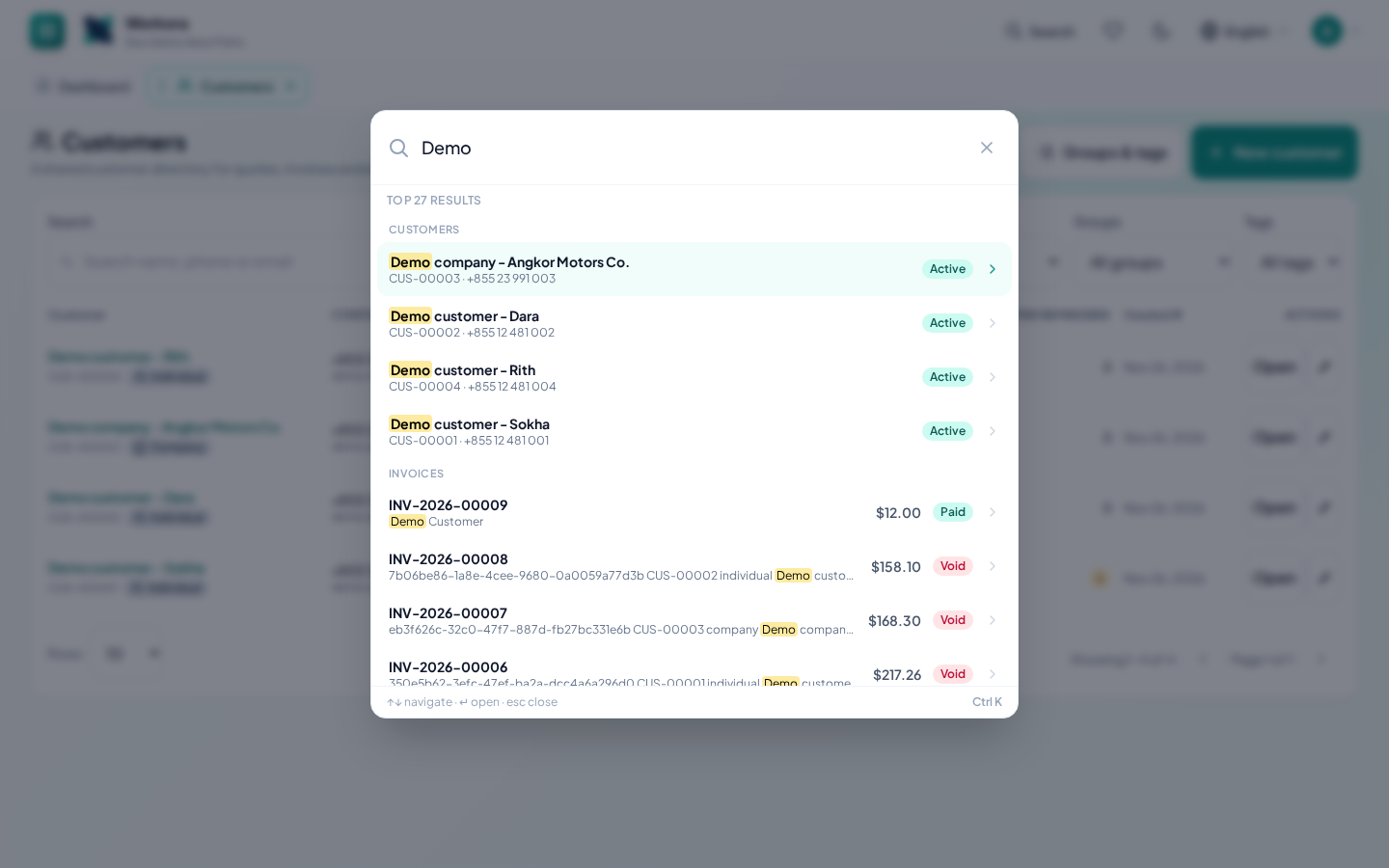
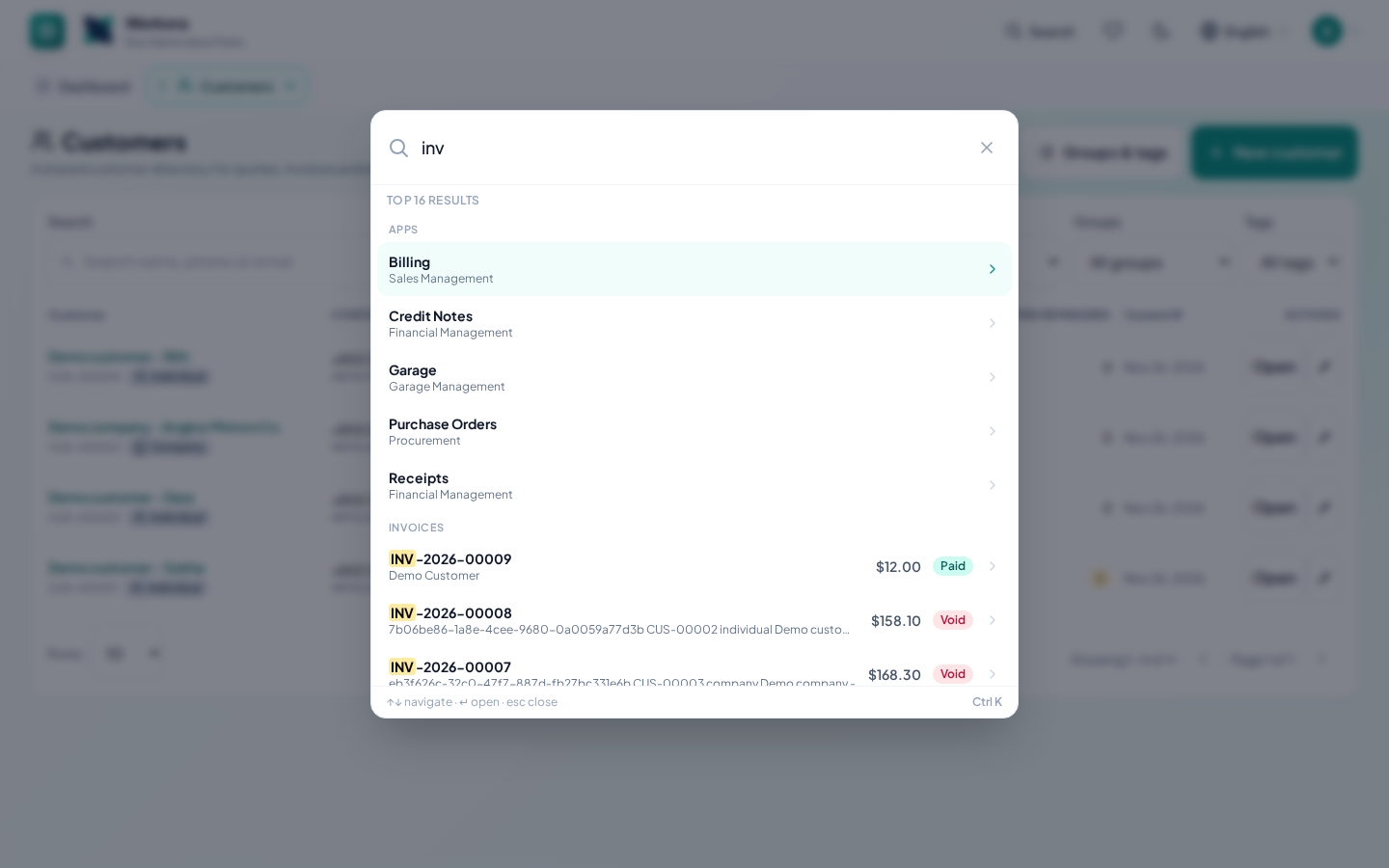
Results appear as you type. They are grouped in a fixed order: APPS, CUSTOMERS, INVOICES, QUOTES, STAFF, VENDORS, RECEIPTS, PURCHASES and CREDIT NOTES. Each group shows up to five results.
- Open a result
Select a row to open it. You can also use the ↑ and ↓ keys to move through results and press Enter to open the highlighted one.
- Close when finished
Press Esc or click outside the box. Searching does not change any record.
What it searches
The box searches nine kinds of record. It matches the words inside each record, so you do not need to know its exact title.
| Result group | What it matches |
|---|---|
| Apps | App name, description and group name. Only active apps you can use. |
| Customers | Name, phone, email, customer number and registration number. |
| Invoices | Invoice number, customer name, phone or email, and item names or descriptions. |
| Quotes | Quote number, customer name, phone or email, and item names or descriptions. |
| Staff | Full name and email address. |
| Vendors | Name, contact name, phone, email and registration number. |
| Receipts | Receipt number, customer name or phone, payment reference and linked invoice number. |
| Purchases | Purchase order number, vendor name and vendor invoice number. |
| Credit notes | Credit note number, customer name or phone, reason and linked invoice number. |
How matching works
Matching is a case-insensitive substring search. angkor finds Angkor Motors wherever those letters appear. There is no fuzzy matching: a typo will not return a near match, and two words are read as one phrase. Characters such as % and _ are treated as text, not wildcards.
Screens and figures
The box groups matches by type so you can see where a record lives before you open it.
Business use case
Find an invoice from its number
A customer calls about INV-2026-00009. The accountant presses Ctrl+K, types the number and opens the invoice from the results. The receipt linked to that invoice appears in the same search, so the accountant can confirm payment without leaving the search box.
Result
The right document is open in seconds, with no guessing which module holds it.
Tips and common mistakes
- Results stay inside your own business and only include modules your role can open. A module you cannot use is not searched at all.
- Only the first five matches per group appear, and the panel says Top results, not the total number of matches. Open the module and use its own filters for the full list.
- Archived customers and inactive staff or vendors still appear, with a status label.
- Invoices and quotes open as a panel over the current page. Other results open their module page.
- Global search does not cover stock items, expenses, payroll, shop orders, garage jobs or rental reservations. Use the search box inside those modules.
- Receipts, purchases and credit notes need their linked invoice or vendor to exist before they can be found.
- Nothing is saved: there is no search history to clear, and public pages do not have this search.