Invoices
Issue a customer invoice once, track payment status and link receipts against the balance.
Overview
Invoices are formal sales documents. A draft can be edited; once issued it becomes immutable so the customer always sees the same document. Voiding keeps an audit trail. Invoices can be created from scratch, from an accepted quote, from a POS checkout, from a garage job or from a rental reservation.
Who this is for
Owners, accountants and staff responsible for billing.
Before you begin
Workora checks access on every request, so a screen only appears when your account is allowed to use it.
- Enable Invoices
Both the business entitlement and the user role must include Invoices.
- Set currency
The business currency is used on new invoices. Financial reports never mix currencies.
- Have a customer or quote
Choose an existing customer, or start from an accepted quote.
Step-by-step guide
Always check the document before issuing it.
- Open Invoices
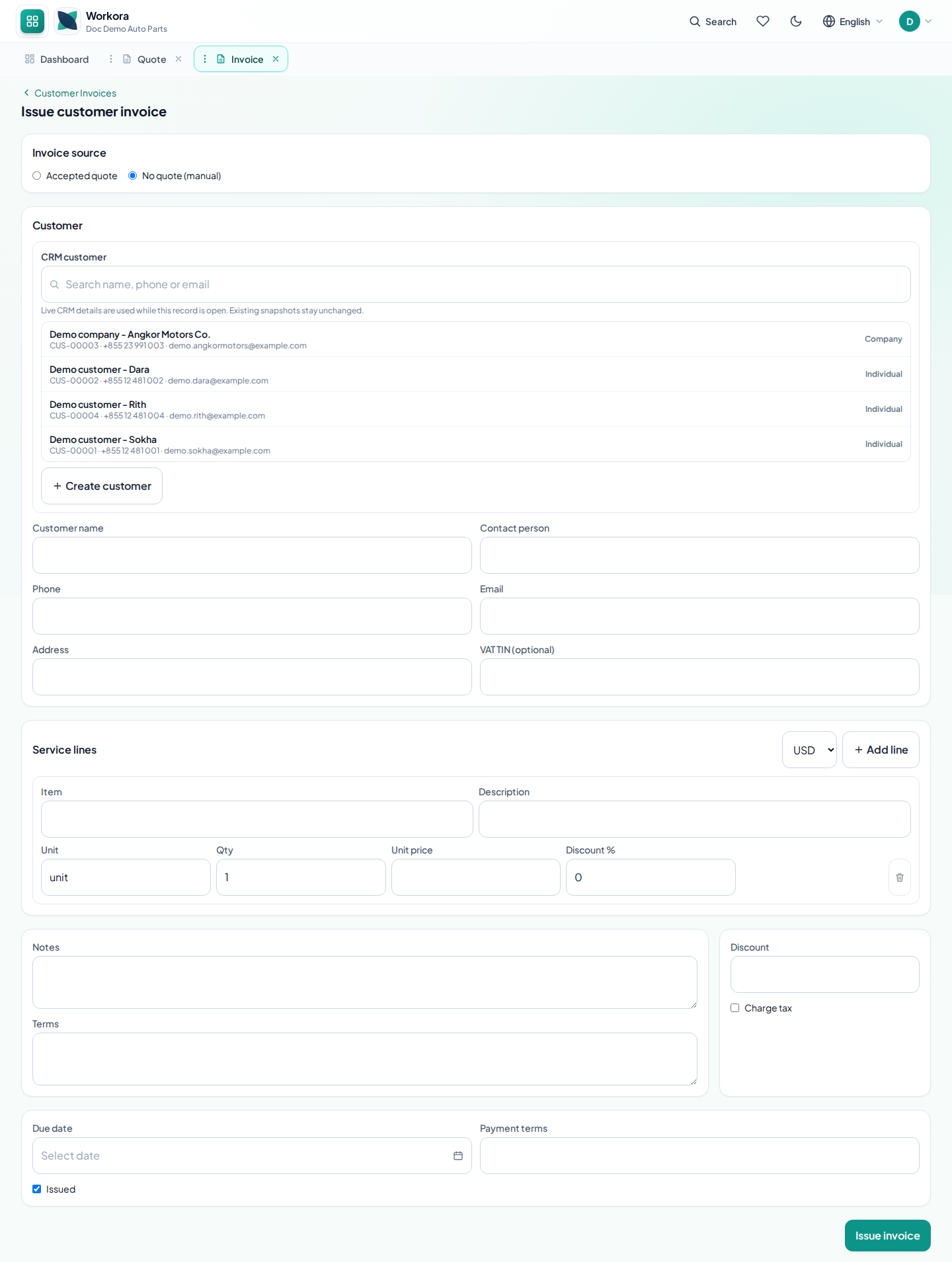
Go to Invoices and choose New invoice.
- Select the source
Create a blank invoice or choose From accepted quote to copy approved lines.
- Fill in customer and lines
Pick the customer, add items and quantities, and review tax and discount.
- Save the draft
Keep the draft while details are being confirmed.
- Issue the invoice
Open the detail view and choose Issue. After this, the content is locked.
- Share the document
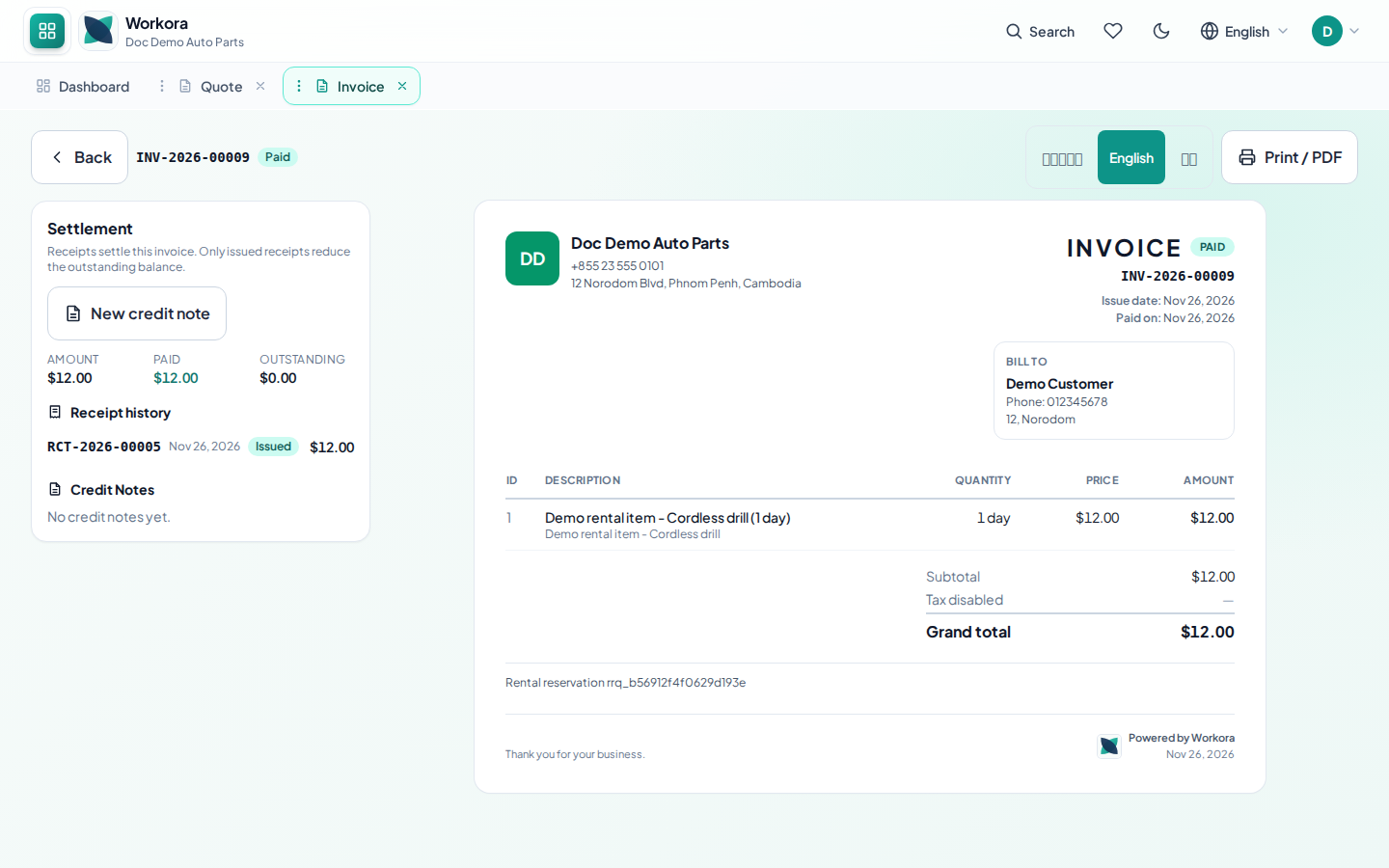
Send the public invoice link to the customer. It works without a login and shows the business logo.
- Track settlement
When a receipt or payment is allocated, the invoice balance updates. Mark it paid when fully settled.
- Void a mistake
If an issued invoice is wrong, void it and create a replacement rather than editing history.
Screens and figures
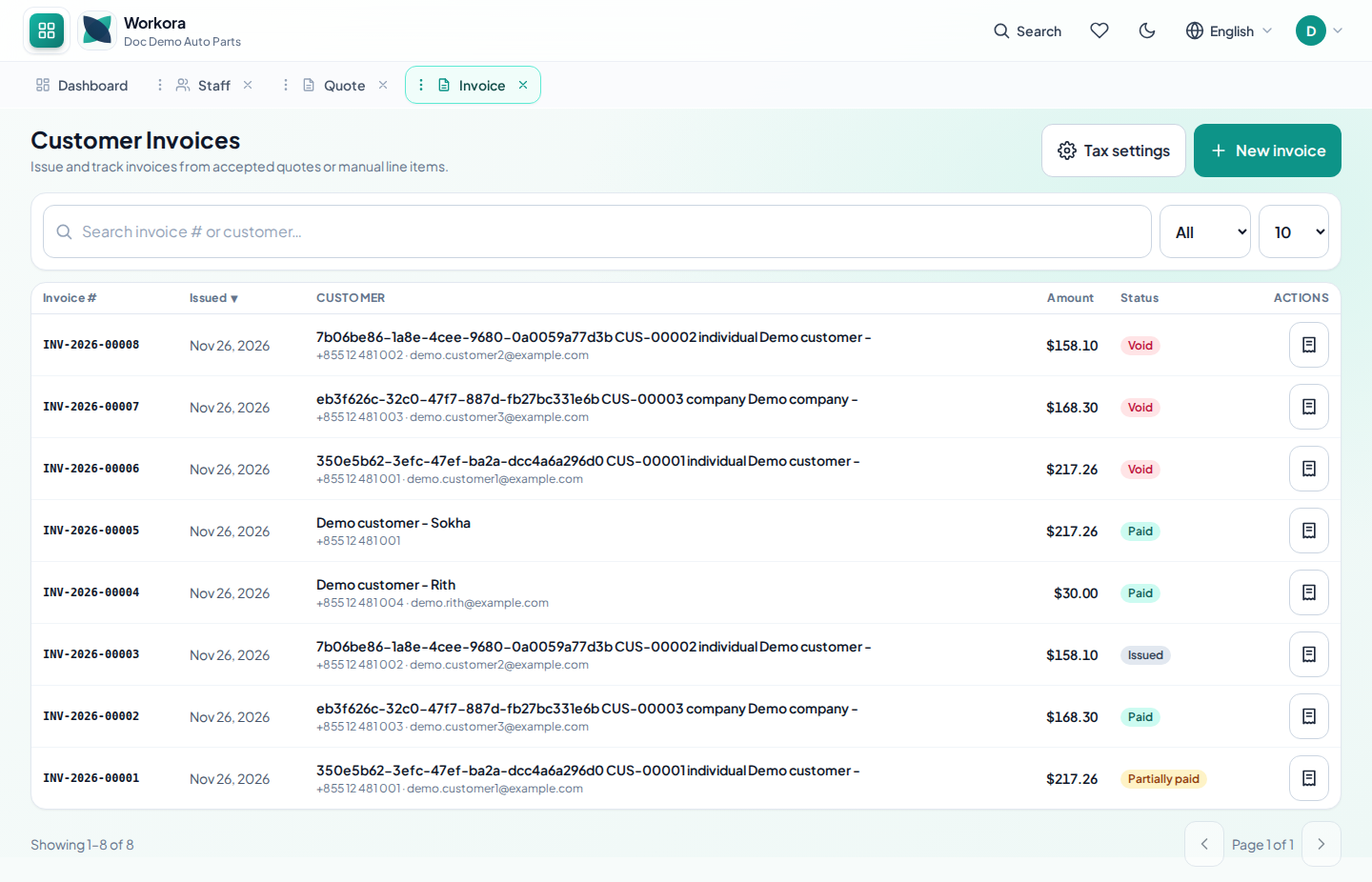
The invoice list shows document status and outstanding balance at a glance.
Business use case
Approved work becomes a tracked receivable
A repair quote is accepted. The office creates the invoice from that quote, issues it and emails the public link. A customer pays at the counter; the receipt allocates the payment to the invoice and the balance becomes zero.
Result
Sales, cash collection and reporting all reference the same invoice number.
Tips and common mistakes
- Issued invoices are intentionally immutable; issue a credit note for corrections.
- Do not mix currencies in one report or manually convert amounts inside invoice lines.
- A public invoice token should be treated like a secret link: share it only with the customer.