Cash flow
See the financial movement created by completed payments and internal transfers without maintaining a second ledger.
Overview
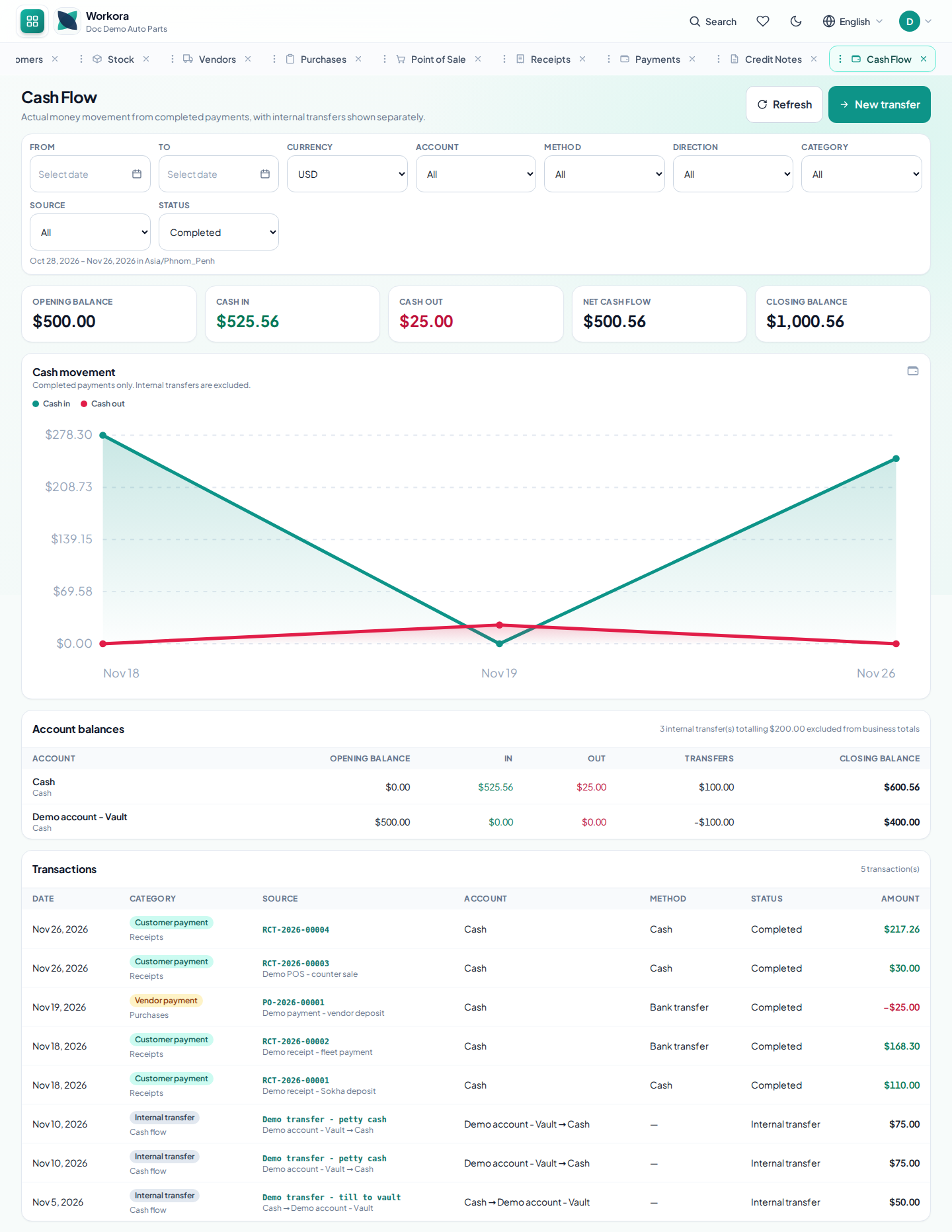
Cash Flow is a read model over Payments. Receipts, purchases, expenses, refunds, payroll and shop orders all create payments; once those payments are complete, they appear here. Internal transfers move money between accounts without changing total cash.
Who this is for
Owners and finance staff who need a quick liquidity view.
Before you begin
Workora checks access on every request, so a screen only appears when your account is allowed to use it.
- Enable Cash Flow and Payments
Cash Flow requires its own module plus payment-producing modules.
- Complete payments
Draft or cancelled payments are excluded.
- Create accounts
Balances are shown per account.
Step-by-step guide
Use Cash Flow as a review screen, not a data-entry screen.
- Open Cash flow
Go to Cash flow to see inflows, outflows and account balances.
- Choose a date range
Filter the period you want to review.
- Inspect an entry
Open a transaction to see the source document and account.
- Create a transfer
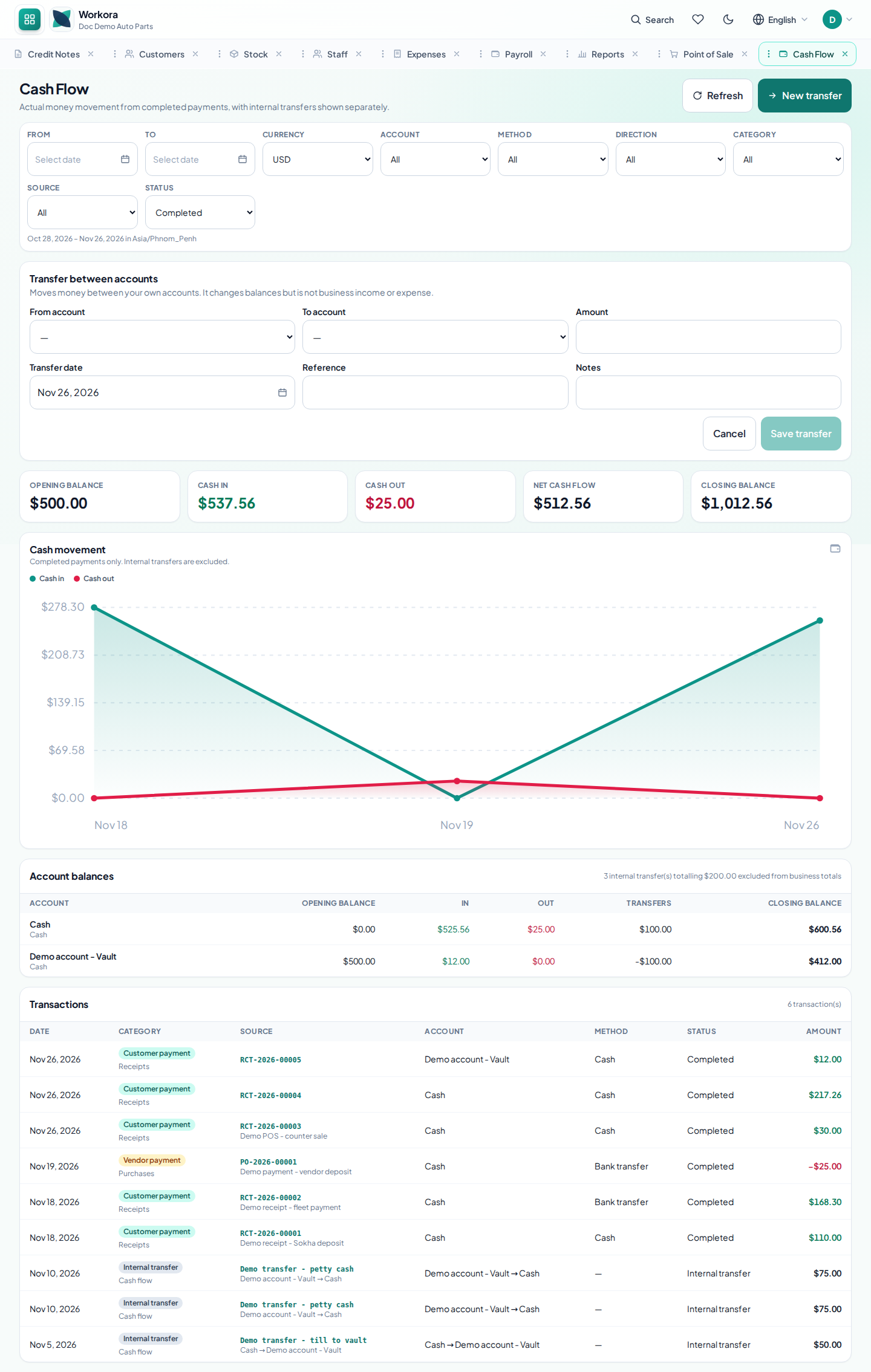
Choose New transfer, select source and destination accounts and enter the amount.
- Reconcile an account
Compare the closing balance with your bank statement or cash count.
- Open financial reports
Use Reports → Financial → Cash flow for a formal summary.
Screens and figures
Cash Flow highlights balances and recent movements in one view.
Business use case
Checking whether the workshop can restock
Before approving a large parts order, the owner opens Cash Flow and checks the bank and cash balances. Recent inflows from receipts and an outflow from last week’s purchase explain the current position. The owner schedules an internal transfer before paying the supplier.
Result
Purchasing decisions are based on current balances rather than guesswork.
Tips and common mistakes
- Only completed payments appear here; a draft payment is not cash yet.
- Transfers between your own accounts do not change total cash.
- Financial reports never add amounts from different currencies together.