Business use cases
Follow complete business scenarios that chain modules together, from first customer contact to reporting and backup.
Overview
The real value of Workora appears when modules are used together. These scenarios show how records flow between Customers, Quotes, Stock, Purchases, Invoices, Receipts, Payments, Cash Flow, Shop, Garage and Reports. Each scenario names the modules involved and the result you should see at the end.
Who this is for
Owners and managers designing how their team should use Workora.
Before you begin
Workora checks access on every request, so a screen only appears when your account is allowed to use it.
- Know your enabled modules
Open the App Center to confirm which modules are active.
- Complete onboarding
The business type and currency should be set.
- Assign roles
Each step should be performed by a role that has the needed module.
Worked examples
Choose a tab to focus on one scenario at a time. Each example names the work, the exact module screens and the record you can verify at the end. Follow one from start to finish, then adapt the quantities and prices to your own business.
A walk-in customer buys a laptop
A retail shop sells one office laptop for $650. The cashier needs the sale, the tax document, the money and the stock reduction to agree without copying numbers between screens.
-
Check the item
In Stock → Items, confirm that Office laptop has at least one unit on hand and that its price is current.
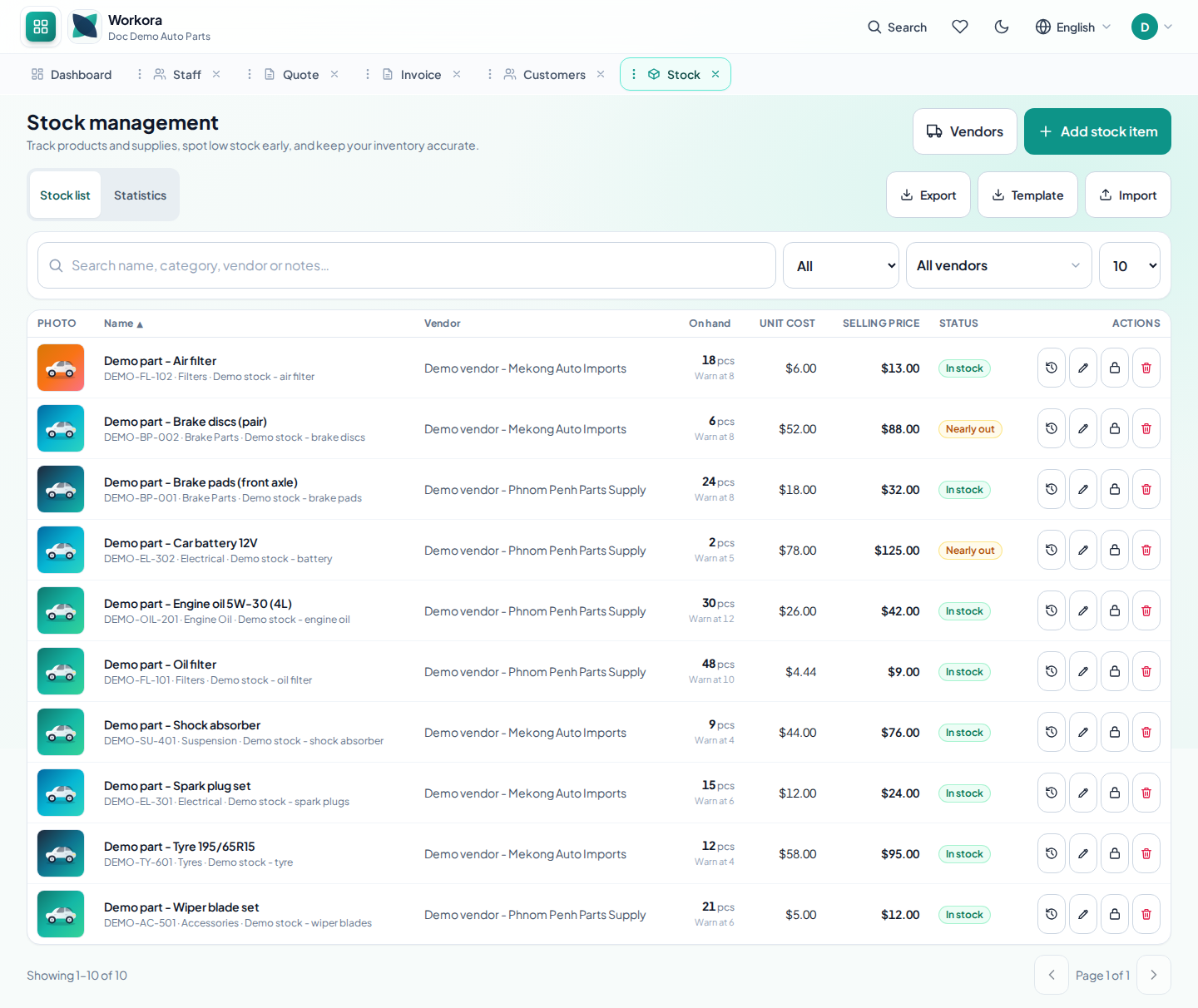
Screenshot. Stock item list with the laptop and its quantity — captured from the demo tenant. -
Sell at the counter
Open Point of Sale → New sale, add one laptop, take the cash and choose Complete sale. Workora creates the sale, issues the invoice, posts the receipt and records a completed payment in one action.
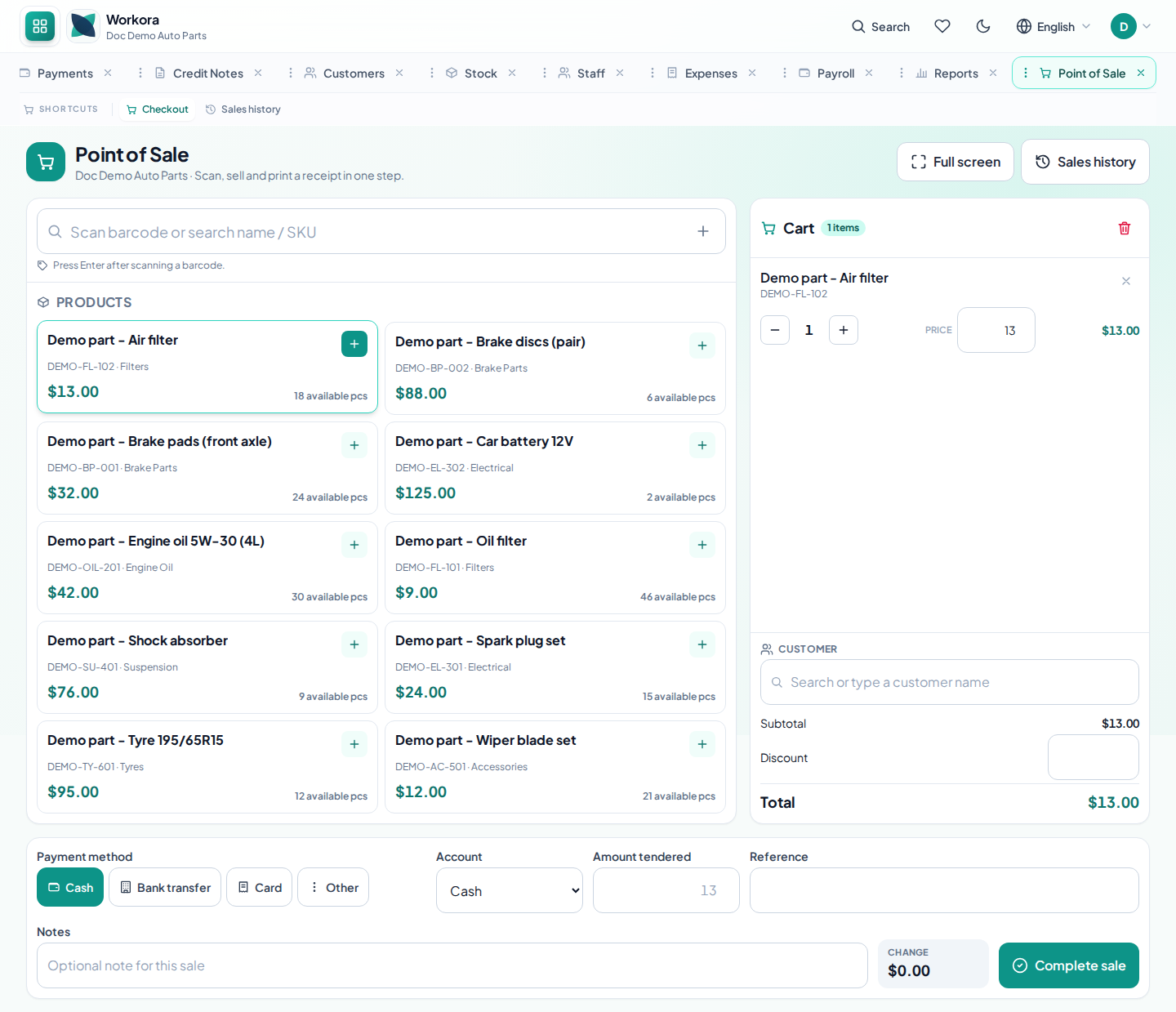
Screenshot. POS cart with the laptop selected before checkout — captured from the demo tenant. -
Hand over the document
Open Invoices and send the public invoice link or print the receipt. The customer does not need an account to see what was purchased.
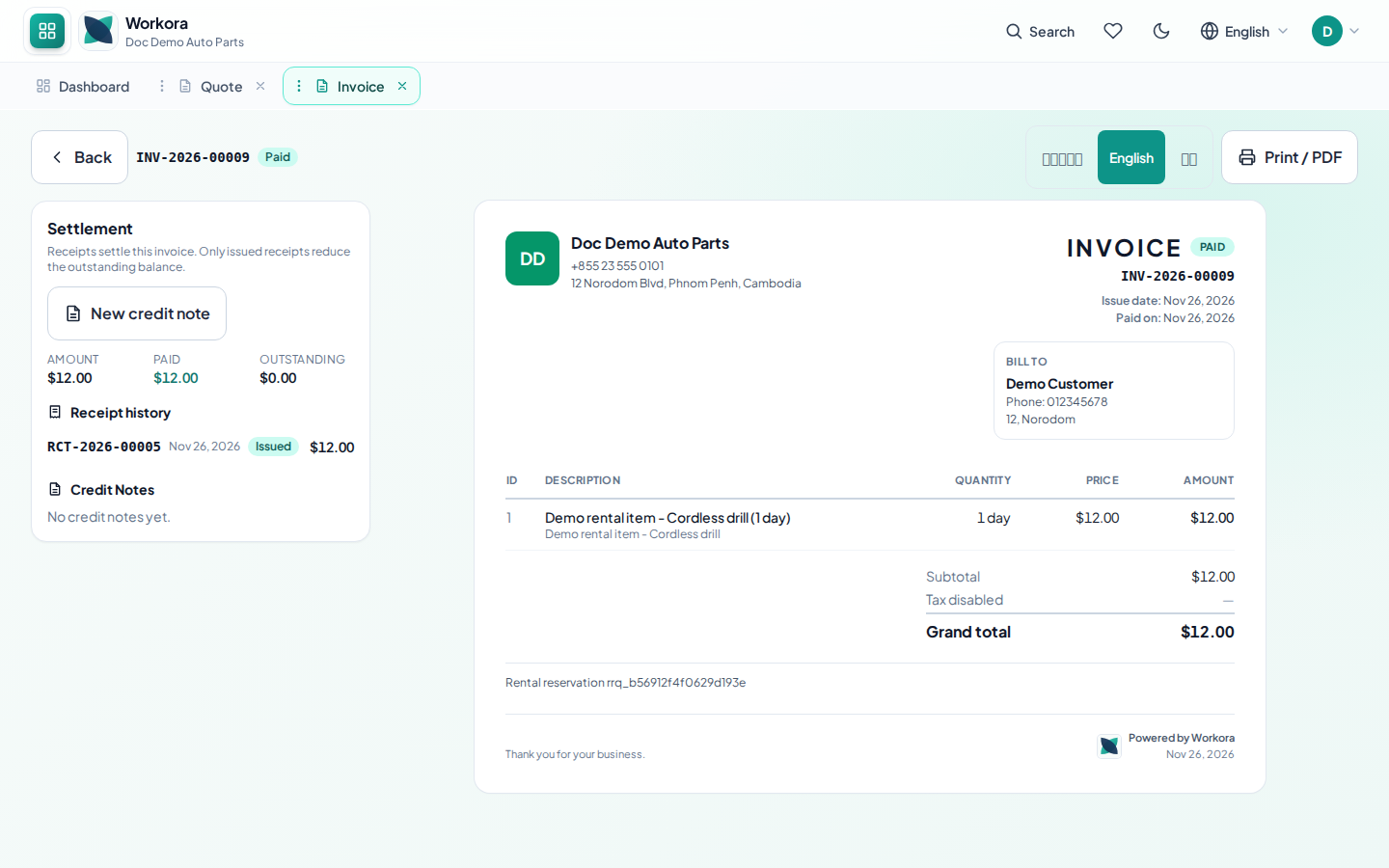
Screenshot. Issued invoice detail shared with the customer — captured from the demo tenant. -
Verify stock and cash
In Stock, the laptop quantity is one lower. In Cash Flow, the sale appears as a completed inflow linked to the receipt.
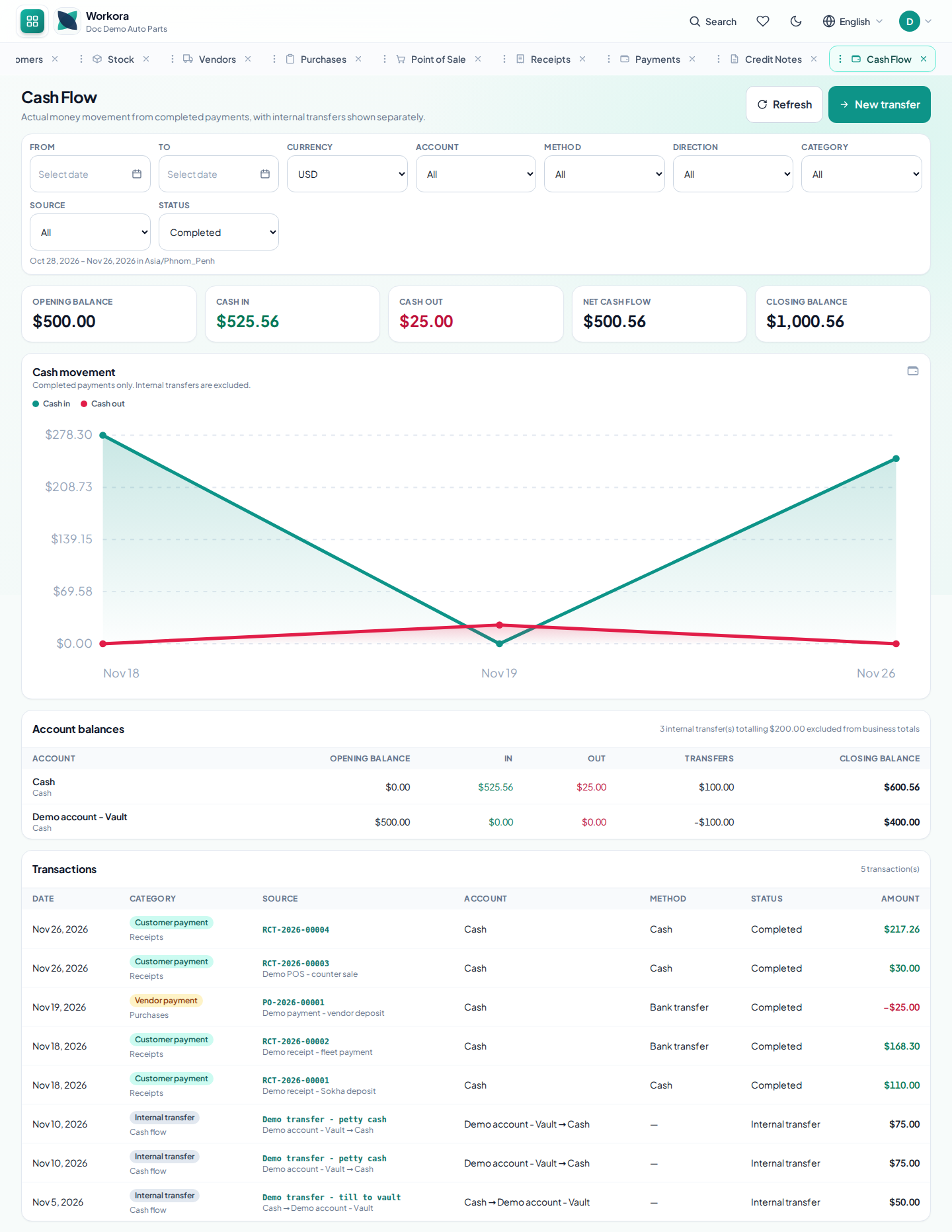
Screenshot. Cash Flow overview showing the completed sale inflow — captured from the demo tenant.
What you should see
One sale produces an issued invoice, a receipt, a completed payment and a stock movement. The amounts match on every screen.
A company approves a service quote
A service firm is asked to service two air conditioners. The price must be agreed before work starts, and the office needs a clean handover from estimate to billing.
-
Select the customer
Create or select the company in Customers, including its name and contact phone.
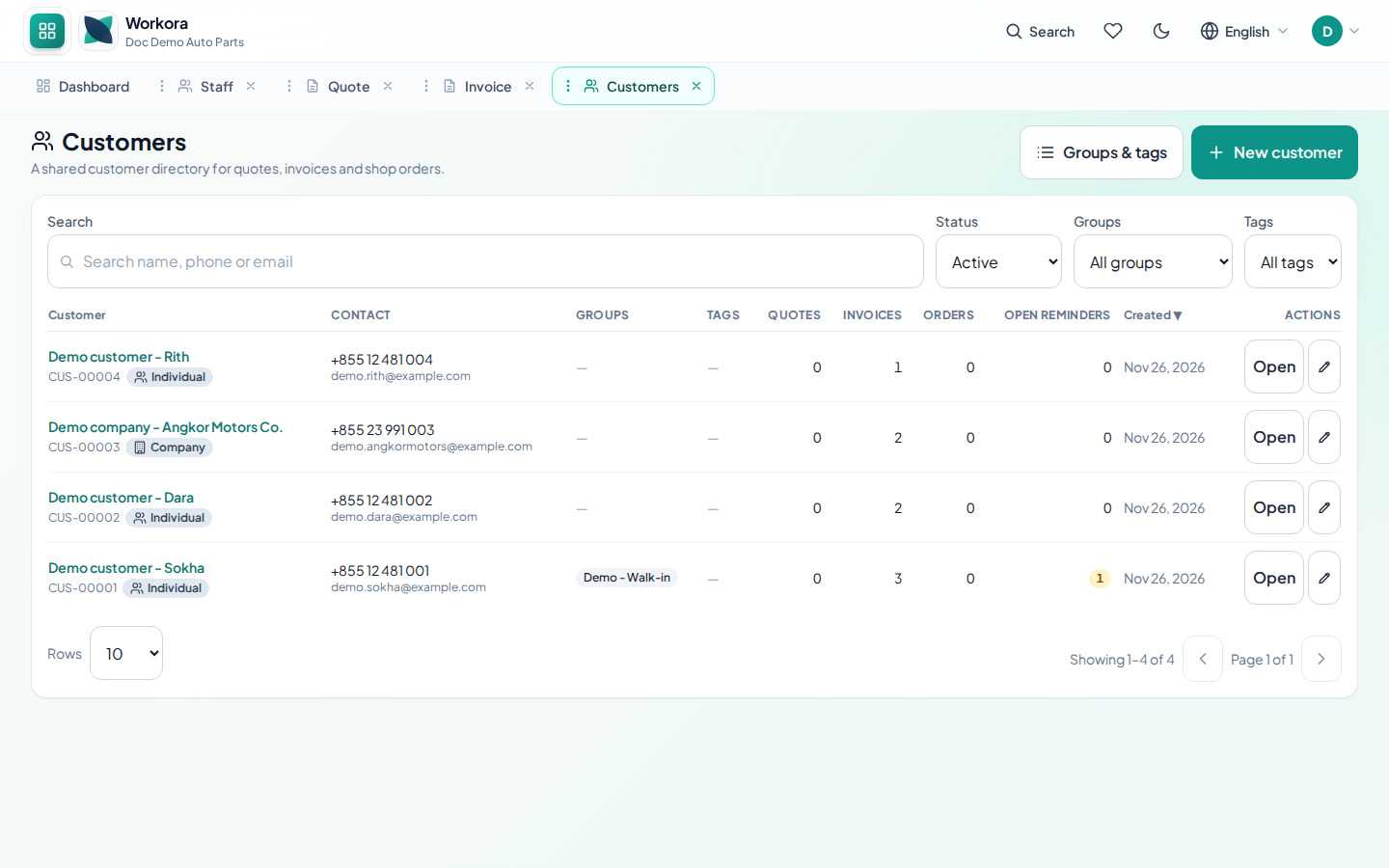
Screenshot. Customer directory with the service company record — captured from the demo tenant. -
Draft the estimate
In Quotes → New quote, add two lines: AC service at $80 each and Replacement filter at $25. Save as draft while the price is checked.
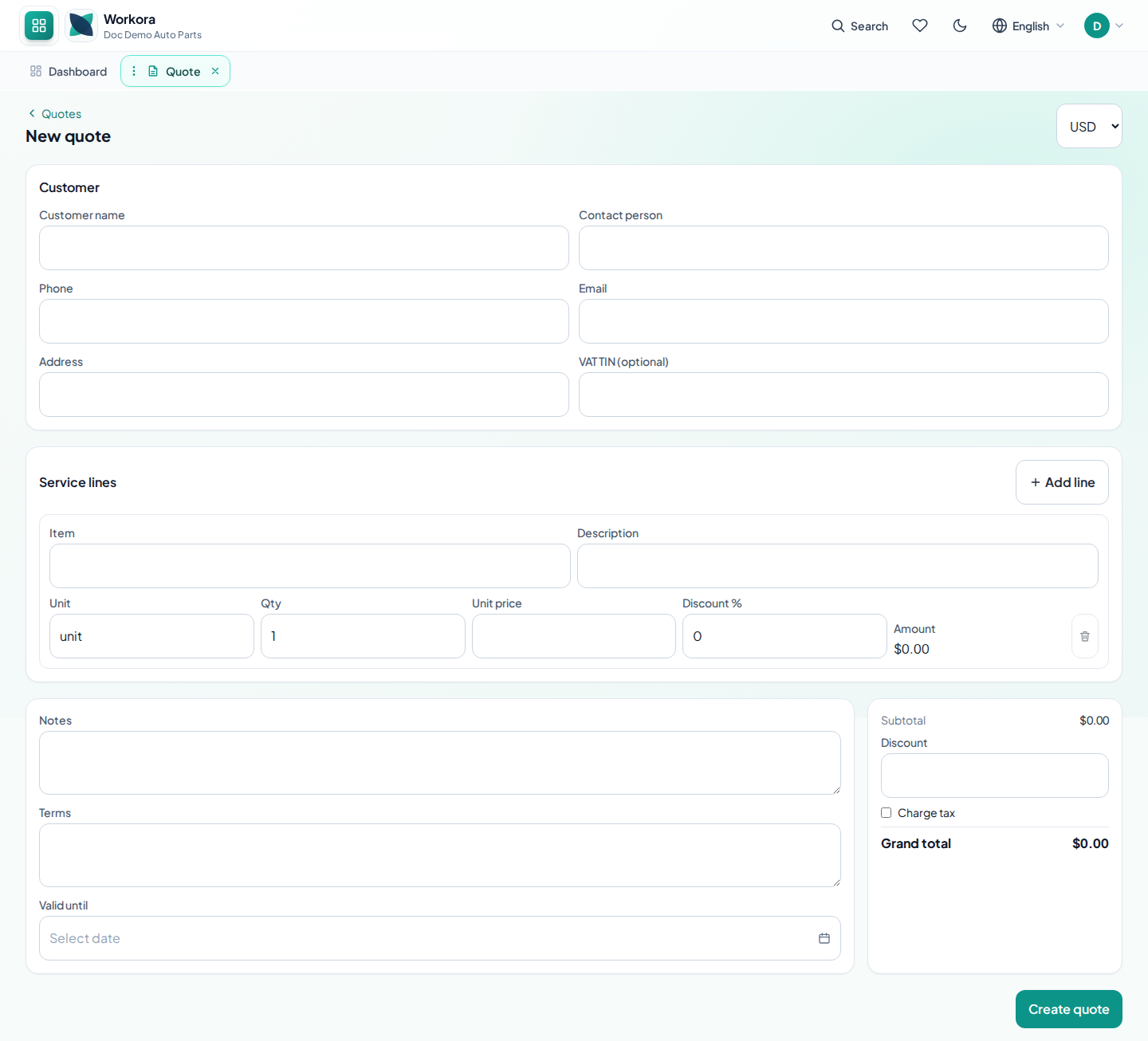
Screenshot. New quote form with the two service lines — captured from the demo tenant. -
Issue and accept
Choose Issue and send the public quote link. The customer reviews both lines without logging in and records Accept.
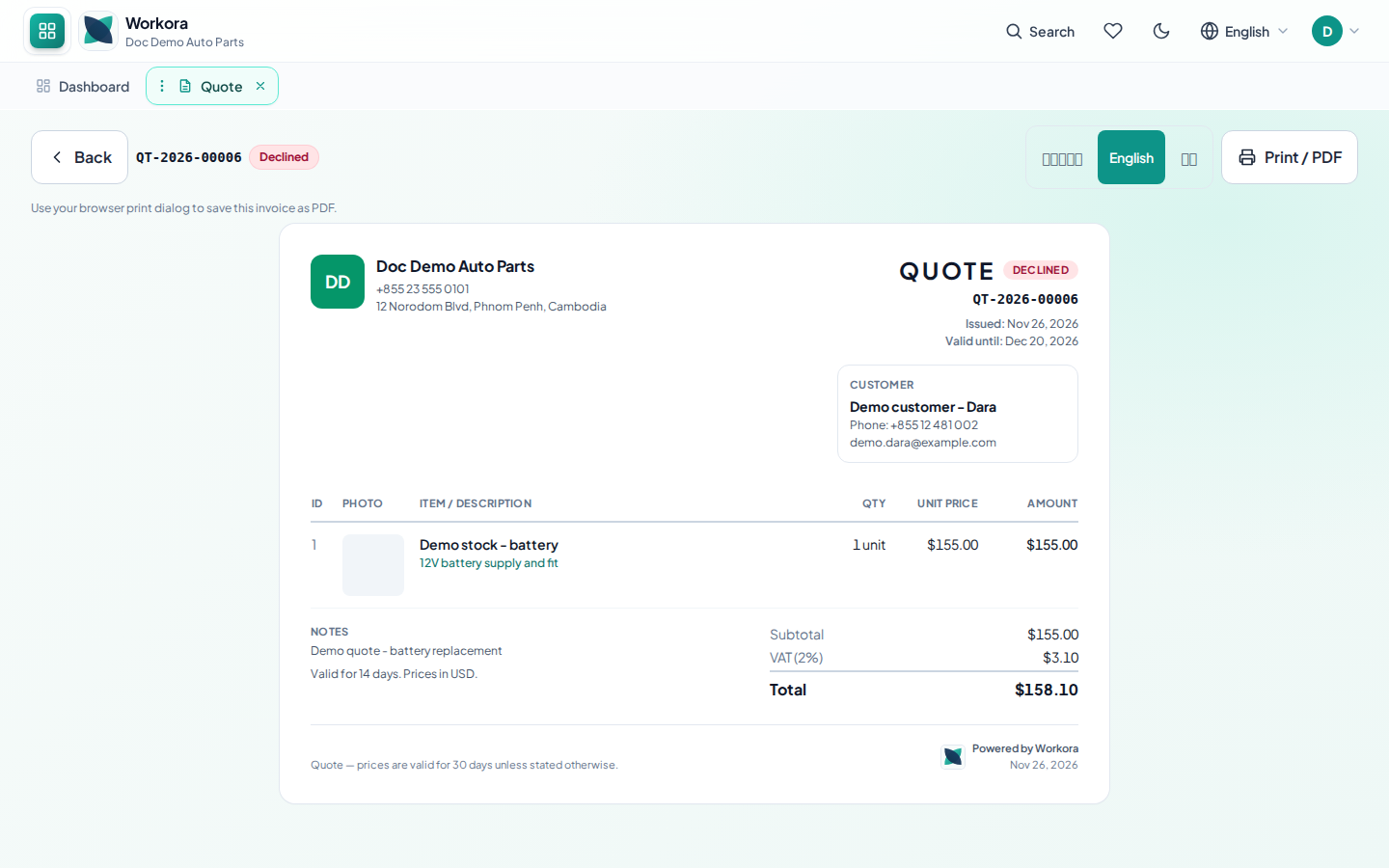
Screenshot. Issued quote detail with the public approval link — captured from the demo tenant. -
Create the invoice
On the quote detail, choose Create invoice. The accepted lines are copied, so nobody re-types $185.
Screenshot. Invoice created from the accepted quote — captured from the demo tenant. -
Record the money
When the customer pays, open the invoice and record a Receipt. The balance moves to paid.
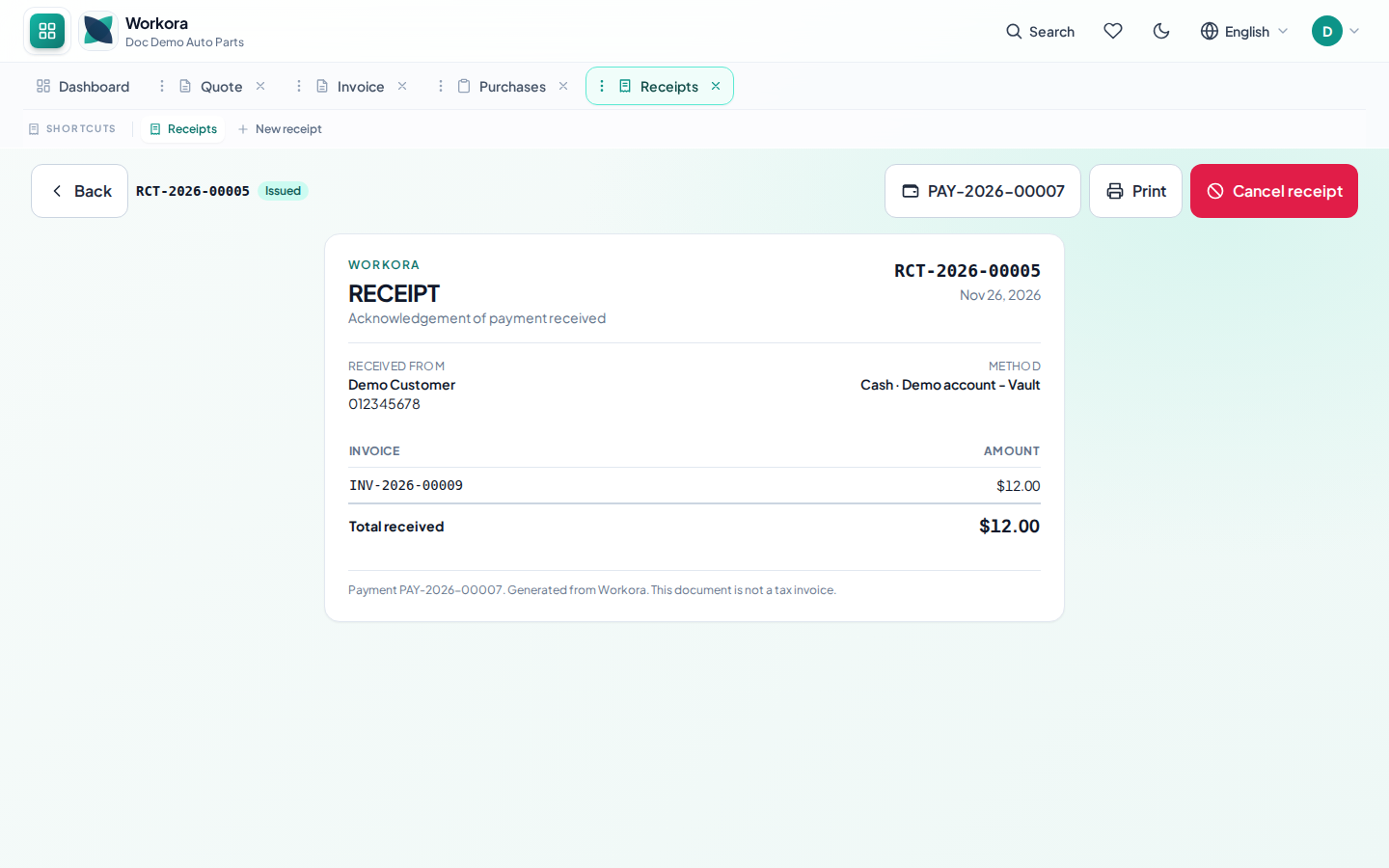
Screenshot. Issued receipt that settles the invoice balance — captured from the demo tenant. -
Check the report
In Reports, revenue for the period includes the invoice and the receipt is available as the supporting document.
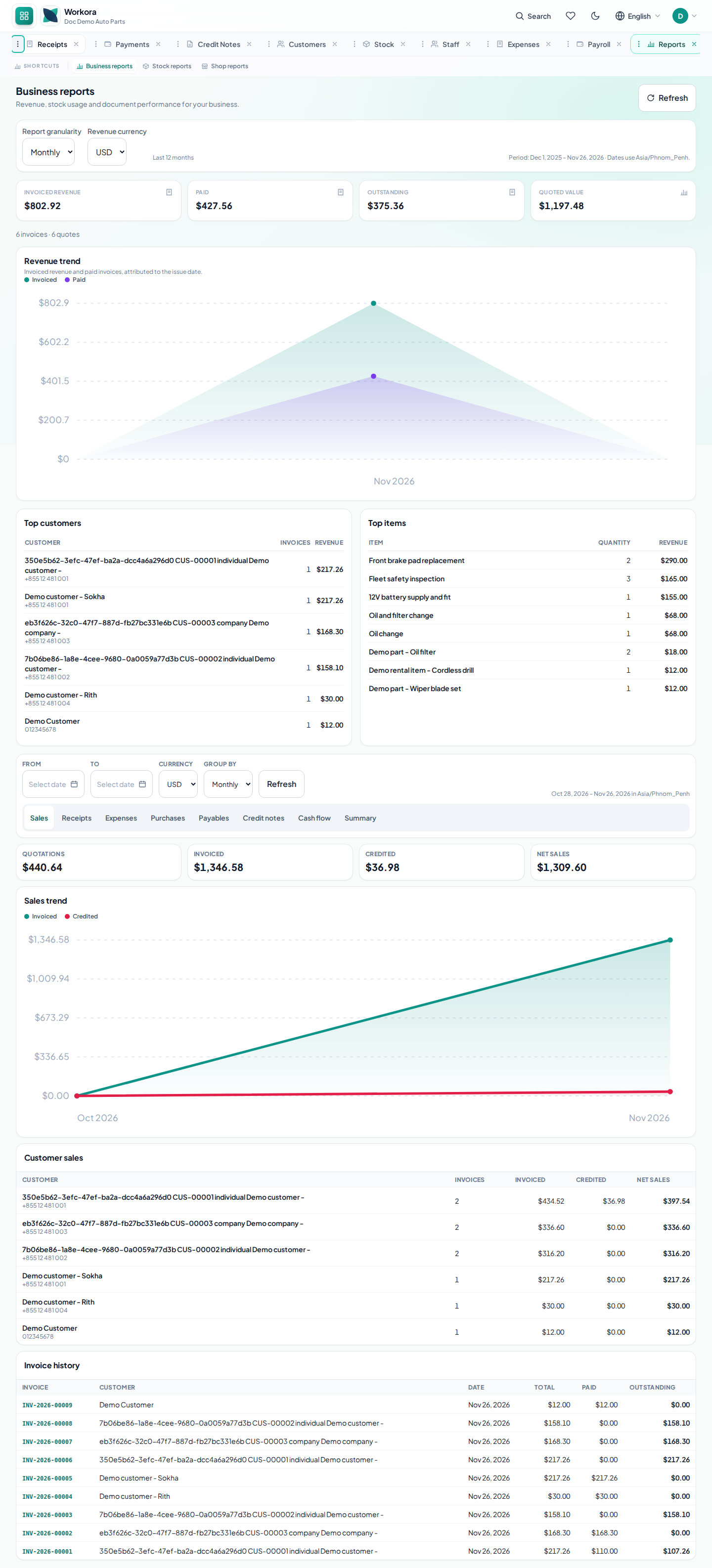
Screenshot. Receipts report supporting the period totals — captured from the demo tenant.
What you should see
The customer approved $185 before work started, the invoice carries the same lines, and the receipt closes the balance.
A shop replenishes a fast-moving item
A shop sells 50 notebooks a week. The reorder level is 10 and only 8 remain, so the owner needs to buy more before the next weekend.
-
Spot the low stock
In Stock → Items, set the reorder level for Notebook A4 to 10. The item appears in the low-stock list at 8 on hand.
Screenshot. Stock item list showing the low-stock notebook — captured from the demo tenant. -
Confirm the supplier
In Vendors, check that the supplier record and payment terms are current.
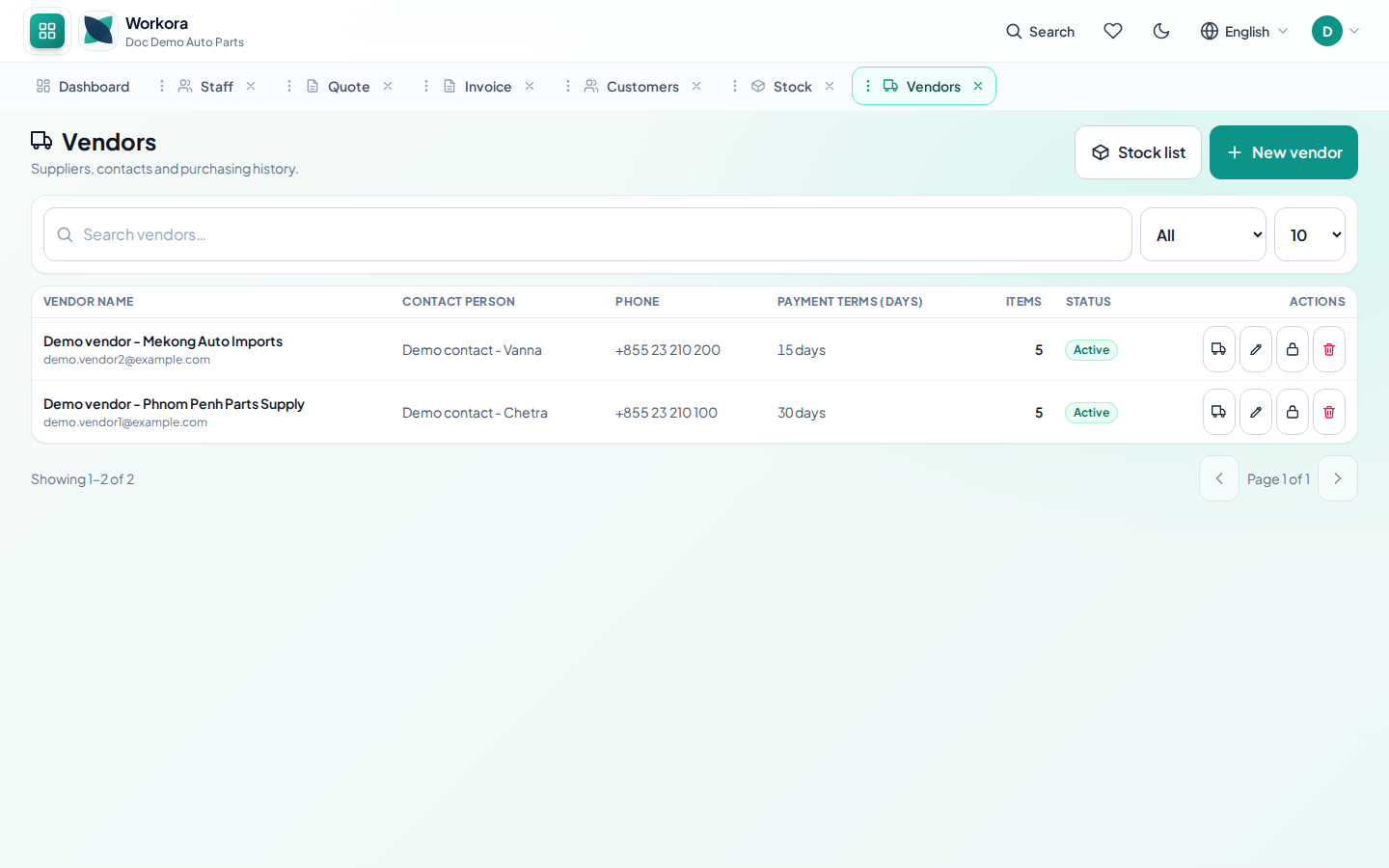
Screenshot. Vendor directory with the supplier record — captured from the demo tenant. -
Raise the order
In Purchases → New purchase order, add 50 notebooks at the agreed unit price, then approve the order.
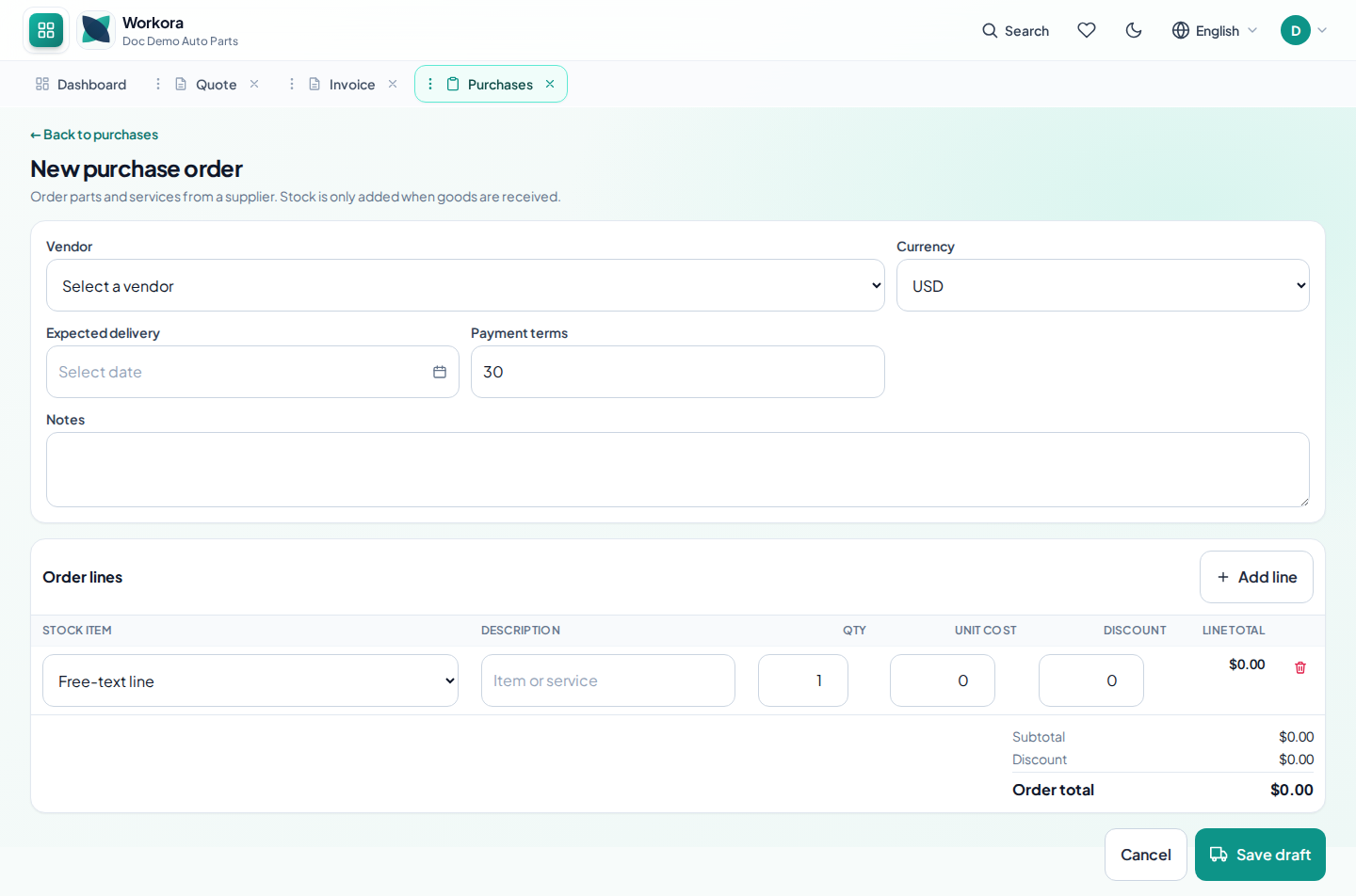
Screenshot. New purchase order with 50 notebooks — captured from the demo tenant. -
Receive the goods
Choose Receive goods against the approved order. Stock rises to 58 and the payable is created.
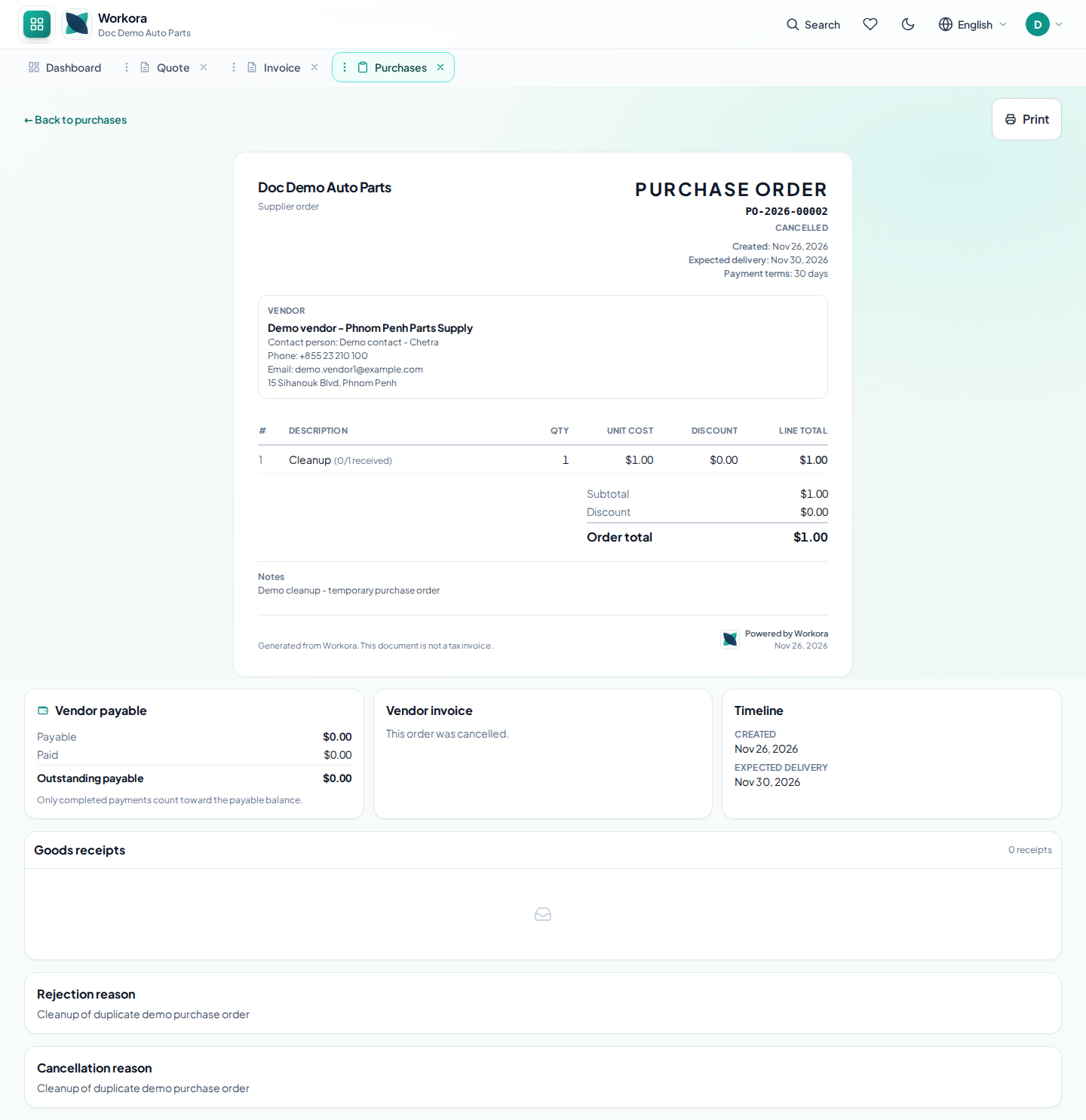
Screenshot. Approved purchase order ready to receive goods — captured from the demo tenant. -
Pay the supplier
In Payments, record the supplier payment when the invoice arrives. The payable is marked settled.
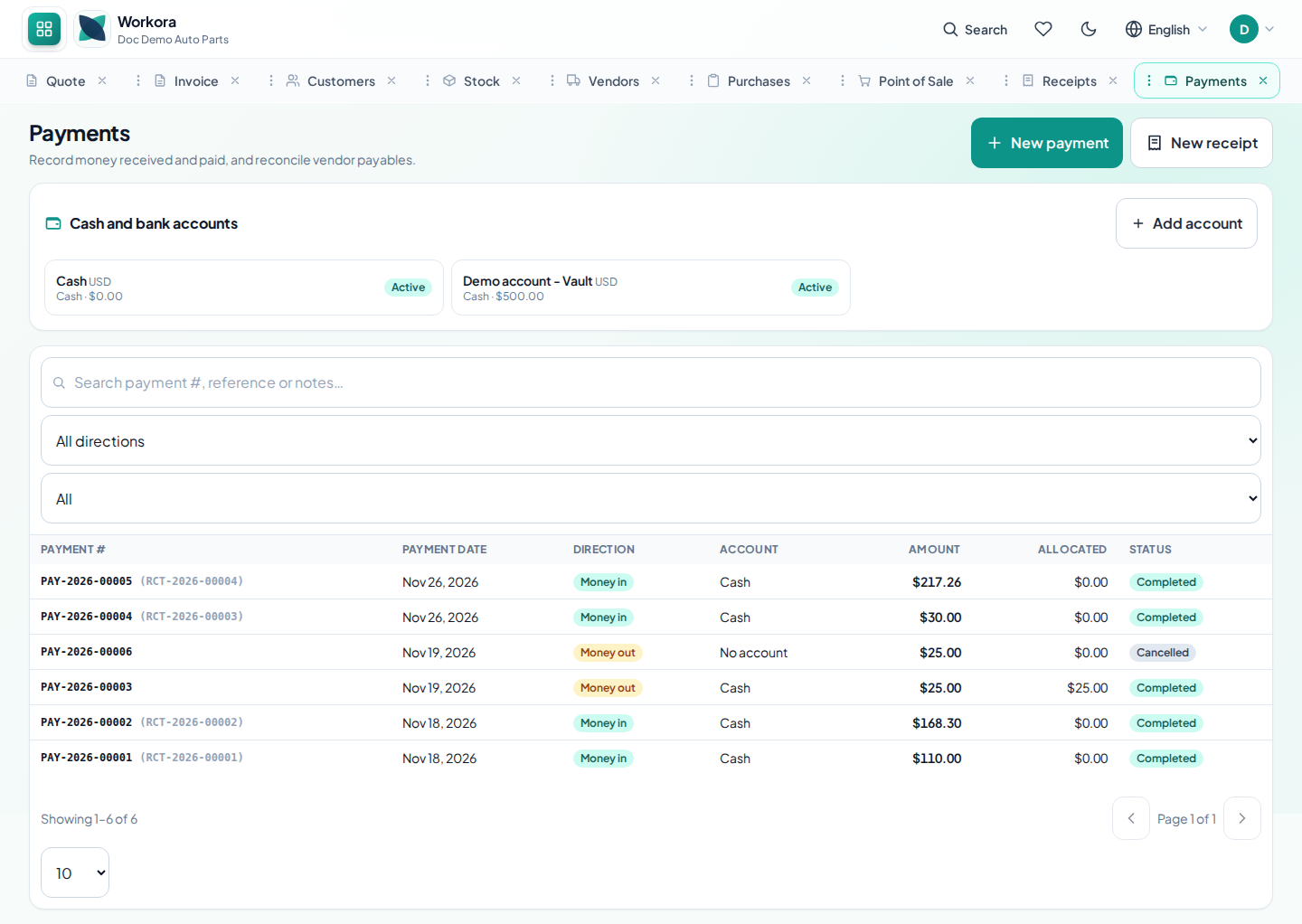
Screenshot. Payments view where the supplier payment is recorded — captured from the demo tenant. -
Confirm the result
Cash Flow shows the purchase as an outflow, and the stock report no longer flags the item.
Screenshot. Cash Flow overview showing the purchase outflow — captured from the demo tenant.
What you should see
Stock is back above the reorder level, the payable is paid, and the outflow is visible in cash flow.
A public rental QR becomes a paid reservation
A rental operator prints a catalog QR at the counter. A customer scans it from the street, asks for a generator for two days, and the operator must turn that request into an invoice and cash without asking the customer to create an account.
-
Publish and print the QR
In Rentals → Workspace → Catalog, publish the generator with a daily rate, then print the catalog QR. The QR is made to be displayed in public.
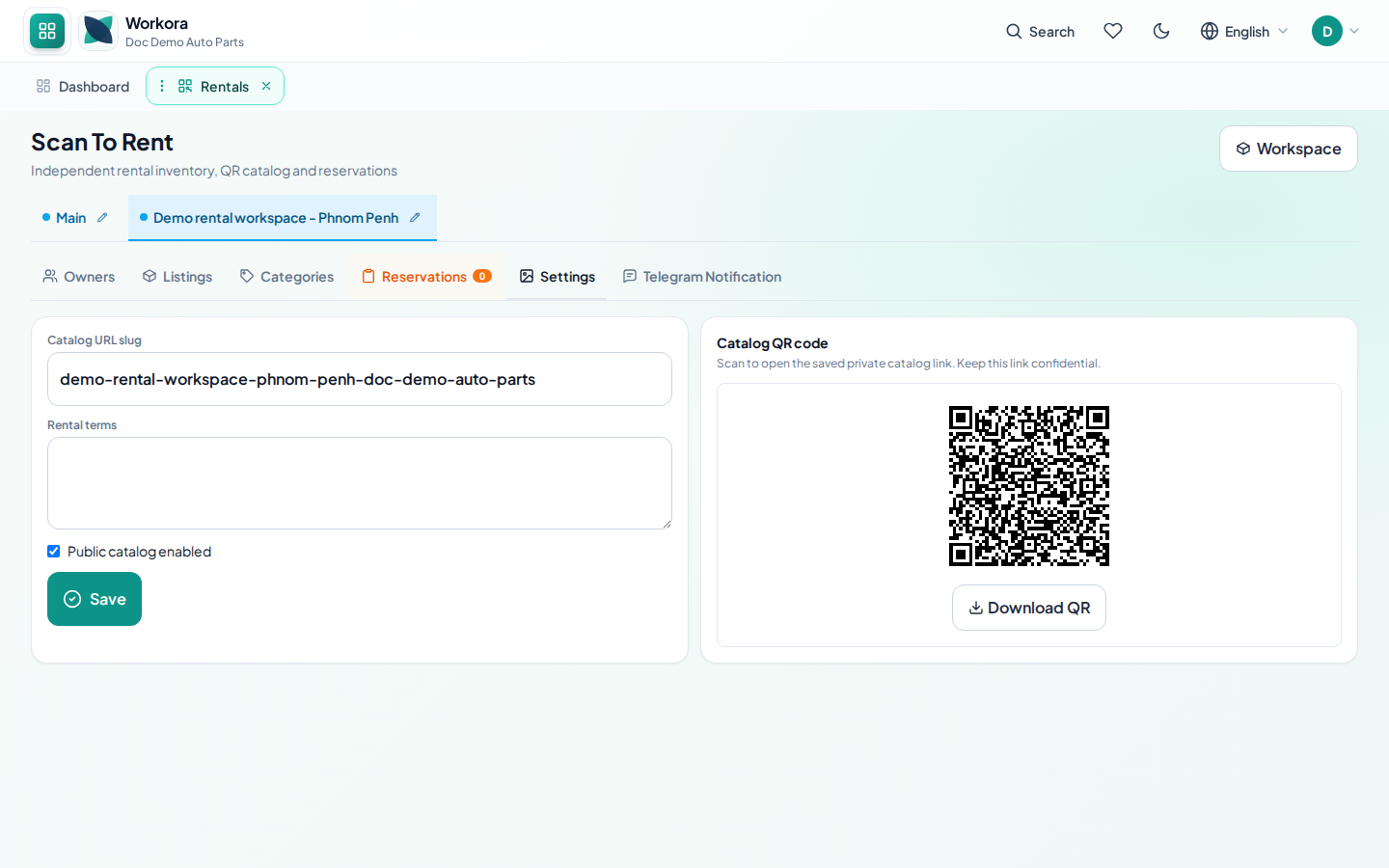
Screenshot. Catalog QR code prepared for the counter — captured from the demo tenant. -
Customer sends a request
The customer scans the code, chooses Daily Rental, sets quantity 1 and duration 2 days, enters a name and phone, then submits. No login is required.
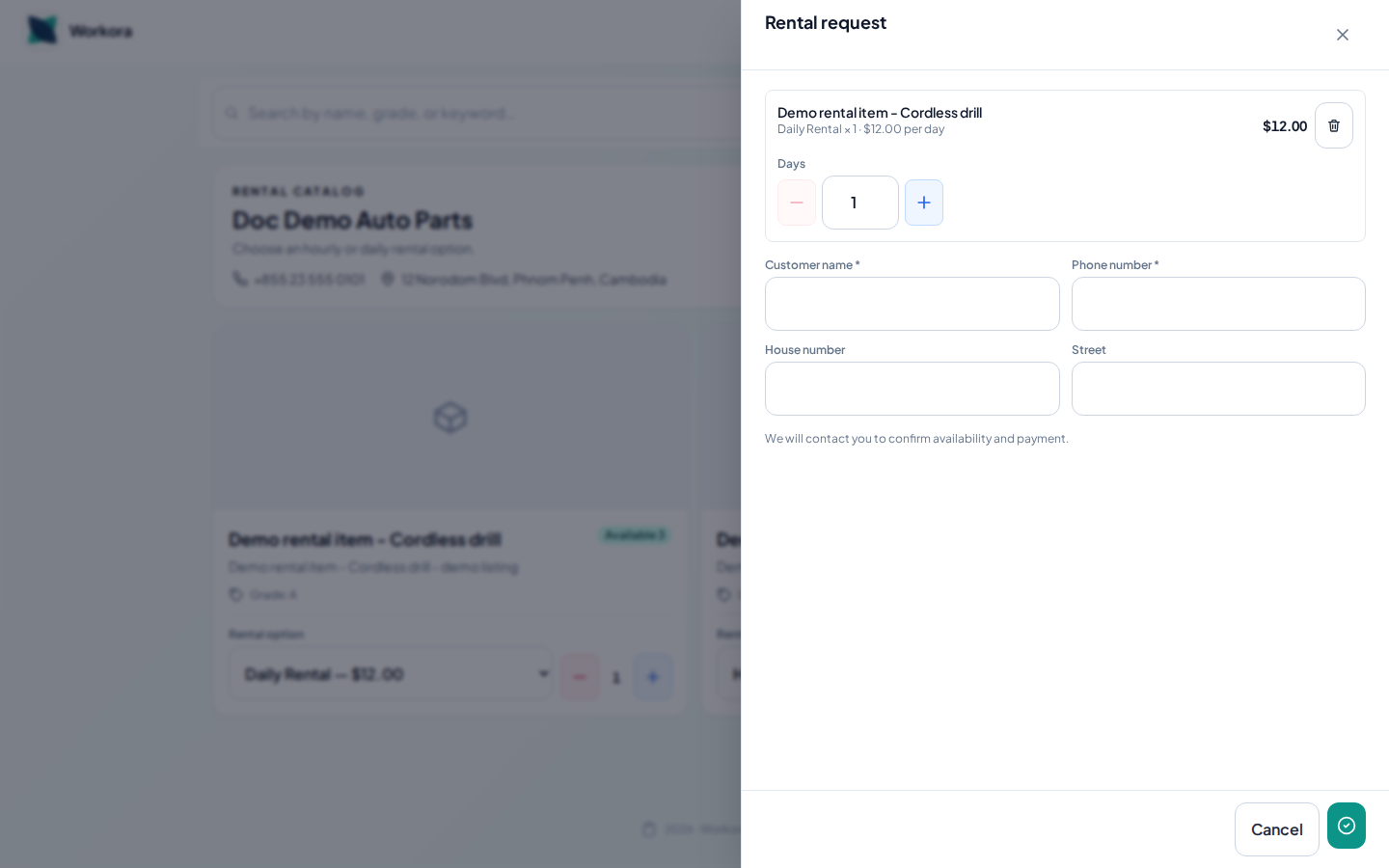
Screenshot. Customer request cart with the two-day rental — captured from the demo tenant. -
Confirm the reservation
The owner confirms the request from Rentals → Reservations. If Telegram notifications are configured, the request also arrives in the recipient chat.
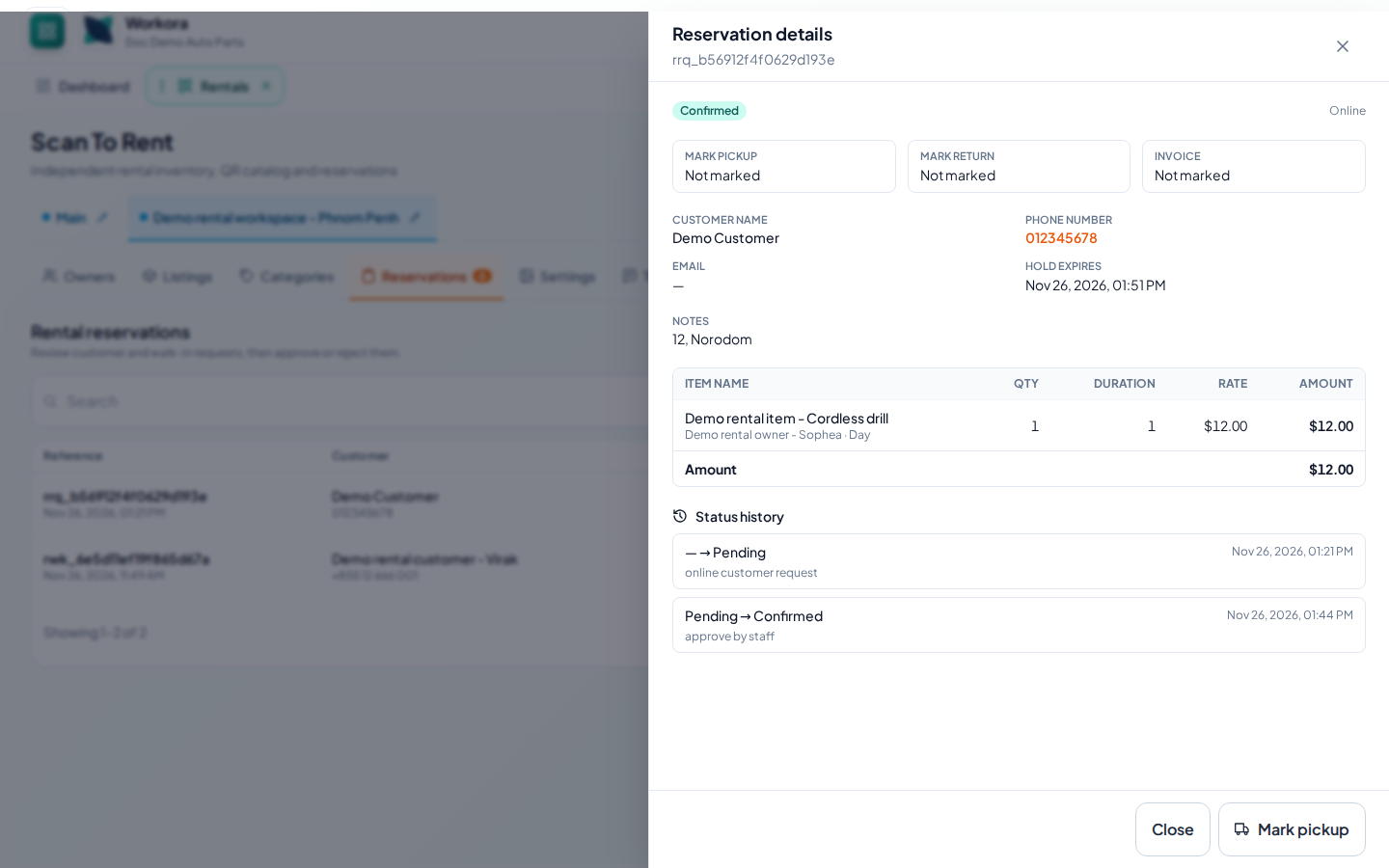
Screenshot. Confirmed reservation with the pickup milestone — captured from the demo tenant. -
Issue the invoice
From the reservation, choose Issue invoice. Workora creates an invoice with the agreed amount and a note linking it to the reservation.
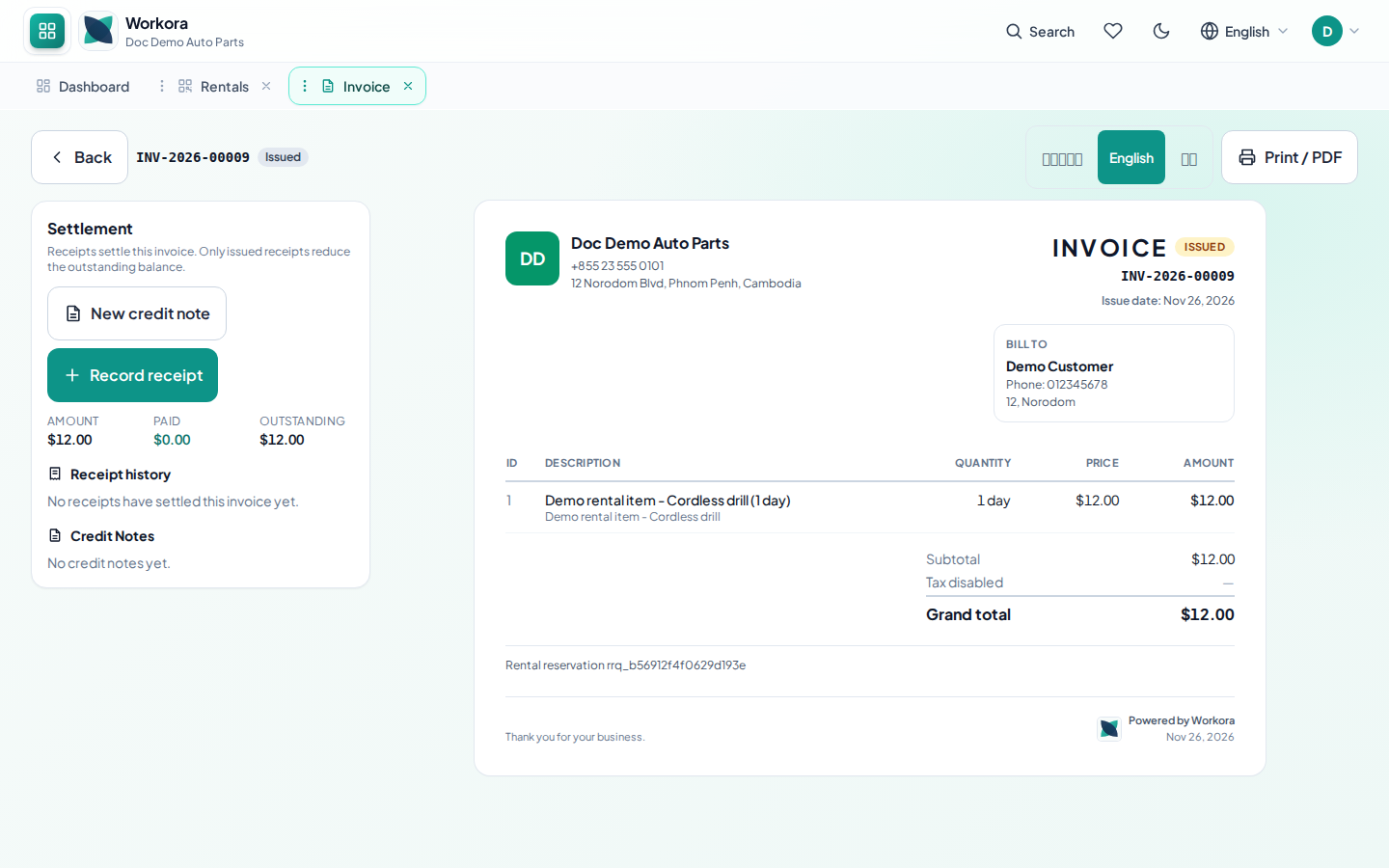
Screenshot. Invoice linked back to the reservation — captured from the demo tenant. -
Record the receipt
In Receipts, create a receipt for the invoice. The system posts the completed inflow payment and updates the invoice balance.
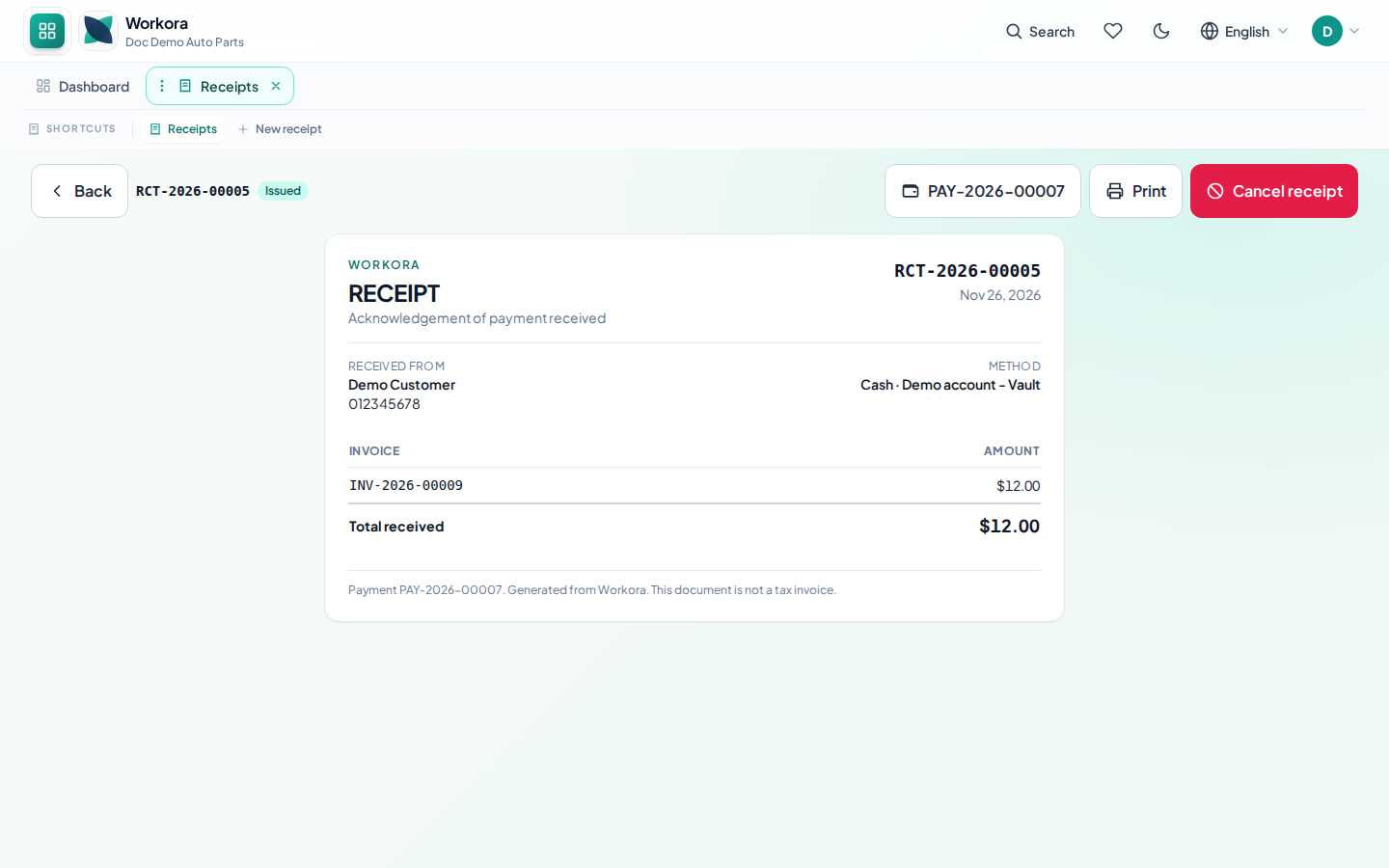
Screenshot. Receipt issued against the rental invoice — captured from the demo tenant. -
Follow the money
Cash Flow lists the payment as Customer payment from Receipts, linked to the receipt.
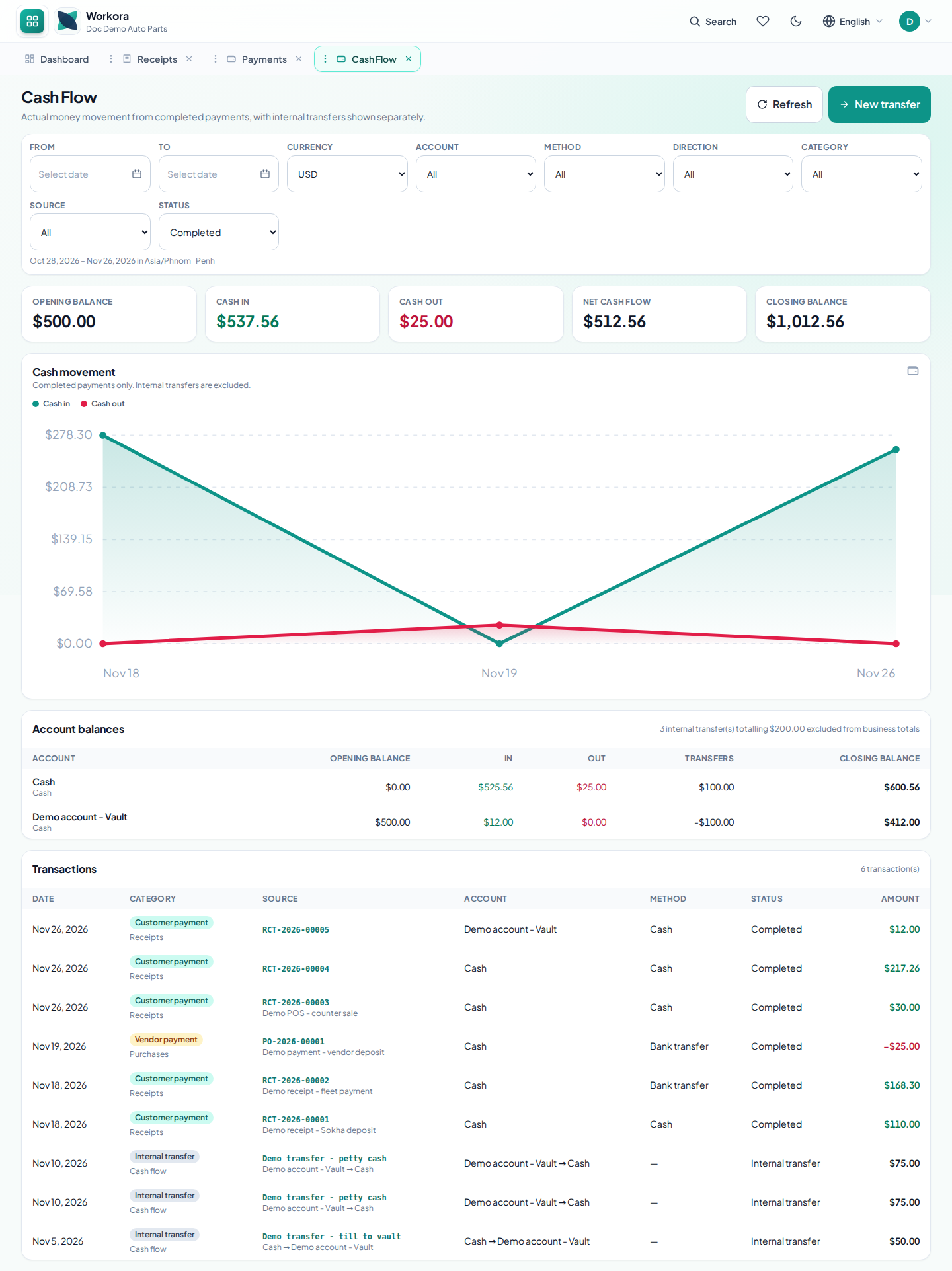
Screenshot. Cash Flow showing the customer payment from Receipts — captured from the demo tenant.
What you should see
The customer never signs in, the operator keeps one reservation record, and the full money trail is visible in Cash Flow.
A customer returns a damaged item
A customer received a broken part and does not want to pay for it. The original invoice is already issued, so the correction must keep a clear audit trail.
-
Find the original
Open the issued invoice in Invoices and note its number and balance.
Screenshot. Original issued invoice with its outstanding balance — captured from the demo tenant. -
Issue a credit note
In Credit notes, create a note against that invoice, add the returned line and its amount, then issue it.
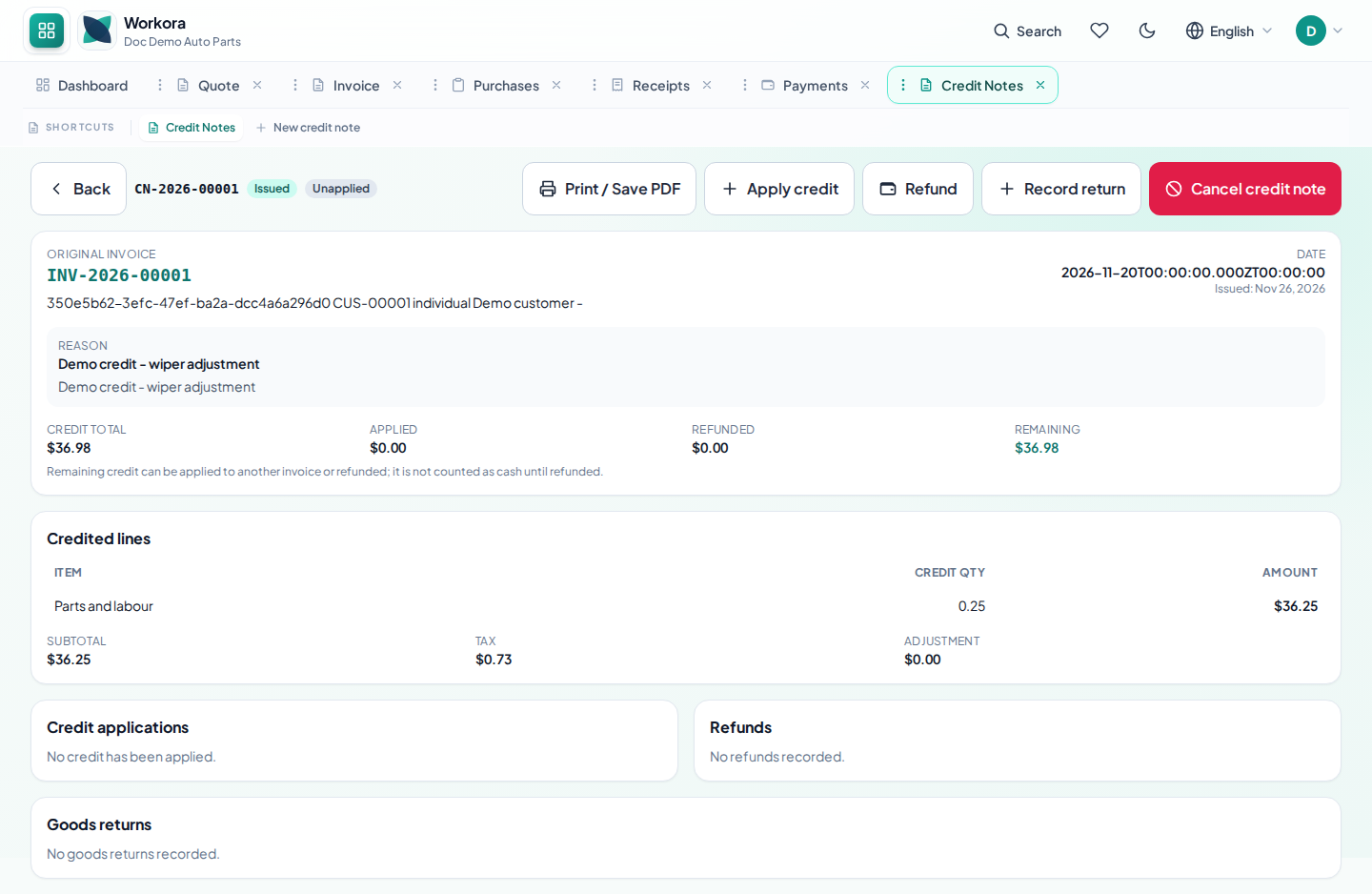
Screenshot. Credit note raised against the original invoice — captured from the demo tenant. -
Apply the credit
Apply the note to the invoice balance. If the customer already paid, record the refund as an outgoing payment.
Screenshot. Payments view where the outgoing refund is recorded — captured from the demo tenant. -
Check the result
The invoice now shows the corrected balance, and Cash Flow shows the refund as an outflow.
Screenshot. Cash Flow overview showing the refund as an outflow — captured from the demo tenant.
What you should see
The customer is made whole and the original document stays intact for the audit trail.
A customer buys from the public shop
A shop wants to sell a stock item online without maintaining a second product list. The owner publishes the item and follows the order through to payment.
-
Prepare the item
In Stock, give the item a price and photo and make sure it has stock on hand.
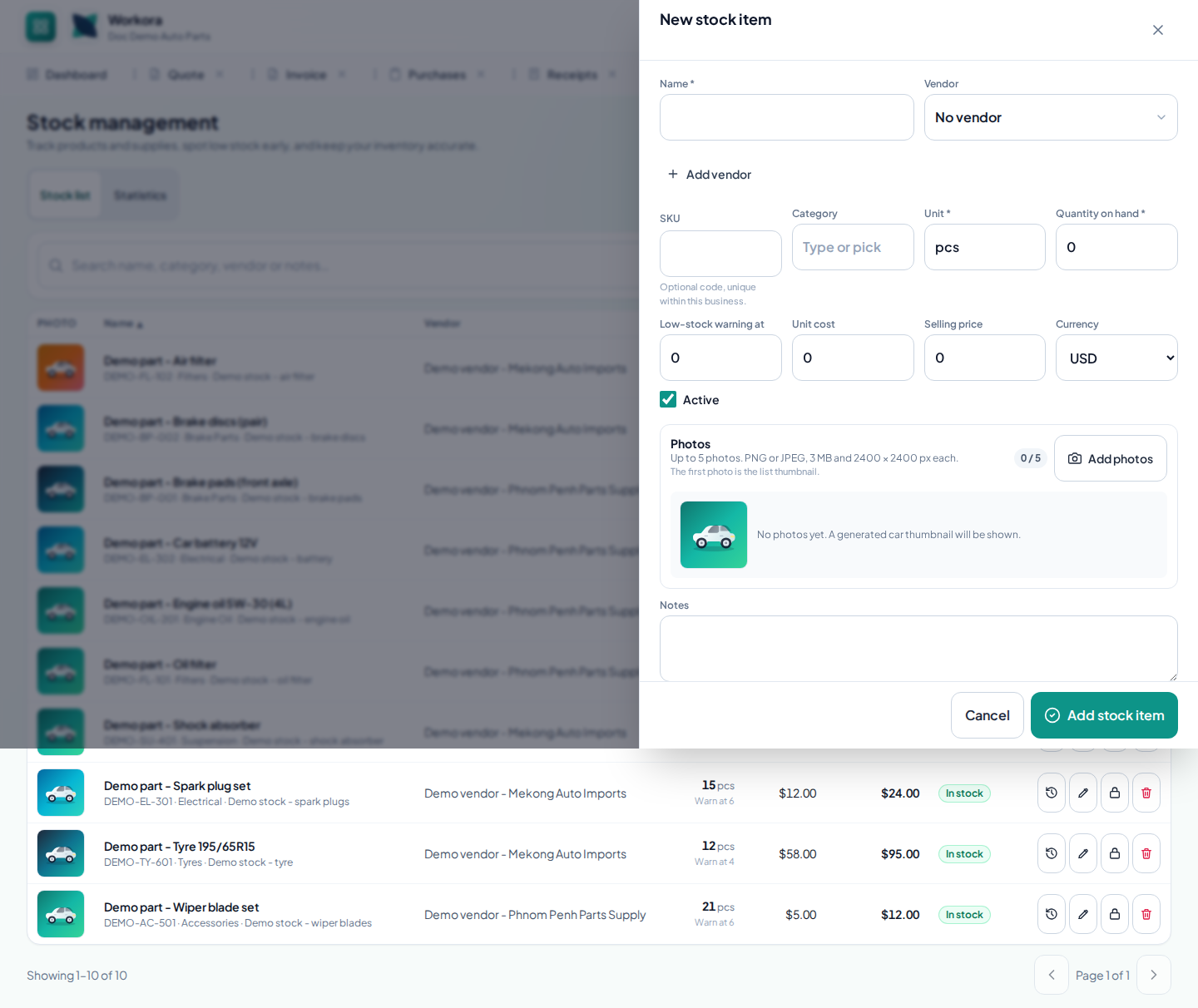
Screenshot. Stock item prepared with a price and photo — captured from the demo tenant. -
Publish the listing
In Online shop, create a listing from the stock item and publish it to the public store.
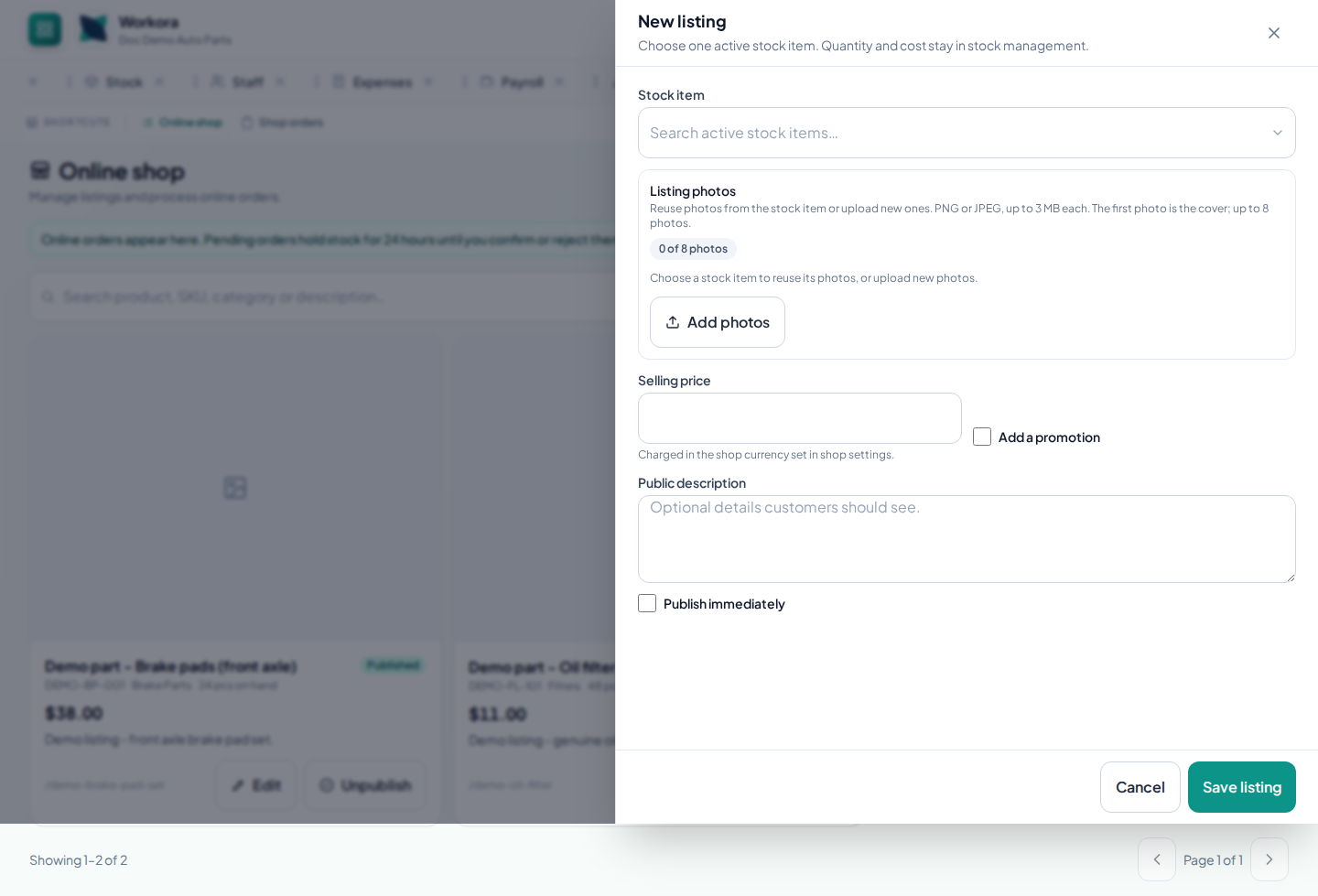
Screenshot. New shop listing created from the stock item — captured from the demo tenant. -
Follow the order
The customer places an order. Open it in Order management and move it through fulfilment.
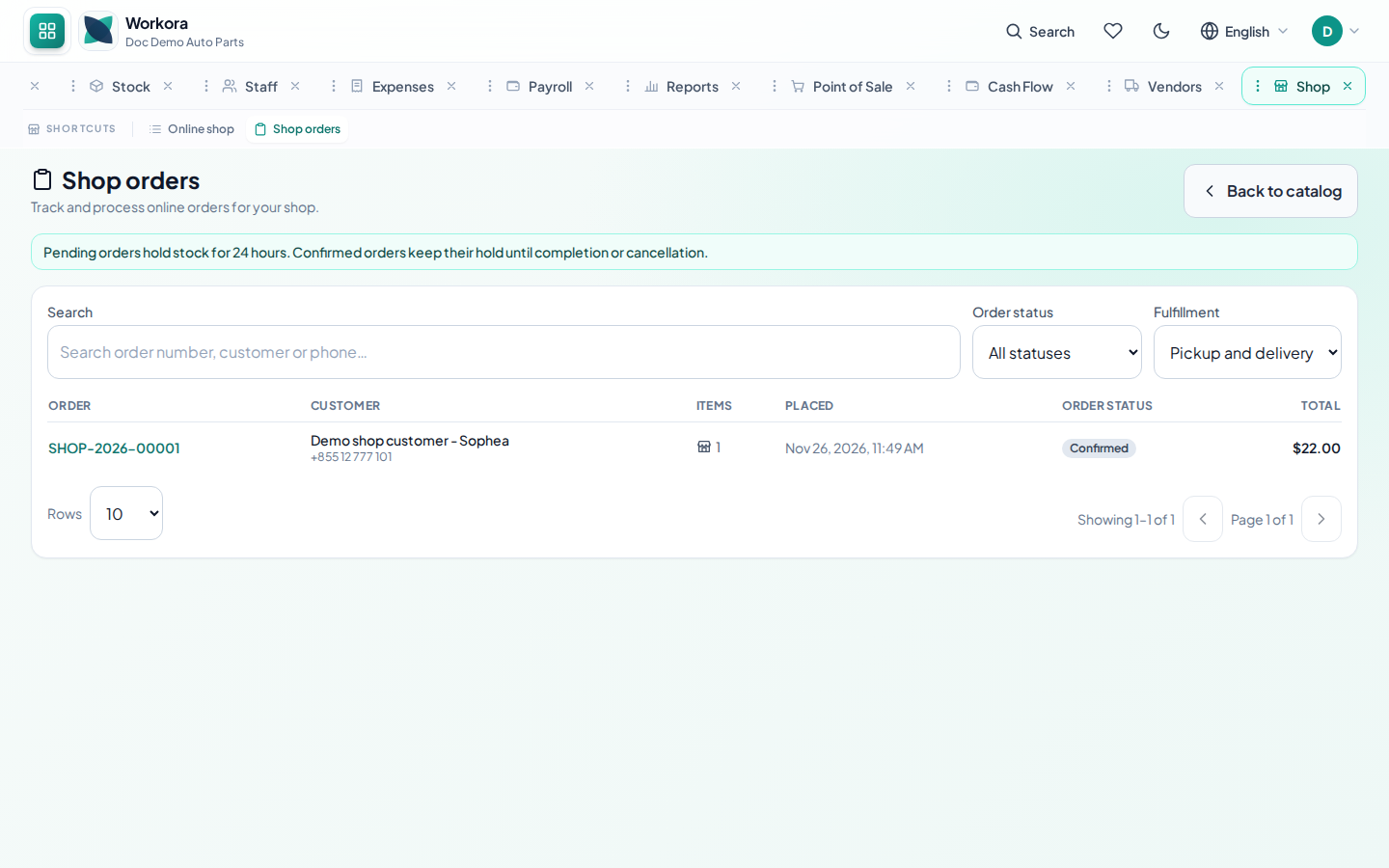
Screenshot. Shop order moving through fulfilment — captured from the demo tenant. -
Record payment and stock
Record the receipt and confirm the item quantity has fallen in Stock.
Screenshot. Receipt recorded for the shop order — captured from the demo tenant.
What you should see
The shop has a new order, the money is recorded and the stock count is correct.
The owner checks the week before closing
At the end of the week the owner wants to be sure that invoices, money and reports agree before the team starts a new week.
-
List unpaid invoices
Open Invoices and filter for outstanding balances.
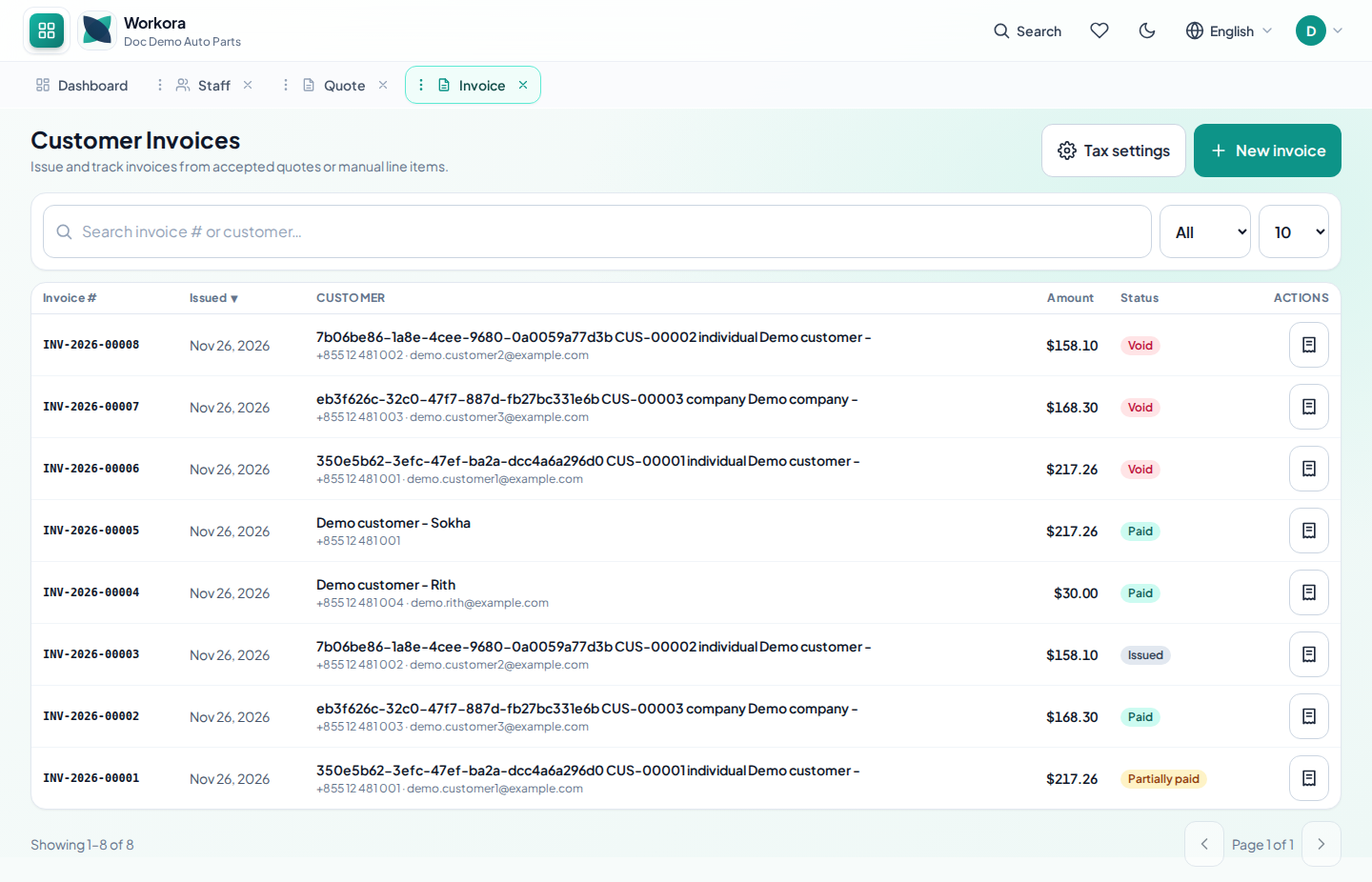
Screenshot. Invoice list filtered for outstanding balances — captured from the demo tenant. -
Match the money
In Receipts and Payments, check that each paid invoice has a matching completed record.
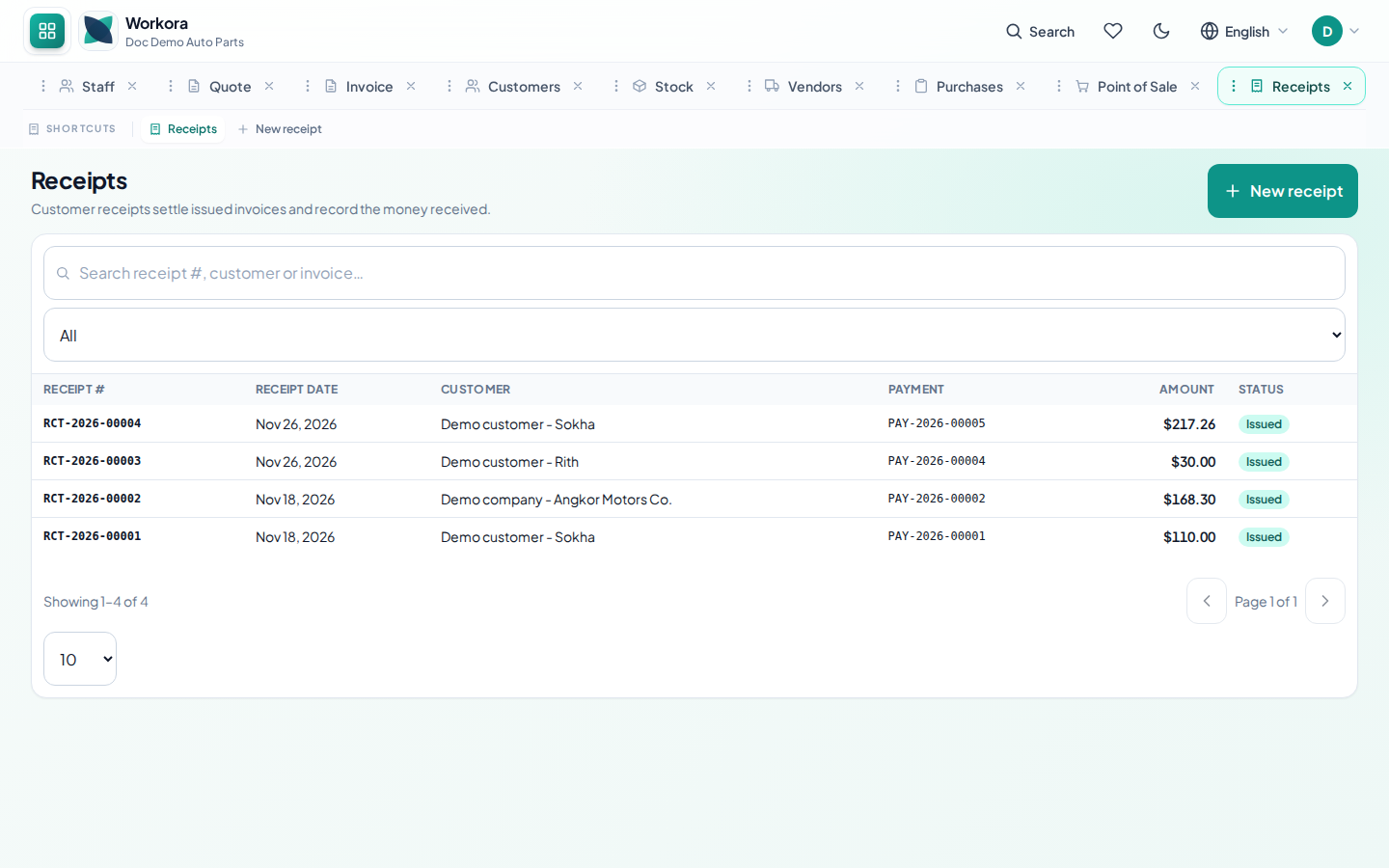
Screenshot. Receipt list used to match paid invoices — captured from the demo tenant. -
Compare the totals
Review Cash Flow and the Reports totals for the same period.
Screenshot. Cash Flow totals for the same period — captured from the demo tenant. -
Save a copy
Download a backup in Settings so the closed week can be reviewed later.
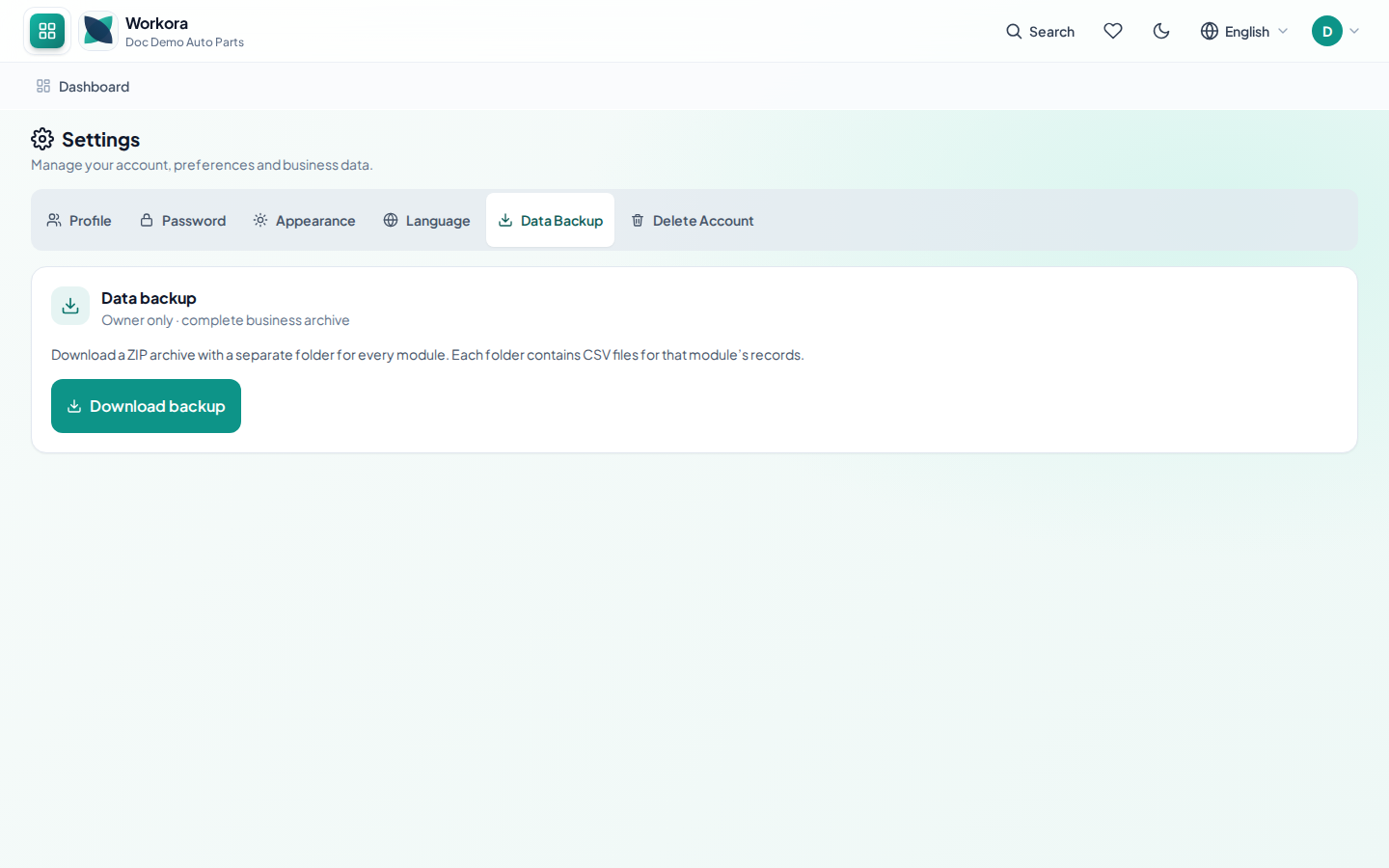
Screenshot. Download backup control in Settings — captured from the demo tenant.
What you should see
Every invoice has a matching money record, the totals agree, and a dated backup is stored.
Tips and common mistakes
- Start with two or three modules and add more when the team is comfortable.
- Use roles to keep each step with the right person.
- Finish a workflow: an approved order should be received, and an accepted quote should become an invoice.