Staff & roles
Manage staff accounts and reusable roles so every user sees only the tools they need.
Overview
A business role is a named bundle of modules such as Owner, Admin or a custom Counter Staff role. Staff accounts are assigned to one of these roles. The role modules are enforced both by the interface and by the API, so a hidden screen is also inaccessible through a direct request.
Who this is for
Owners and administrators who onboard or change team access.
Before you begin
Workora checks access on every request, so a screen only appears when your account is allowed to use it.
- Use an Owner or Admin account
Managing staff requires the Staff module and a role that includes it.
- Know your workflow
Write down which modules each job needs before creating a custom role.
- Have Stock enabled for POS or Shop staff
Those tools depend on inventory.
Step-by-step guide
Create roles first, then add people to them.
- Open Staff & roles
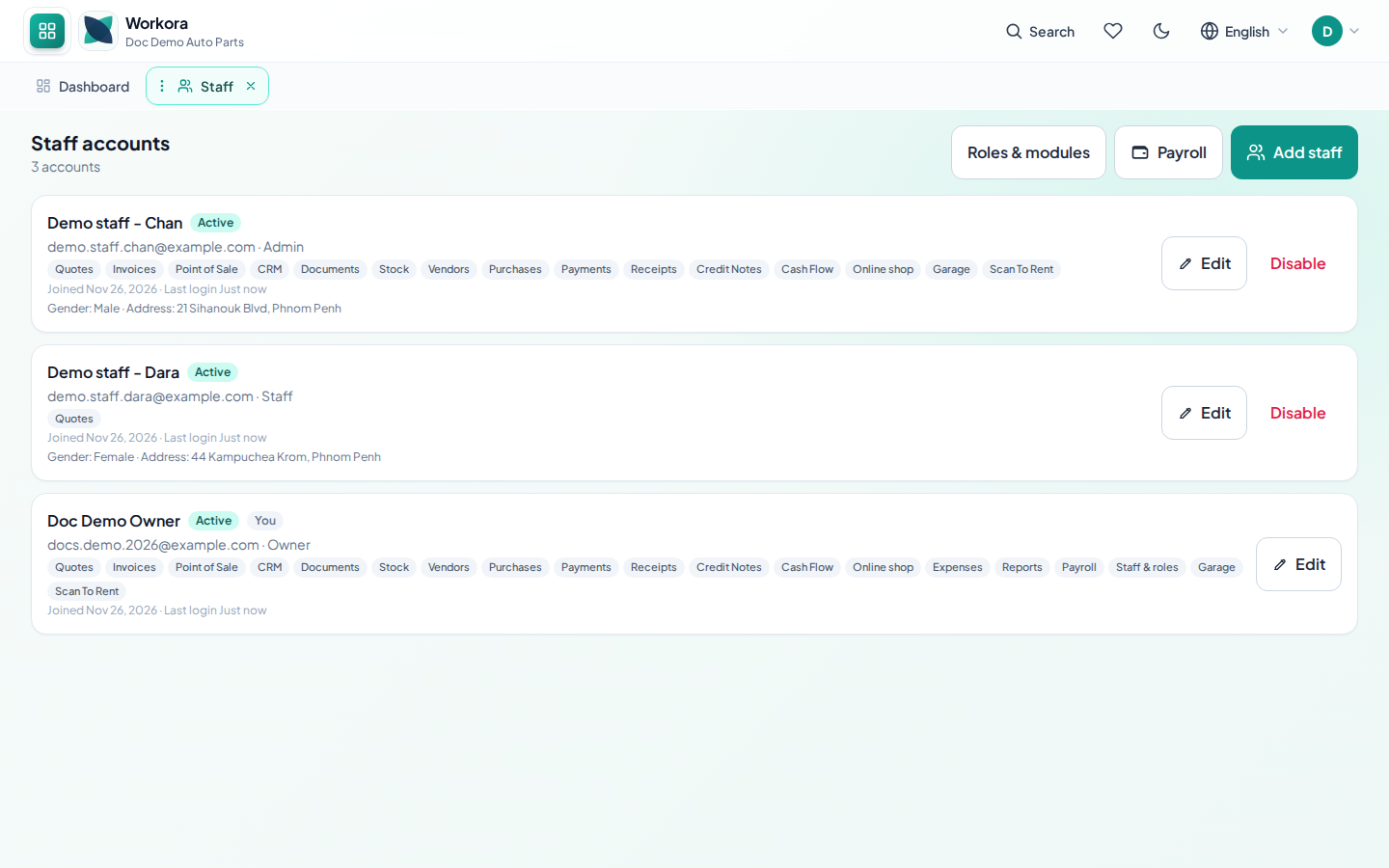
Go to Staff for people and Roles for role definitions.
- Create a custom role
Select New role, give it a clear name such as Counter Staff, and tick only the required modules.
- Save the role
You can grant only modules that your own role already holds. This prevents accidental privilege escalation.
- Add a staff account
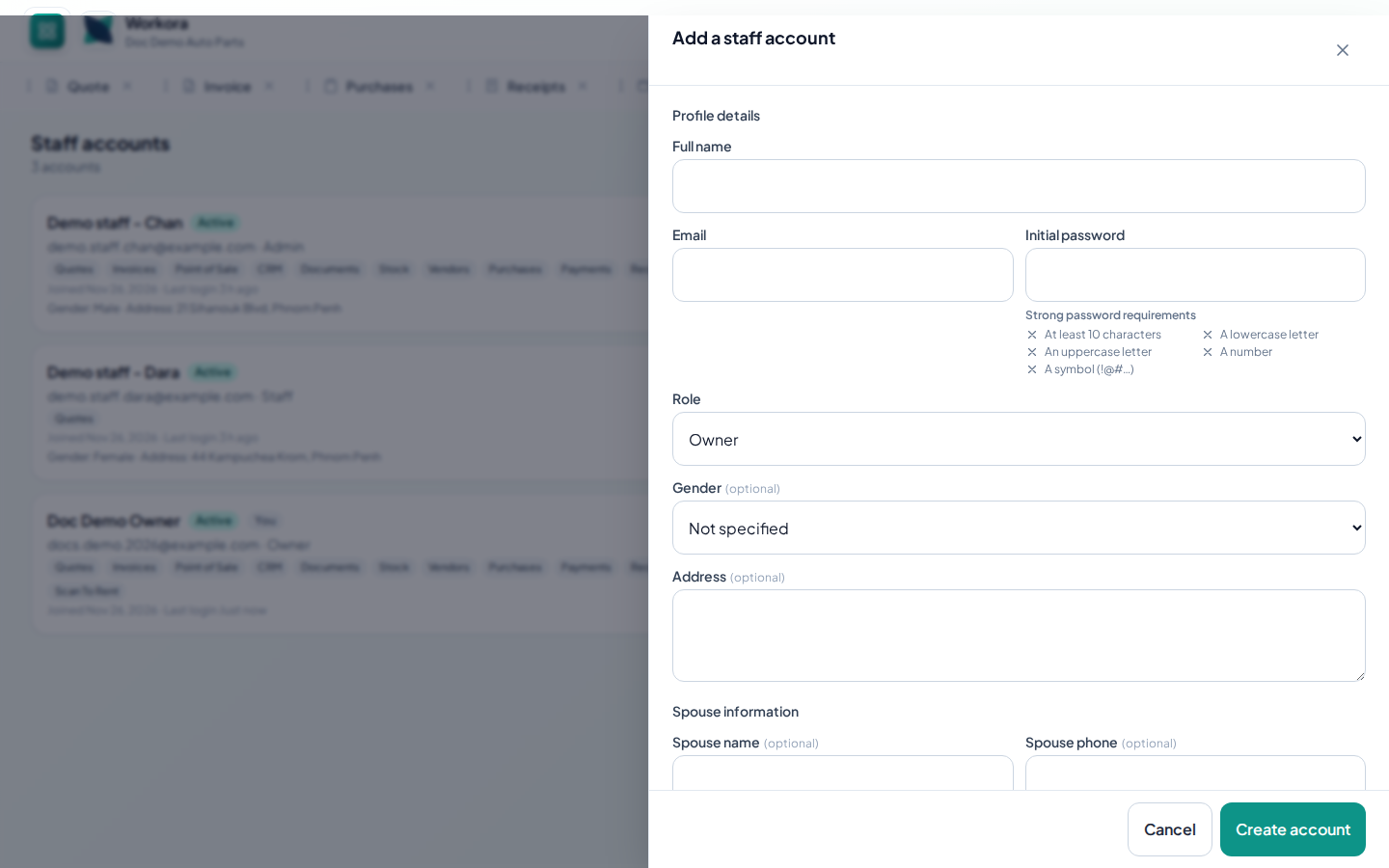
Open Staff → New user, enter the name, email and initial password.
- Assign the role
Choose the role you created and save. The user’s visible modules update on the next request.
- Review access regularly
When a job changes, edit the role or move the user to a different role instead of sharing your owner account.
Screens and figures
The role editor lists modules as checkboxes; only checked modules are accessible.
Business use case
Separating the counter from the back office
A shop owner creates a Counter Staff role with POS, Receipts and Stock. A second Back Office role receives Purchases, Payments and Reports. Two employees can work at the same time without seeing each other’s financial tools.
Result
Sensitive actions remain with the owner while daily sales continue uninterrupted.
Tips and common mistakes
- The system Owner role is protected and cannot be deleted.
- Role changes take effect immediately because permissions are re-read from the database on each request.
- Do not give every staff member the Admin role; start with the smallest module set and add only what is needed.